


Deck options
The Deck options let you customize how waveforms are displayed, control zoom, and enable performance features like Slice and Slip. These tools help you personalize the interface and improve precision while mixing.
Accessing deck options
- Load a track to the deck.
- Click the dropdown menu in the corner of the waveform next to the deck number.
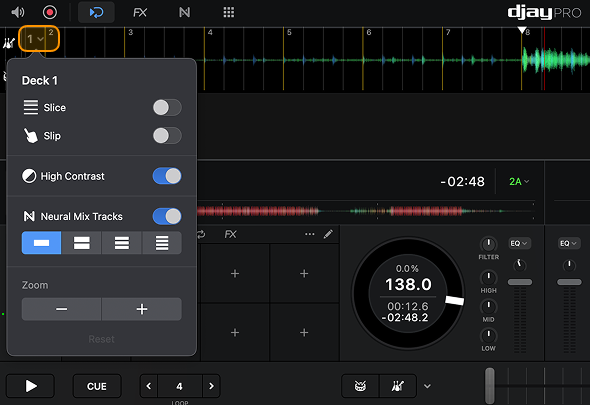
Slice
Slice splits a looped section of the track into smaller slices that you can trigger in real time. This gives you more creative ways to remix a song during playback.
Find out more in the Slice section.
Slip
Slip mode keeps the track playing silently in the background while you scratch, backspin, or juggle cues. When you release, playback snaps to where the track would have been, so you never lose your place.
Learn more in the Slip mode section.
High contrast
High contrast increases the visibility of the waveform by boosting contrast against the background.
Neural Mix™ waveforms
Choose to display separate waveforms for drums, harmonics, and vocals, making it easier to identify and isolate stems visually.
Zoom
Zoom adjusts the level of detail you see in the waveform, helping with manual beatmatching and precise cue placement. Each waveform offers four levels of zoom, so you can see as much detail as you need.