


Volume and output settings
Managing your volume and audio outputs is key to sounding great, whether you’re practicing at home, streaming online, or performing live. djay gives you flexible options to control your mix volume, route audio to external devices, pre-cue tracks in your headphones, and even connect microphones or booth monitors.
This section walks you through the essential settings so you can tailor your setup to match your gear, your environment, and your workflow.
Main Volume
Control your mix’s overall output volume using the Main Volume slider in the main toolbar. Move the slider left to decrease volume, right to increase it.
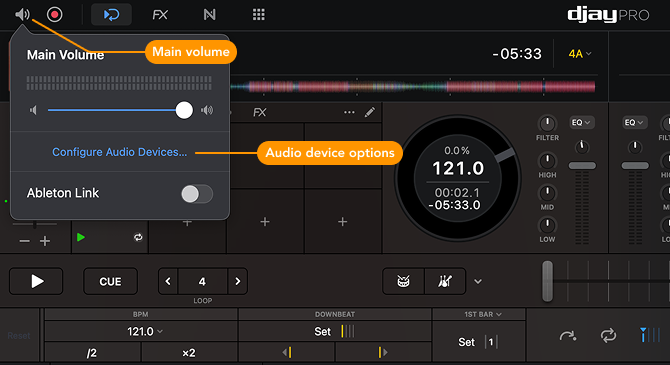
To change your audio settings or device preferences, click Configure Audio Devices.
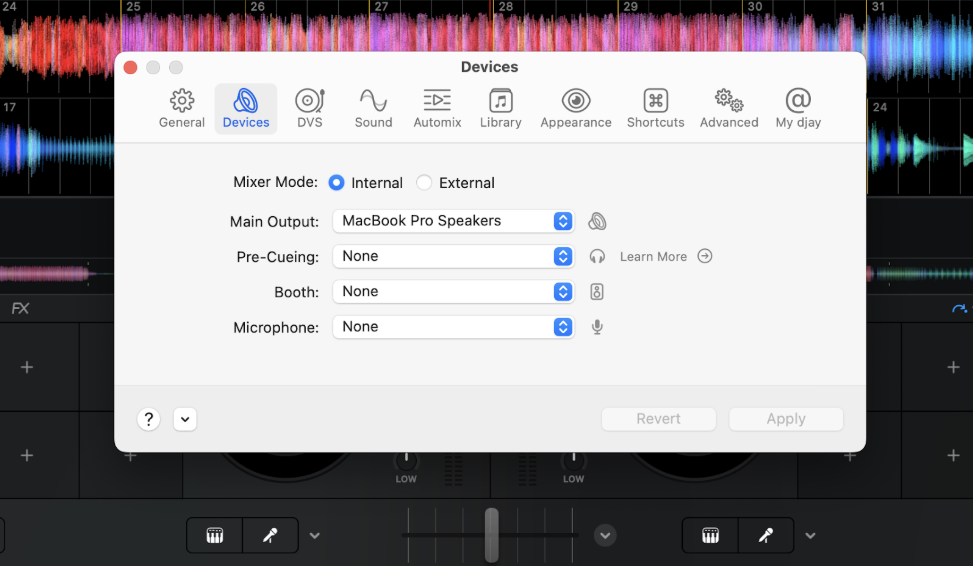
Mixer mode
Switch between internal and external mode:
- Internal mode — for mixing inside djay (e.g. with a MIDI controller)
- External mode — for routing audio to an external mixer or audio interface
Choose the mode that suits your hardware setup. You can learn more about setting the correct mixer mode in the Audio setup and pre-cueing section.
Main output
Select the stereo output djay uses for your main mix, such as the audio sent to your speakers or sound system.
Pre-cueing
There are two ways to pre-cue tracks:
- Use Split Output with a stereo/mono DJ split cable
- Connect an external sound card or DJ controller with two or more stereo outputs
Visit our pre-cue page to find out more.
When pre-cueing, you can adjust the volume for headphone monitoring, use the Cue/Mix knob to balance how much of the cued track vs. the main mix you hear in your headphones, and enable Split Cue to hear the cued track in one ear and the main mix in the other.
When you connect an external sound card or DJ controller, a blue headphones icon appears in the main toolbar. Click this icon to access pre-cueing options.
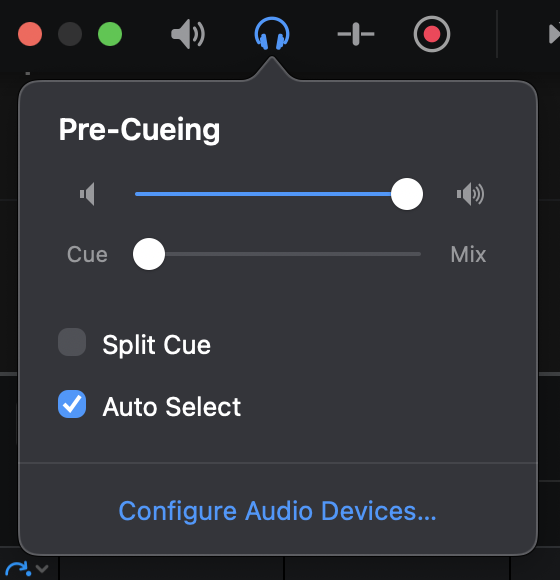
Using Cue/mix and Split Cue is great for DJing in a noisy environment or if there’s a significant delay to the external sound system.
Booth
When DJing live, the Booth output sends your mix audio to a separate speaker setup just for the DJ booth, letting you change the volume independently of what the dance floor hears. The booth output duplicates the main mix to a second output.
Booth is only available while in internal mixer mode. Many DJ mixers offer their own booth output controls.
Microphone
You can connect a microphone and monitor its input level directly in djay Pro. Once your mic is connected, click the microphone icon in the main toolbar to quickly access mic settings.
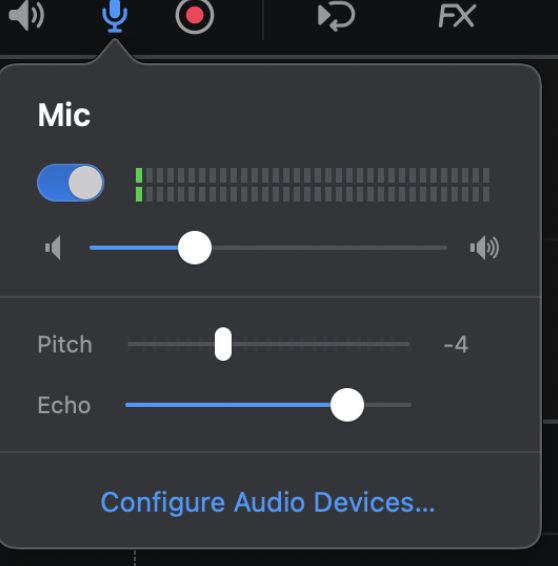
Via the microphone settings you can:
-
Toggle the mic on or off
-
Adjust the mic volume
-
Add Echo or change the Pitch for vocal effects
Using a microphone with booth speakers can cause audio feedback. Reduce your booth volume if you experience feedback.