


Audio setup and pre-cueing
Getting your audio setup right ensures you hear exactly what you need—both in your headphones and through the speakers. Whether you’re mixing on your laptop or using a DJ controller, setting up audio correctly ensures everything runs smoothly and sounds the way it should.
To introduce audio settings and get you mixing music as quickly as possible, this section will focus on three main features: mixer mode, main output, and pre-cueing.
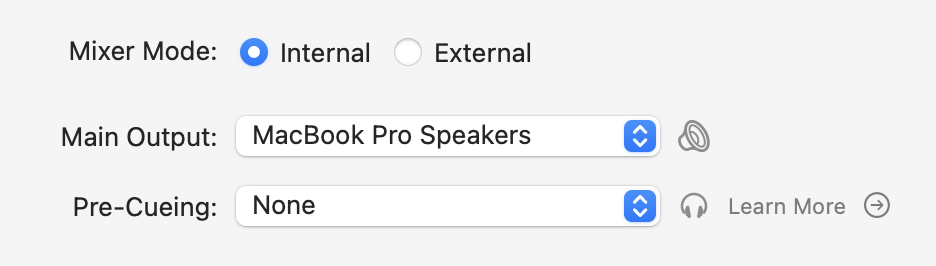
Mixer mode
- Internal mode: djay's software handles all the audio mixing internally, giving you a single stereo output for your mix. Perfect for mixing inside djay (e.g. on your Mac or with a MIDI controller).
- External mode: djay routes the audio to separate channels, which can then be mixed by an external hardware mixer. For example, if you connect an external mixer or audio interface.
Main output
The main output is where you want to hear the stereo output from. For example, you can select your Mac speakers or external headphones.
Pre-cueing
Pre-cueing lets you listen to the next track in your headphones (without anyone else hearing it) while the currently playing track plays through the speakers. This helps you beatmatch, adjust EQ, and prepare transitions before bringing another song into the mix.
There are three ways to pre-cue tracks in djay:
- Select Split Output and connect a stereo/mono DJ split cable.
- Connect a DJ controller or supported audio interface.
- Use your computer’s headphone output for pre-cueing while the master output plays from the internal speakers.
Using Split Output
If you don't have a controller or external sound card and your setup only has one stereo output (for example, your laptop’s headphone jack), you can still pre-cue using Split Output.
When you select Split Output in Settings > Devices > Pre-cueing:
- The Master output (what your audience hears) goes to one side of the stereo channel.
- The Cue output (what you hear in the headphones) goes to the other side.
To make this work, use a stereo/mono DJ split cable. This special cable separates the left and right channels into two mono outputs—one for your speakers and one for your headphones—so you can monitor your next track privately in the headphones.
For more information, go to the pre-cueing page.
Setting up audio without a controller
If you’re mixing without a controller, djay Pro lets you route your audio entirely through your Mac. You can set your main output, enable pre-cueing, and choose your preferred mixer mode directly from the audio settings.
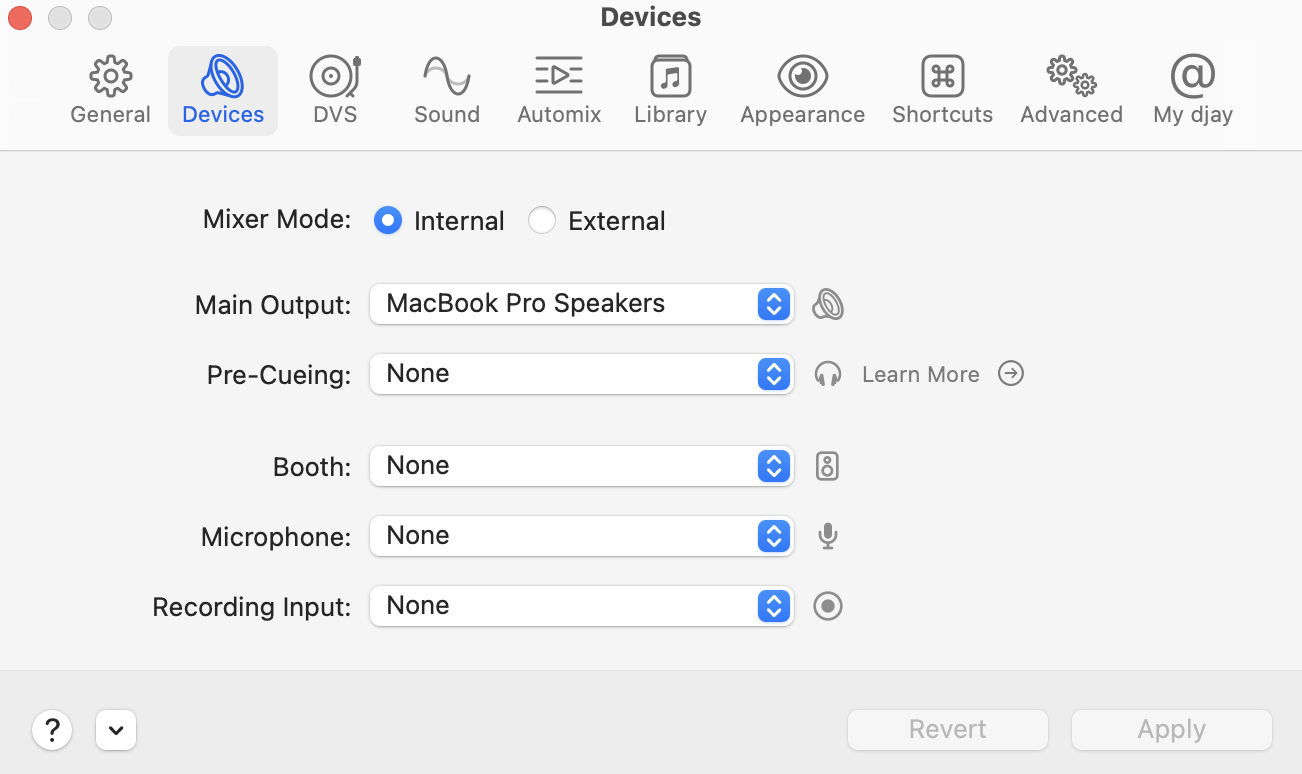
If you’re mixing directly on your Mac:
- Go to Settings > Devices.
- Make sure you’re set to Internal mixer mode.
- Select your Main output (e.g. where you want to hear the sound from. For example, your Mac speakers or external headphones).
- Choose whether you want to use Split output for pre-cueing. Remember you need a stereo/mono DJ split cable to make it work properly.
- Click Apply to save your audio settings.
Setting up audio with a supported DJ controller
When you connect a supported (plug-and-play) DJ controller, djay will automatically configure your audio for you. You can view the full list of officially supported controllers on the Algoriddim DJ Gear page.
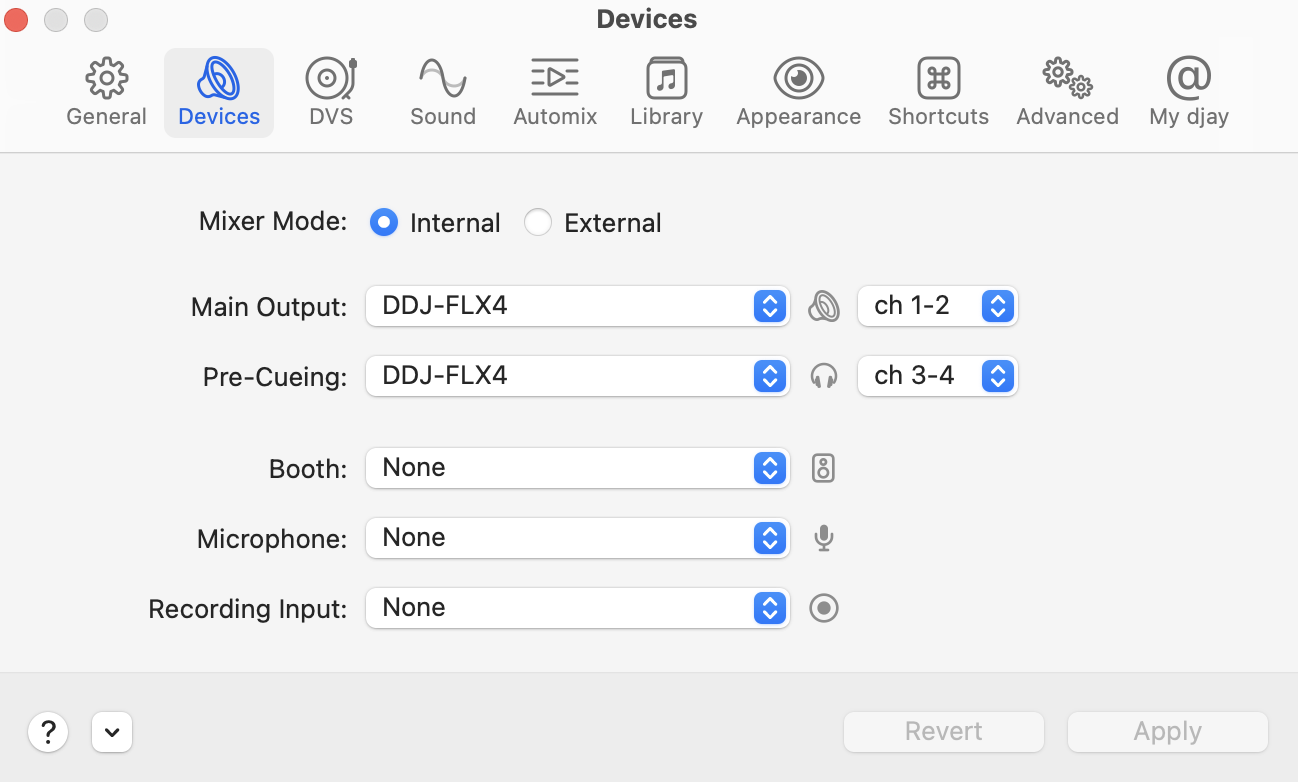
If you’re mixing with a supported MIDI controller:
- Connect your controller via an available port. Turn the controller on using the ON/OFF switch or power button, if needed.
- When the controller is detected, follow the on-screen instructions.
- djay will automatically detect the controller and configure the audio for you.
- You should now be able to control djay Pro using your hardware.
For more information on audio settings, go to the Customization & Settings section.
How to test pre-cueing
Play a track on each deck and move the crossfader to each side to confirm:
- You can hear the master output through your speakers.
- You can use pre-cue to listen to tracks independently in your headphones.
You’ll see a headphones icon appear in the main toolbar when pre-cueing is available—click it to adjust cueing options.
If you’re having issues with your sound, double-check the Devices settings or reselect your output device.
If your controller isn’t supported, you can still use it with djay by mapping the controls manually. djay Pro supports a wide range of MIDI-compatible devices through its built-in MIDI mapping system. Go to the MIDI Mapping section for more details.