


How to queue tracks for Automix
Automix plays through your current playlist, but you can also pick the tracks it plays next yourself. It’s a quick way to hear how tracks from any of your sources sound together when you’re sketching out a set.
Choose which tracks Automix plays next
- macOS
- Windows
- iOS
- Android
-
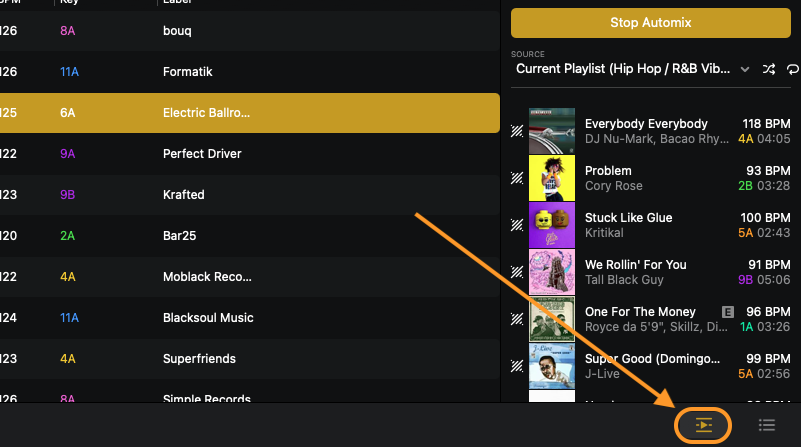
Open Automix from the side panel.
-
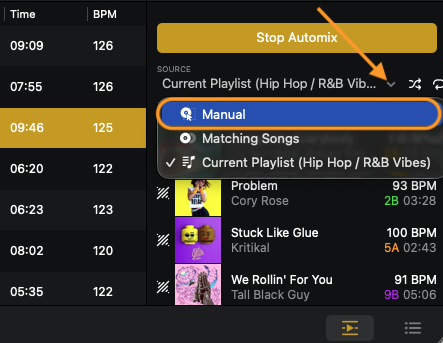
Click the SOURCE dropdown and select Manual.
-
Drag the tracks from your library that you want to queue into the Automix panel.
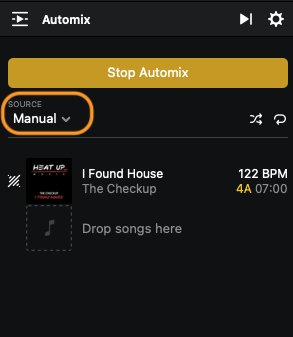
Automix first plays the upcoming track already on the Automix deck, then plays your Manual list in order. You can add tracks from any playlist, streaming service, or your files, and drag them up or down to reorder them.
To skip the upcoming track and start your Manual list right away, double-click a track in the Automix panel, or drag it to the Automix deck. That track loads instantly, and Automix then plays the rest of the tracks in the Automix panel in order.
When Automix reaches the last track in its source, the Automix button is disabled and the music stops when that track ends. To keep it going, add more tracks, or select Current Playlist in the Source dropdown and click Start Automix again.
Other Automix sources
Besides Manual, the Source dropdown offers two other ways to choose what Automix plays:
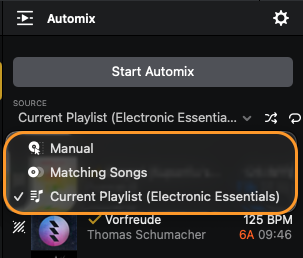
- Matching Songs: djay picks tracks from your connected libraries with a similar genre, BPM (tempo), and key to the one that’s playing.
- Current Playlist: plays your current playlist in order.
-
Open Automix from the side panel.
-
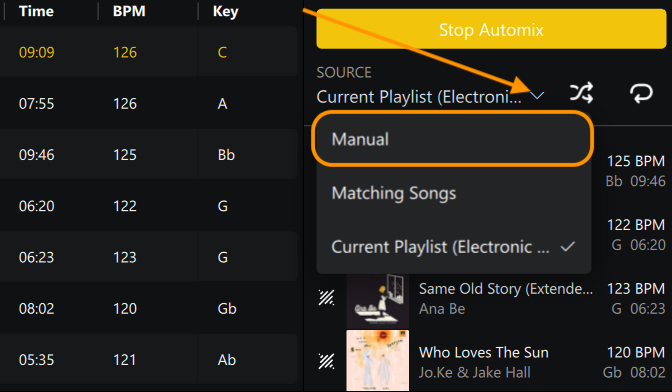
Click the SOURCE dropdown and select Manual.
-
Drag the tracks from your library that you want to queue into the Automix panel.
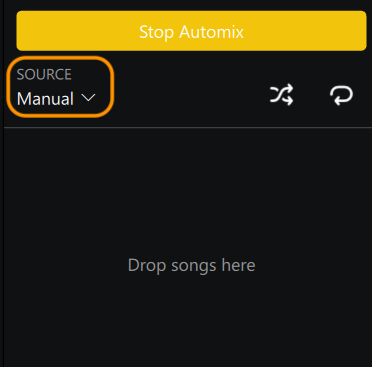
Automix first plays the upcoming track already on the Automix deck, then plays your Manual list in order. You can add tracks from any playlist, streaming service, or your files, and drag them up or down to reorder them.
To skip the upcoming track and start your Manual list right away, double-click a track in the Automix panel, or drag it to the Automix deck. That track loads instantly, and Automix then plays the rest of the tracks in the Automix panel in order.
When Automix reaches the last track in its source, the Automix button is disabled and the music stops when that track ends. To keep it going, add more tracks, or select Current Playlist in the Source dropdown and click Start Automix again.
Other Automix sources
Besides Manual, the Source dropdown offers two other ways to choose what Automix plays:
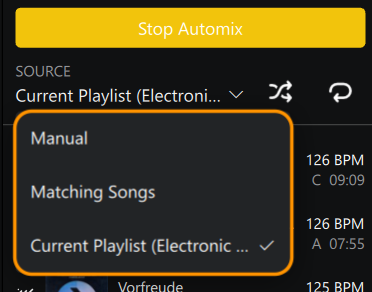
- Matching Songs: djay picks tracks from your connected libraries with a similar genre, BPM (tempo), and key to the one that’s playing.
- Current Playlist: plays your current playlist in order.
-
Switch to Automix view from the Dashboard.
-
Tap the list icon to the left of the Play button to show the Automix playlist.

-
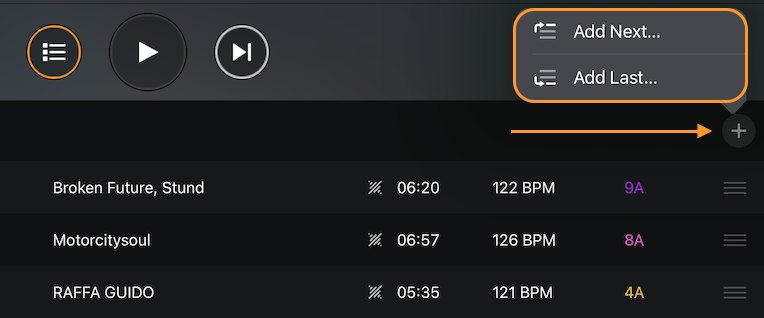
Tap + then choose Add Next… to add tracks to the top of the Up Next queue, or Add Last… to add them to the end.
-
In the Select Songs popover, choose the tracks you want to add. You'll then see your tracks in the Up Next queue:
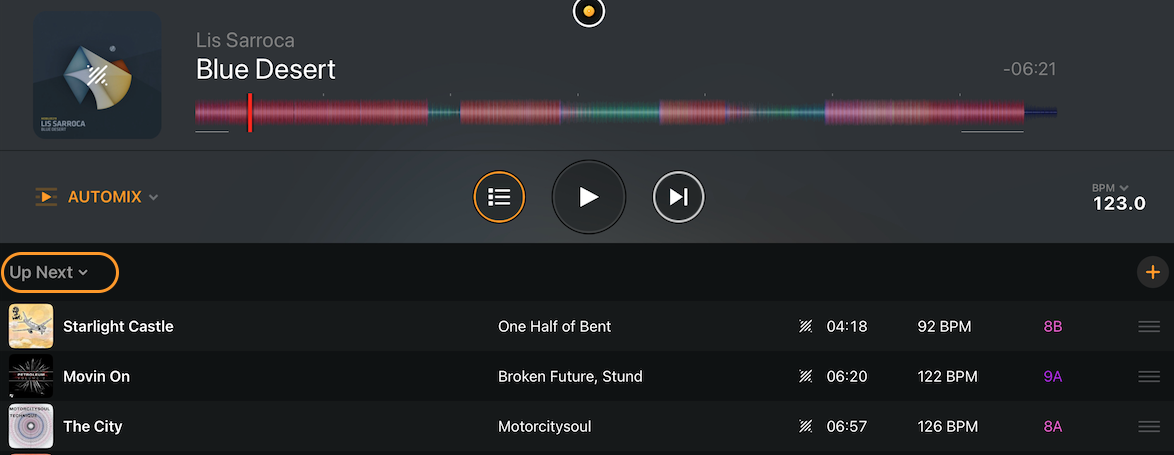
Tracks in Up Next play straight after the current track. When Up Next is empty, Automix continues with your playlist. Drag the handle on the right of a track to reorder it.
Managing tracks in the Automix playlist
Tap a track in your playlist to see three options:

- Play: plays the track straight away.
- Add next: adds the track to the top of Up Next.
- Remove: removes the track from the Automix playlist. The original playlist isn't affected.
If you tap Select Playlist… to choose a different playlist while Up Next has tracks, djay asks what to do with them:
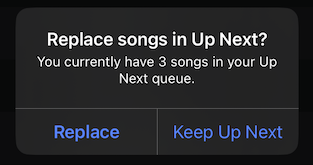
- Replace: clears Up Next, so the new playlist plays next.
- Keep Up Next: keeps your queued tracks, so they play first and the new playlist follows.
In djay for Android, Automix plays through the playlist you select, track by track. To choose what plays next, put the tracks in the order you want in that playlist before you start Automix.