


Using Ableton Link with djay
Learn how Ableton Link stays in time with djay, how tempo control works, and what Sync and playback conditions are required for continuous syncing.
Introduction
In djay, Ableton Link works together with the active deck and the SYNC button. When a deck is playing and SYNC is enabled, djay joins the Link session and stays in time with other djay instances or Link-enabled apps—so tempo and beat position remain aligned, even as you adjust the tempo during playback.
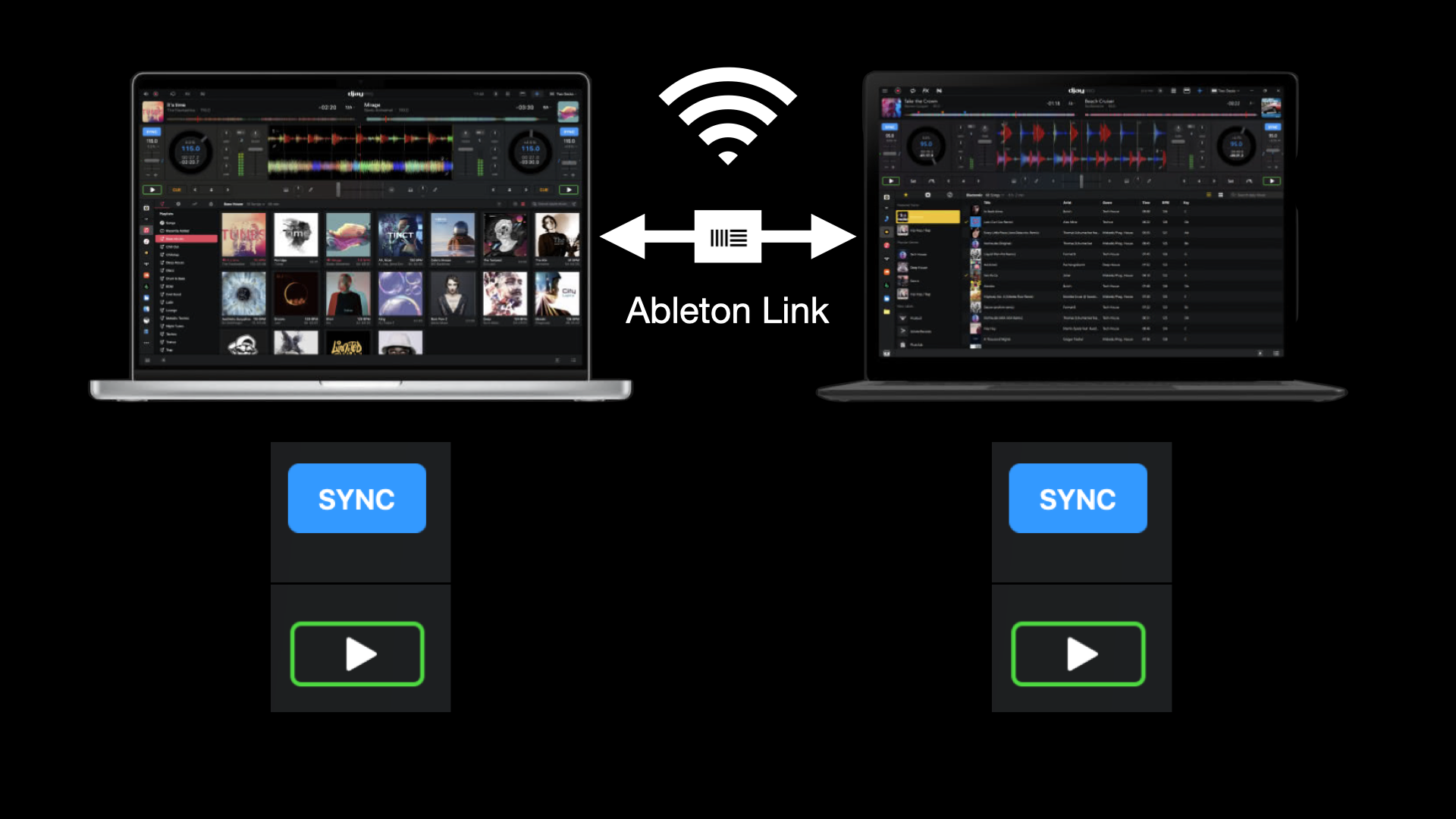
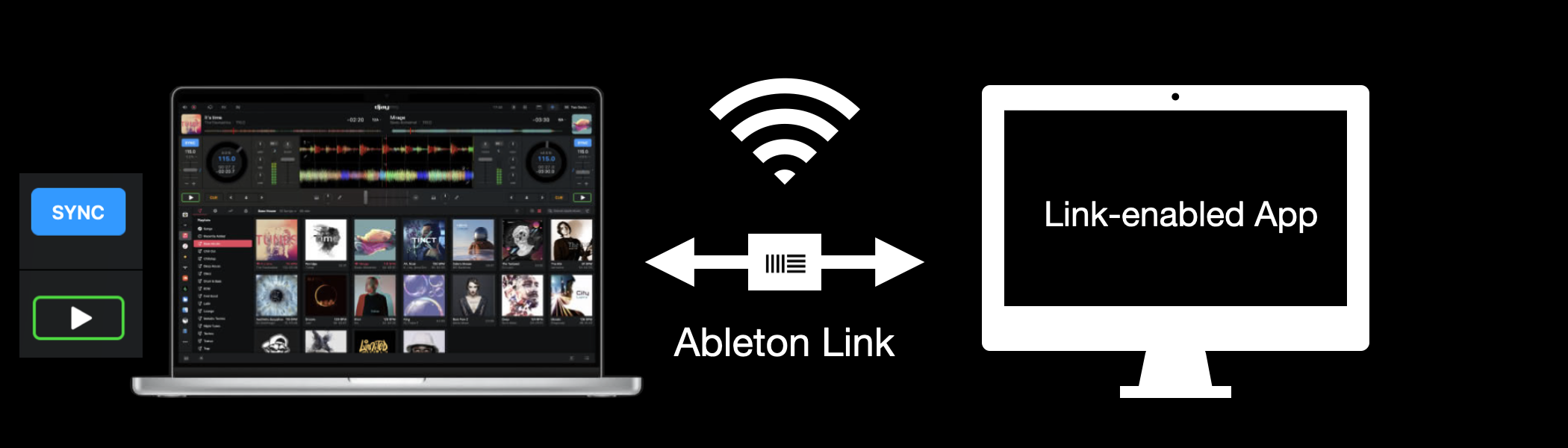
Here are two common ways to use Ableton Link with djay:
Example 1: djay ↔ djay
Example 2: djay ↔ third-party Link-enabled app
How Ableton Link works with djay
When djay joins an Ableton Link session, it synchronizes its tempo and beat position with the shared session. Depending on how the session is set up, djay can:
- Follow another app’s tempo and phase.
- Take over as the tempo leader (the Master) if other apps stop playback.
- Act as the Master from the start.
The first app to start playback usually becomes the Master, but control can shift dynamically depending on which apps are playing.
Ableton Link works best when you understand how djay’s Sync feature determines the Active Deck—the deck that acts as the timing reference for syncing other decks or apps. This deck controls the tempo and phase that other decks in djay (or other connected apps) follow. More info about Sync can be found in this guide.
Getting started with Ableton Link
- macOS
- iOS
- Windows
- Make sure your Mac and any other Link-enabled devices are on the same local Wi-Fi network.
- Open djay
- Click the Main Volume button (between the Record button and the window controls in the top-right corner).
- Press the Ableton Link button from the menu.
- If prompted, allow djay to access other devices on your network.
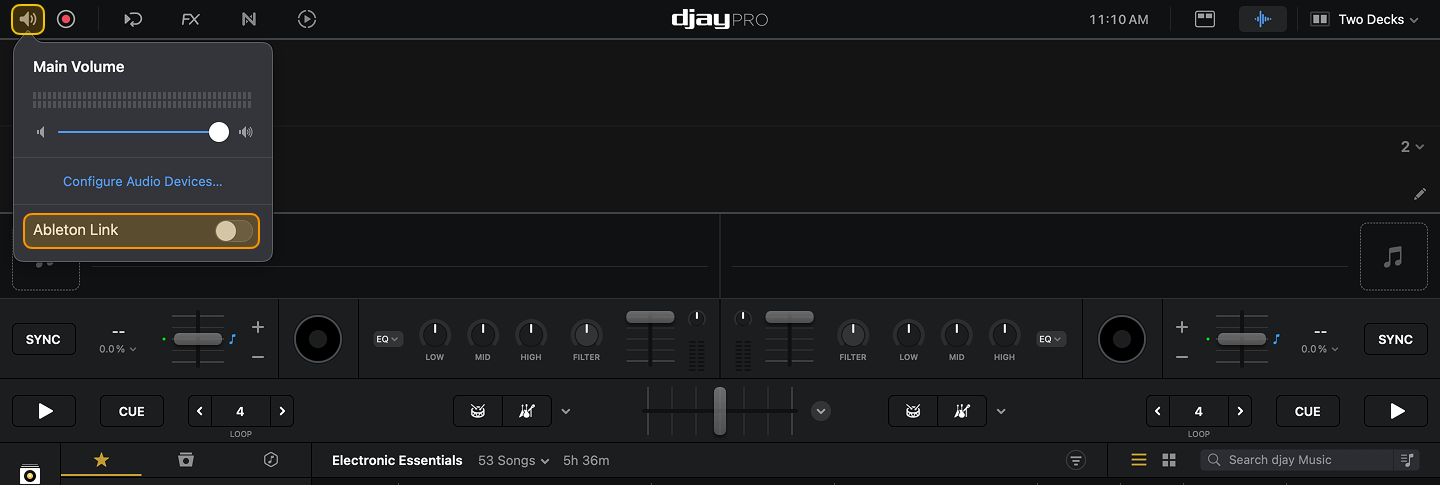
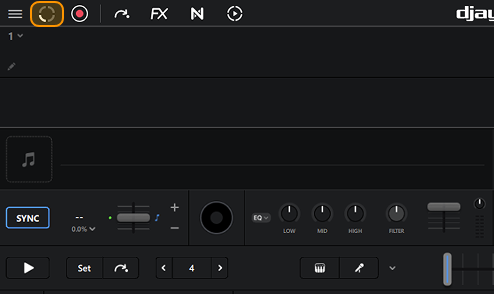
Once Link is enabled, the Main Volume icon changes to a segmented spinning circle, and you’ll see a confirmation showing how many apps are connected (for example, Connected to 1 app).
- Make sure your device and any other Link-enabled devices are on the same local Wi-Fi network.
- Open djay.
- Go to Settings > Ableton Link.
- Tap the Ableton Link button.
- If prompted, allow djay to access other devices on your network.
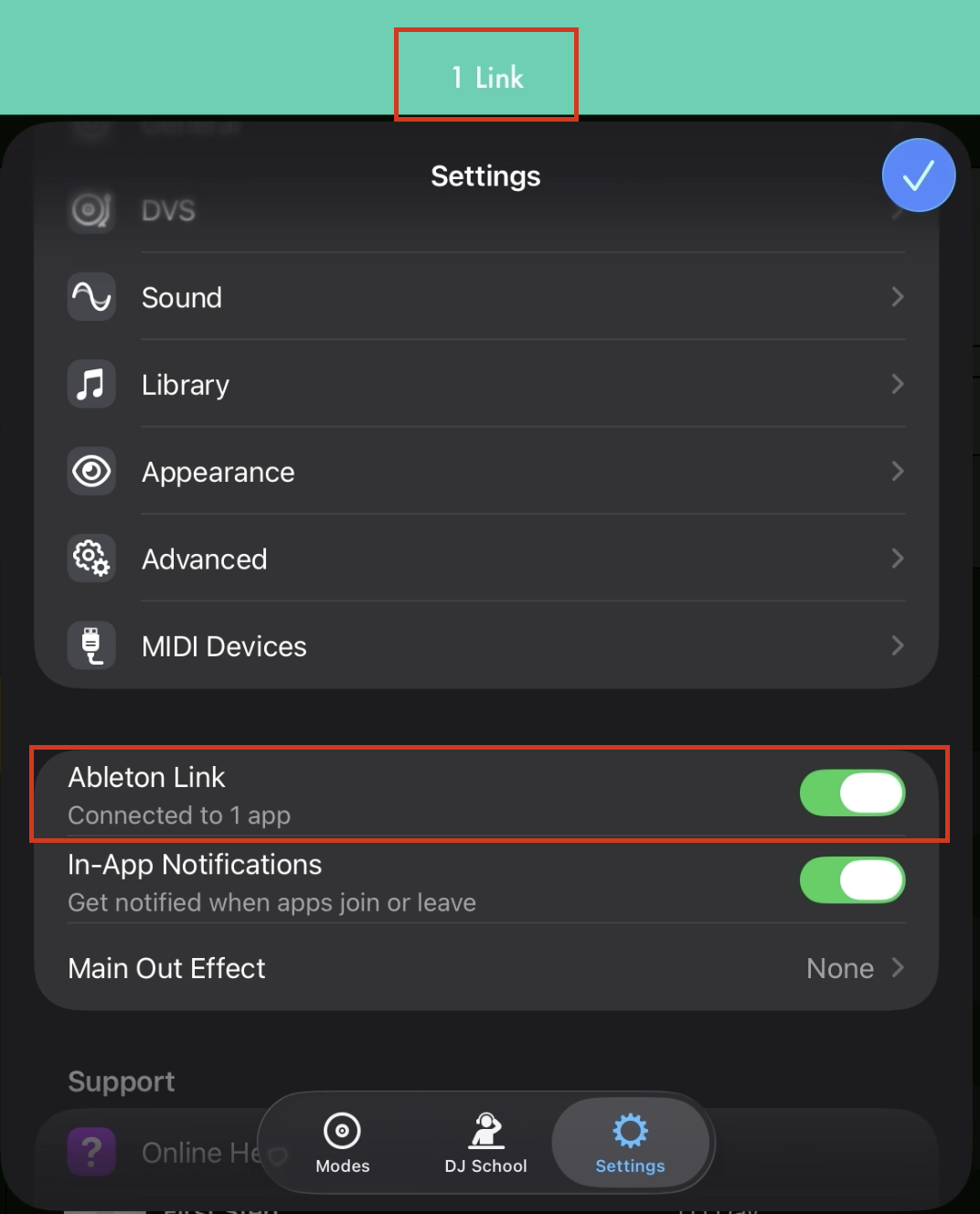
Once Link is enabled:
-
You’ll see a confirmation message at the top and next to the Ableton Link button (for example, 1 Link and Connected to 1 app).
-
A white segmented bar appears at the top of the screen to show that Link is active.
- Make sure your device and any other Link-enabled devices are on the same local Wi-Fi network.
- Open djay Pro.
- Go to Settings.
- Press the Ableton Link button from the menu.
- If prompted, allow djay to access other devices on your network.
Once Link is enabled:
- You’ll see a confirmation message. For example, Connected to 1 app.
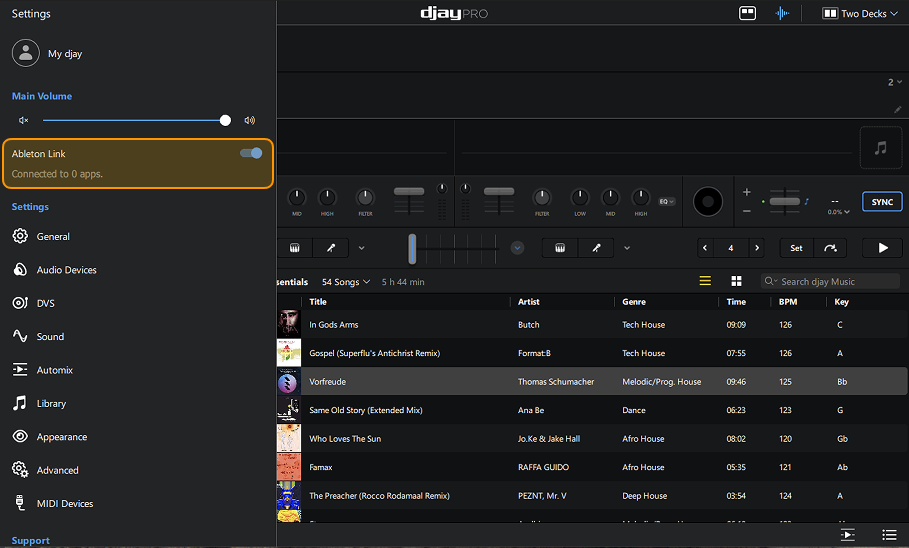
- A segmented spinning circle will appear next to the record button.
Keep tempo continuously synced with Ableton Link
To keep djay matched to the Link session at all times (including ongoing tempo changes), make sure the following is true in djay:
- Sync mode
- Ensure that the Sync type is set to Beat and Tempo Sync in Settings > General > Sync mode.
- Sync state
- The SYNC button should appear active (filled in blue) when syncing via Ableton Link.

You can find a complete guide about how Sync works in djay here.
- Active audio playback
- Ensure that the deck is playing and the channel fader is raised.
- Make sure the crossfader is positioned so the deck is audible.
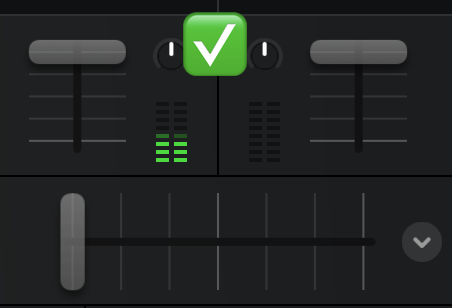
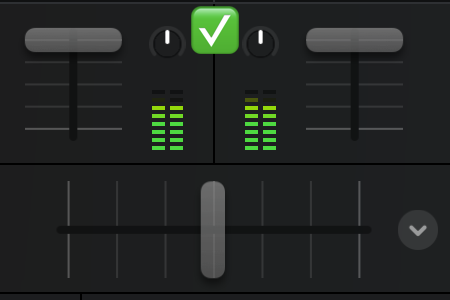
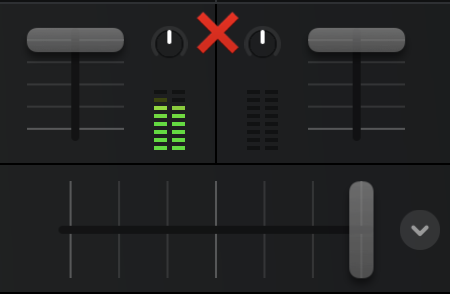
If a deck is silent or inactive, djay will stay connected to the Link session but may stop sending tempo changes.
How Ableton Link can be used with djay
Once everything is set up, Ableton Link can be used in two ways:
djay ↔ djay
With Ableton Link enabled on both devices, adjust the tempo on one djay device and the other device will match it in real time.
djay ↔ third-party apps
When Ableton Link is enabled in djay and a Link-enabled app (for example, Ableton Live), djay stays synced to the shared session—so tempo and beat position remain aligned between both apps.
Some Link-enabled apps handle tempo control differently. Depending on the app, it may continue to control the session tempo even when djay is connected via Ableton Link.