


Manually transfer user data from an older version of djay for iOS to the newest version
You can manually transfer your user data (cue points, analyzed file data, and history) from one version of djay to another using the iOS Files app.
To do this, follow these steps
- Open the Files app on your iPhone or iPad. For these steps, we’ll use an iPad.
- Under Locations on the left menu, tap On My iPad.
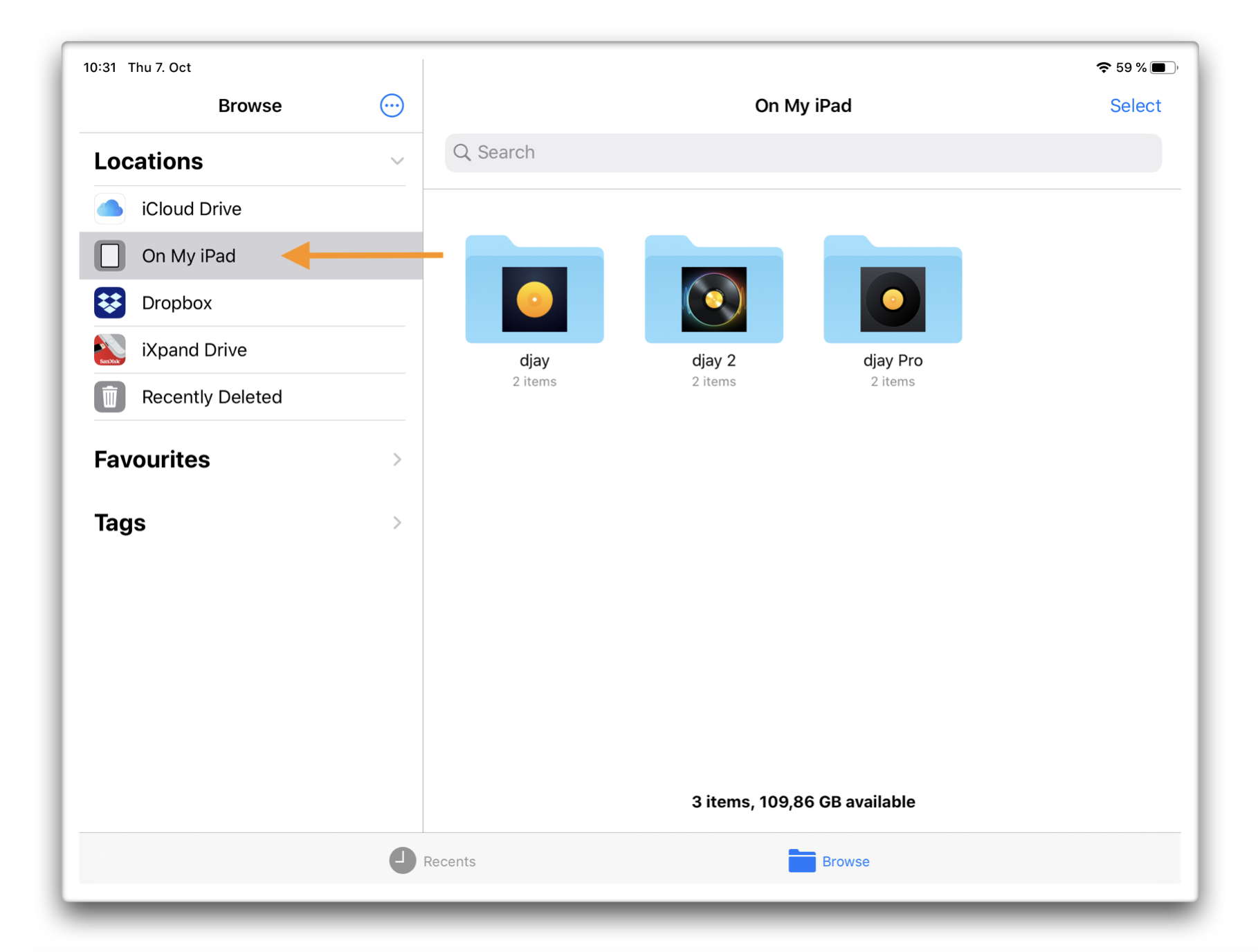
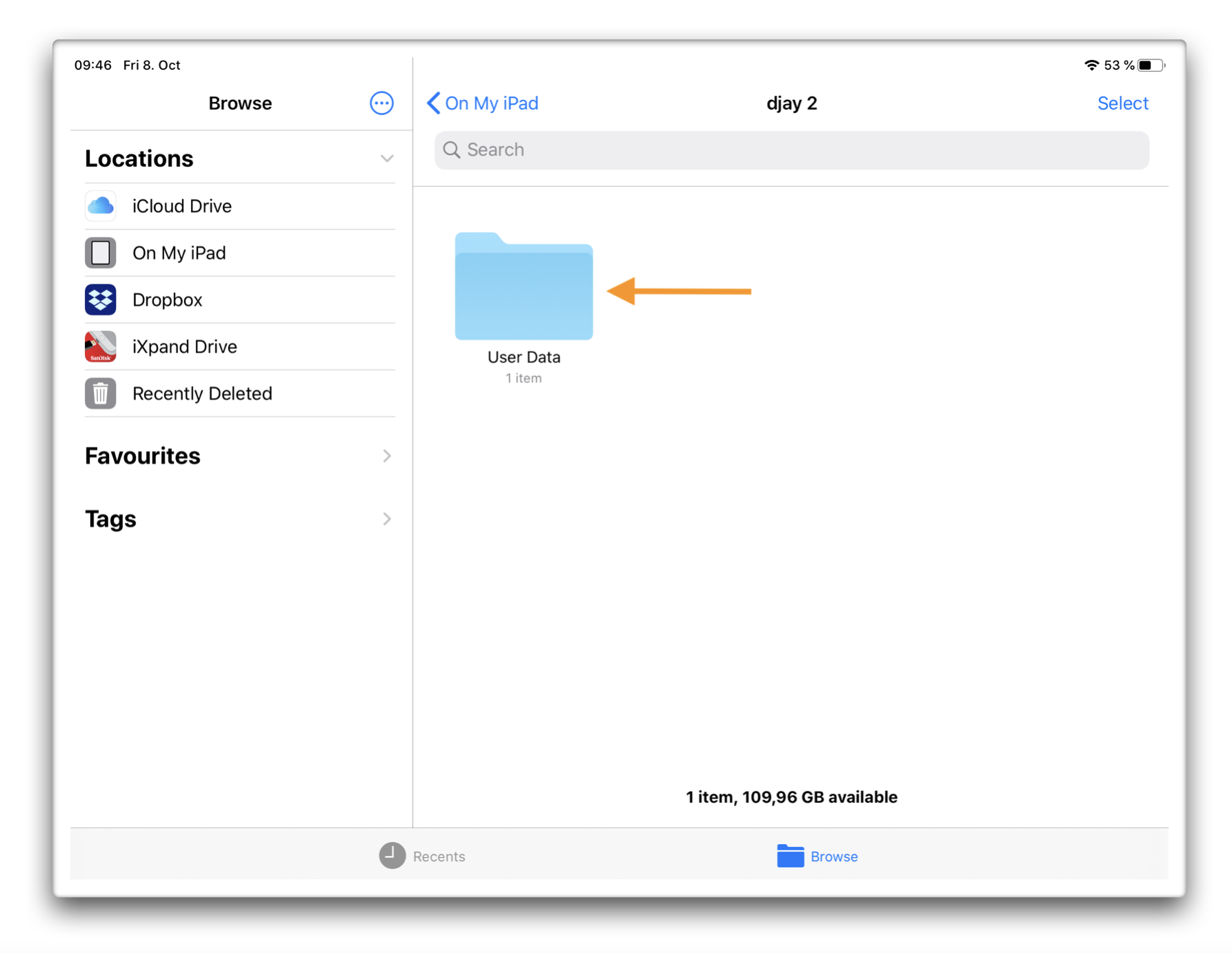
- Tap the djay version you want to transfer your data from (djay 2 or djay Pro), then tap User Data to open the folder. For these steps, we’ll transfer data from djay 2.
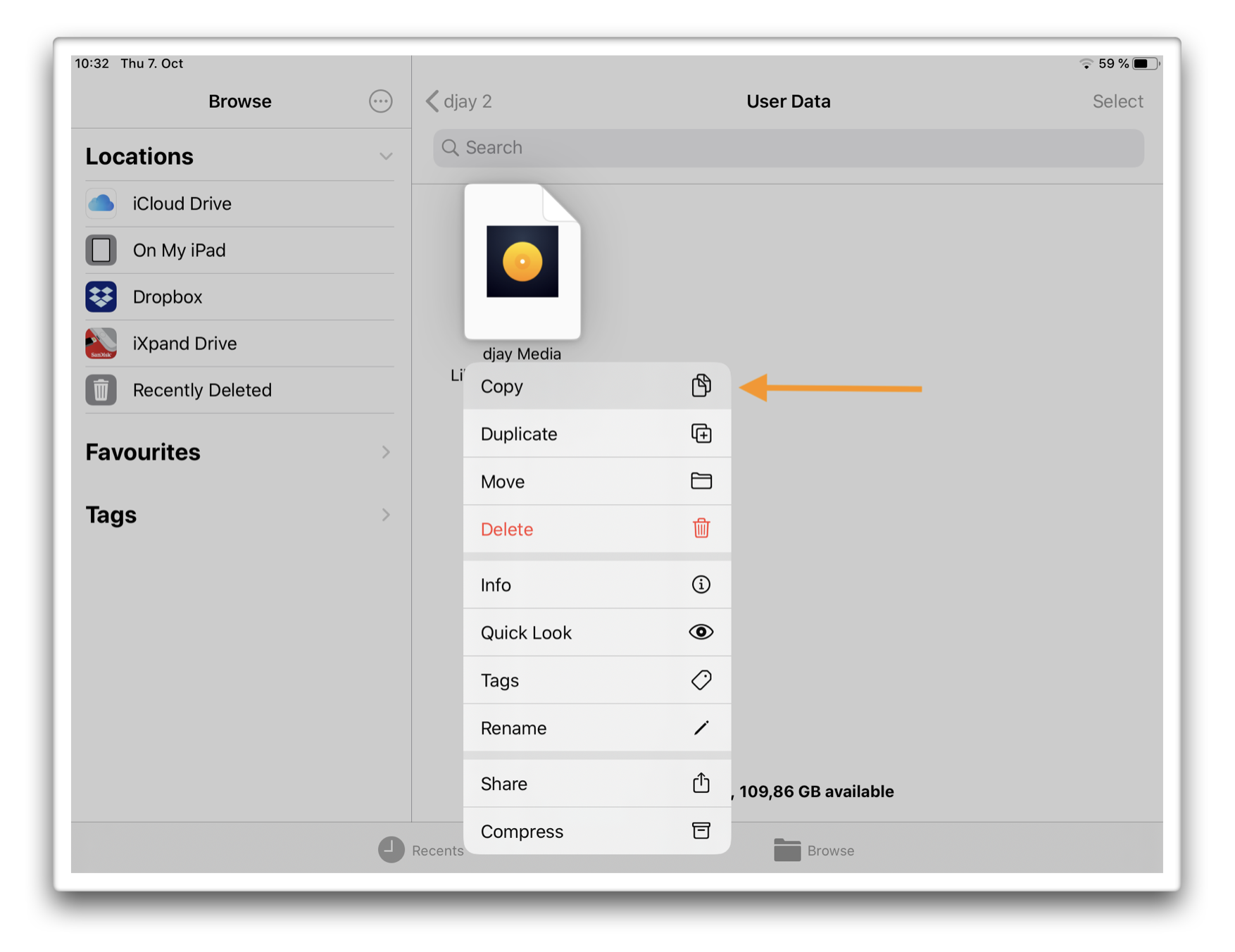
- Long-press (tap and hold) the djay Media Library… file, then select Copy.
-
Go back to Locations and tap On My iPad, then open the folder for the newest version of djay (tap djay), and tap User Data to open the folder.
-
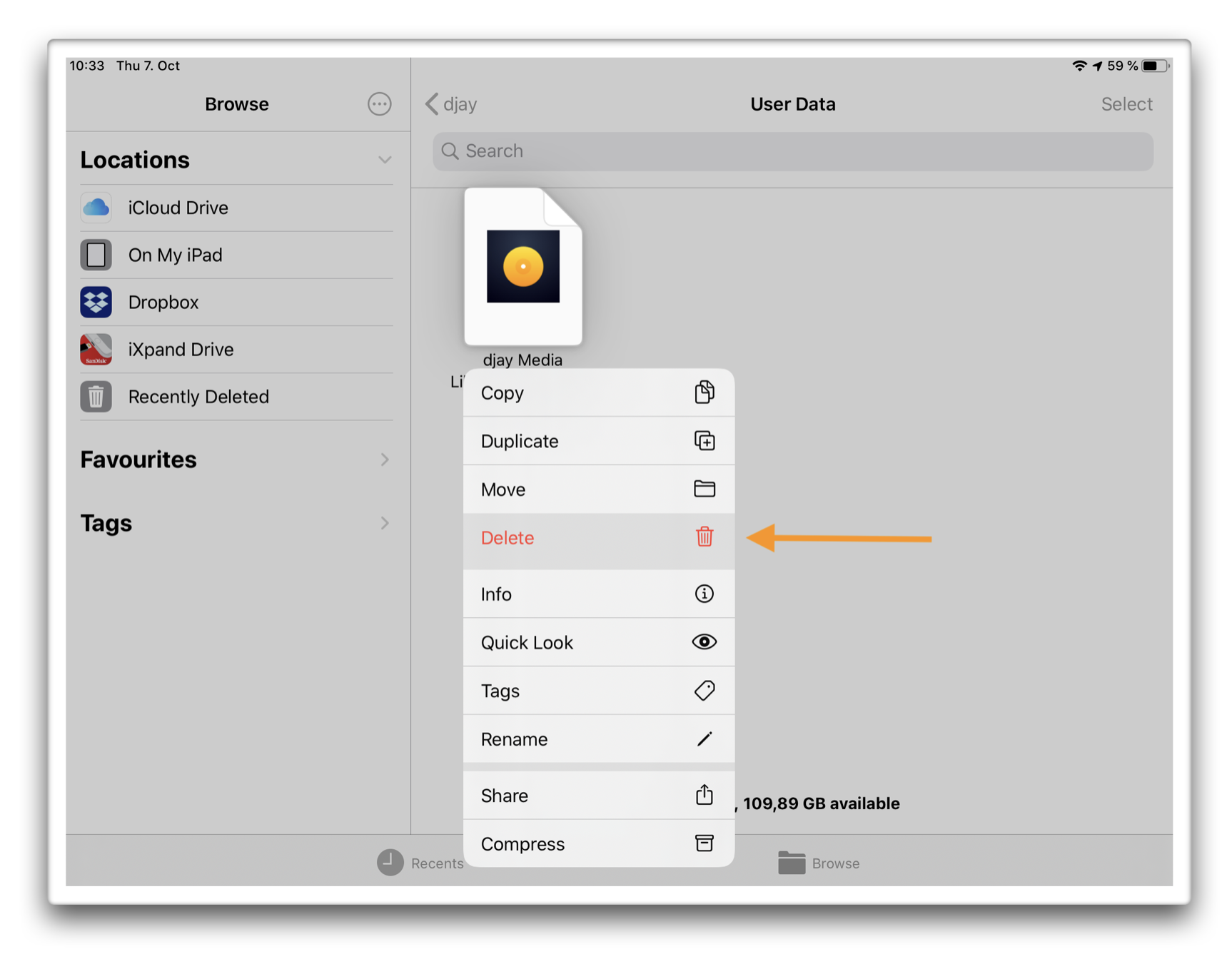
Long-press the djay Media Library… file here and select Delete.
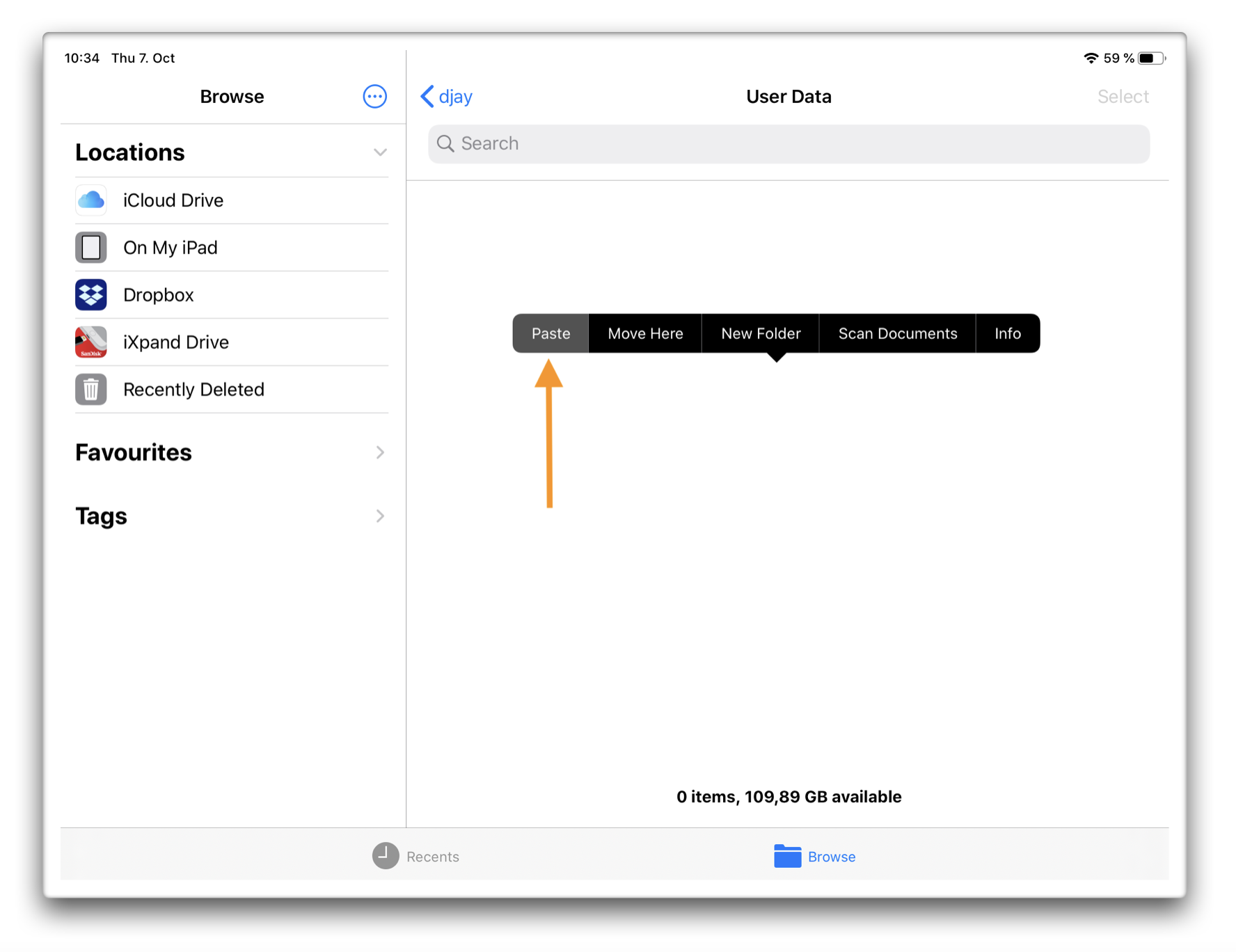
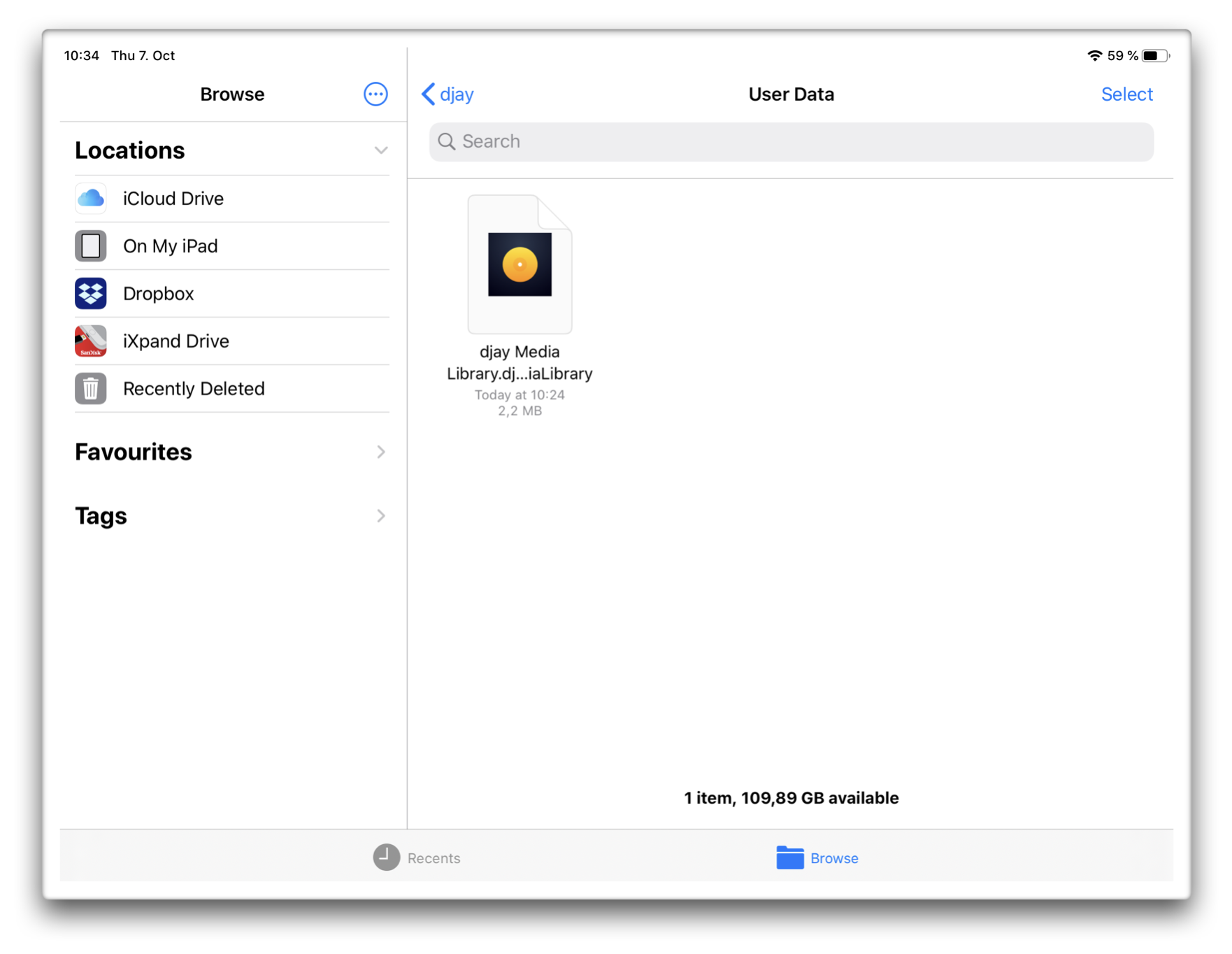
- On the same screen in djay’s User Data folder, long-press on the screen and select Paste. This will paste the previously copied djay Media Library… file into the same location in djay’s folder.
The user data is now transferred from the older version of djay to djay for iOS, and djay for iOS will automatically use this data when you launch the app again on your device.
note
Before deleting djay’s current library file in Step 6, you may want to create a backup of this file in case you want to recover this data at any time in the future.