


What is OneLibrary?
OneLibrary is a universal DJ library format developed with AlphaTheta. It standardizes playlists, cue points, loops, and beatgrids across djay, rekordbox, and supported hardware such as CDJ and XDJ systems. This guide explains what OneLibrary does, how to use it, and what to expect on macOS, Windows, and iOS.
In this article
- What is OneLibrary?
- What you can do with OneLibrary
- Key features
- Cues, Loops & Beatgrids
- Supported drives & file systems
- How to create a new OneLibrary playlist or folder (macOS)
- Adding existing playlists or folders to OneLibrary
- Notes & troubleshooting
Watch the video guide
Prefer a visual walkthrough? This video covers how to use OneLibrary and all its key features step by step.
What you can do with OneLibrary
- Move your playlists, cue points, and beatgrids between djay on multiple devices, making it easy to switch setups.
- Export your music library to a USB drive or SD card for use on supported professional DJ hardware.
- Import existing libraries from compatible USB drives—for example, load playlists and performance data from CDJ hardware or from djay Pro desktop into djay for iOS.
OneLibrary gives you maximum flexibility whether you’re DJing on your laptop, your iOS device, or in the booth using supported hardware.
On iOS, OneLibrary is read-only. You can browse and load tracks or playlists but cannot create, edit, or export playlists or tracks.
Key features
- Add, delete, and edit playlists directly in OneLibrary (macOS / Windows).
- Add tracks and playlists from My Collection, My Files, or External Apps.
- Drag and drop tracks directly from Finder into OneLibrary (macOS).
- Exported OneLibrary drives are compatible with supported hardware.
| Platform / Device | Can read OneLibrary |
|---|---|
| djay (macOS / Windows / iOS) | Yes |
| rekordbox (macOS / Windows) | Yes |
| CDJ-3000X | Yes |
| CDJ-1500X | Yes |
| XDJ-AZ | Yes |
| OPUS-QUAD | Yes |
| OMNIS-DUO | Yes |
OneLibrary is only compatible with supported hardware models.
Please ensure your hardware is updated to the latest firmware.
Cues, Loops & Beatgrids
djay automatically exports cue points, loops, and beatgrids to your OneLibrary drive.
When you load a OneLibrary track in djay, the app reads performance data directly from the drive.
Any changes you make—such as adding a cue point or creating a loop—are saved back to the drive, keeping your performance data synced across all supported systems.
Supported drives & file systems
OneLibrary supports the following formats:
- FAT32 — macOS / Windows / iOS
- exFAT — macOS / Windows / iOS
- HFS+ — macOS / iOS
How to create a new OneLibrary playlist or folder (macOS)
- Connect a USB drive to your Mac.
- In the sidebar, click the USB Library icon.
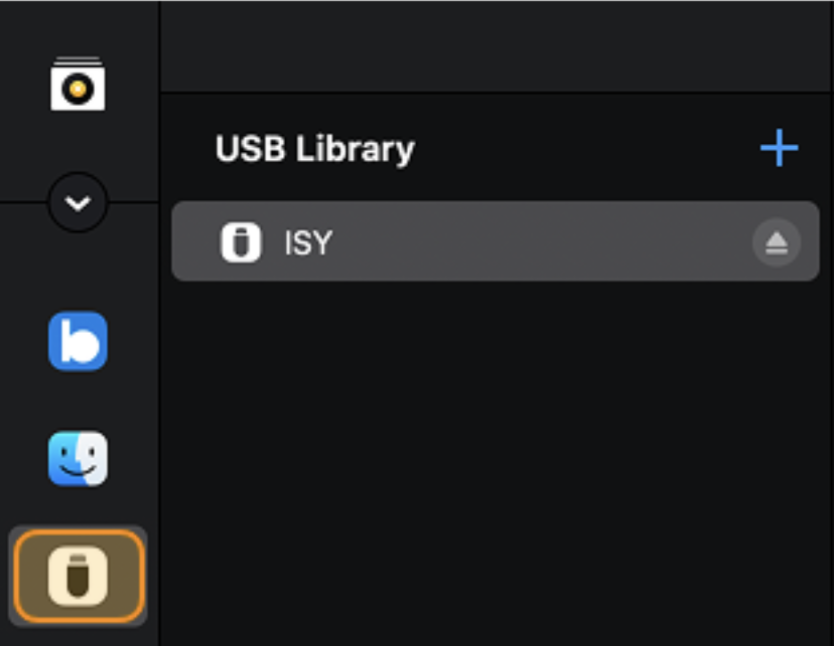
- If prompted, grant OneLibrary access to the drive.
- Choose the drive where you want to create playlists or folders.
- Click the + button to add a new playlist or folder.
- Drag and drop music or files from your collection into your new OneLibrary playlist or folder.
Copying playlists and performance data may take some time, depending on the size of your library.
Adding existing playlists or folders to OneLibrary
- Connect a USB drive to your Mac.
- In the sidebar, click My Collection.
- Right-click a playlist and select Add to USB Library.
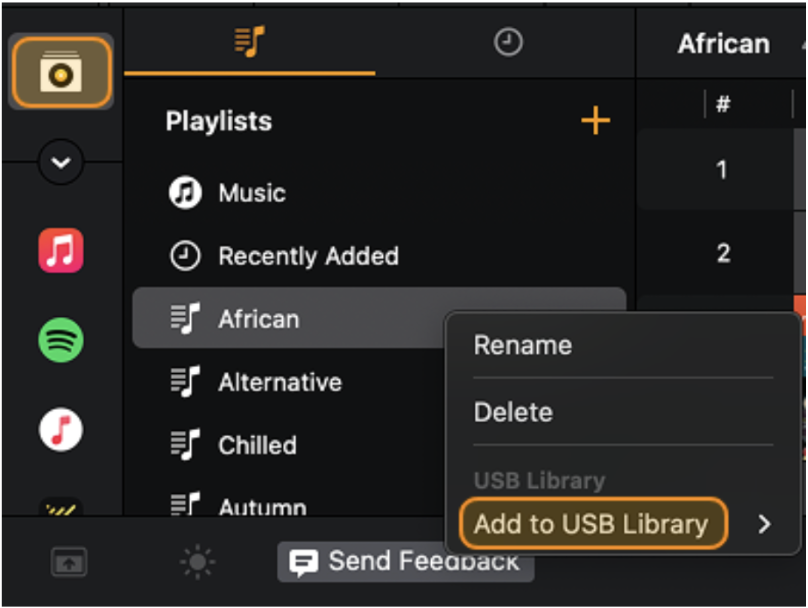
- The playlist will now appear in OneLibrary.
You can also use Split Library mode to drag playlists and folders directly into OneLibrary.
Notes & troubleshooting
- If your drive does not appear, confirm the file system (exFAT / FAT32 / HFS+) and ensure it is mounted by the OS.
- On iOS, OneLibrary is read-only—any exporting or editing must be done on macOS or Windows.
- Always eject or unmount your drive safely before unplugging it, especially when moving between platforms.