


How do I enable and troubleshoot iCloud syncing on iOS and macOS?
Track metadata generated while using djay on your Mac, iPad, or iPhone is automatically synced via iCloud. This includes cue points and loop regions per song. Other metadata like BPM analysis is currently not synced.
This article walks you through enabling, testing, and troubleshooting iCloud syncing on iOS and macOS.
- macOS
- iOS
Enabling iCloud syncing on macOS
- Open System Preferences.
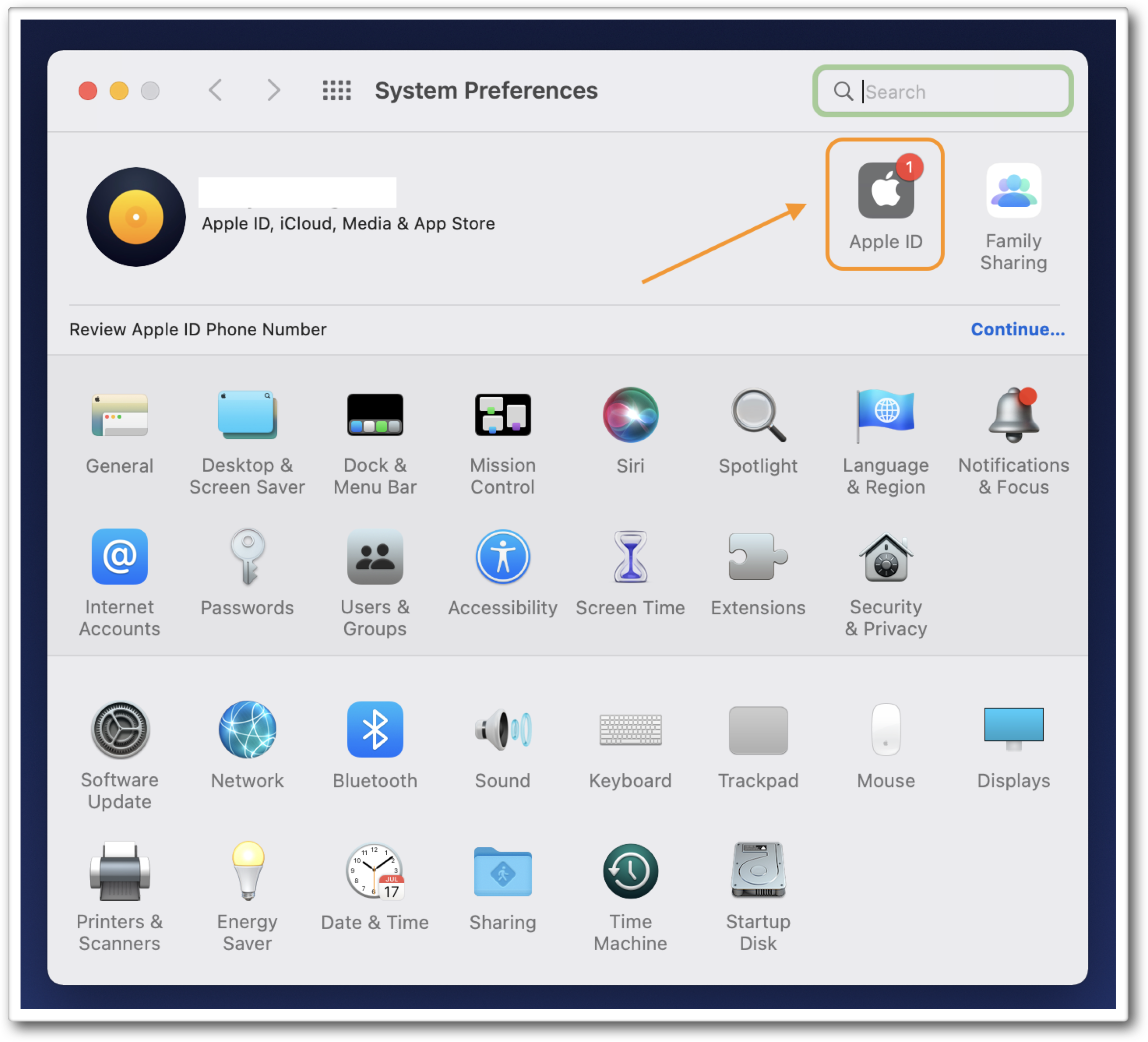
- Click Apple ID.
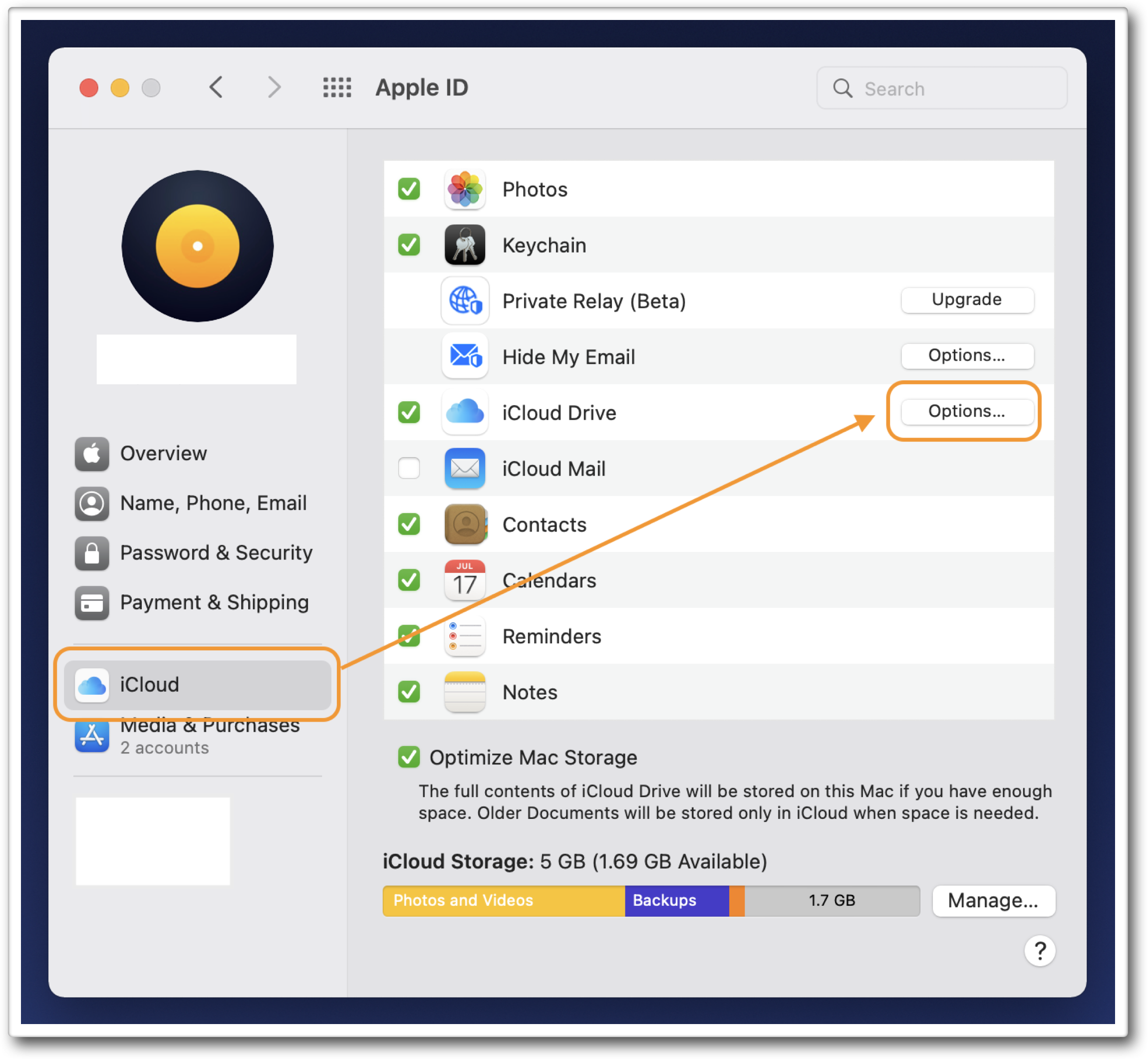
- Click iCloud, then Options next to iCloud Drive.
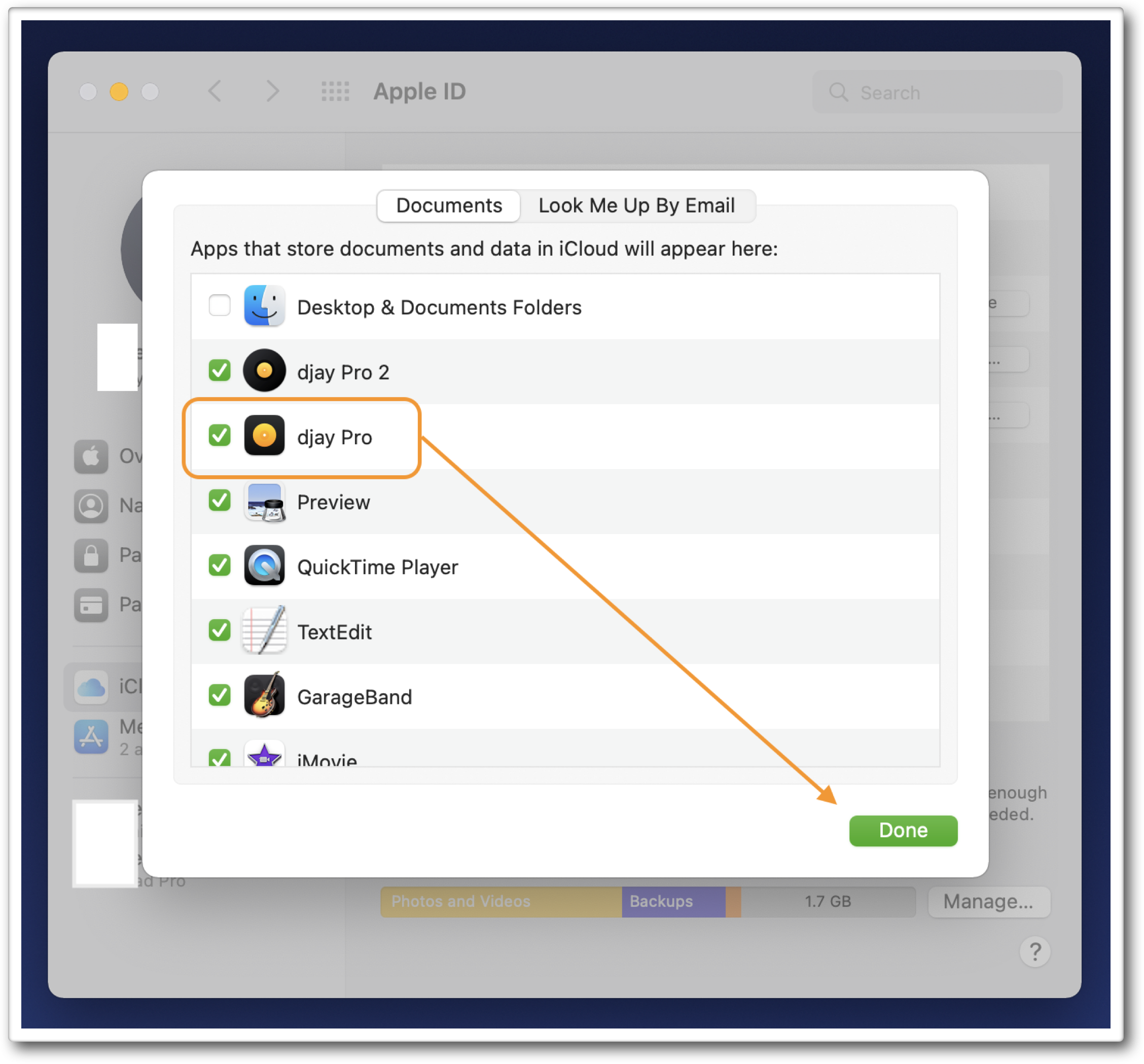
- Ensure djay Pro is checked.
Testing iCloud syncing on macOS
- Load a track and set a cue point.

- Load another track to trigger syncing.
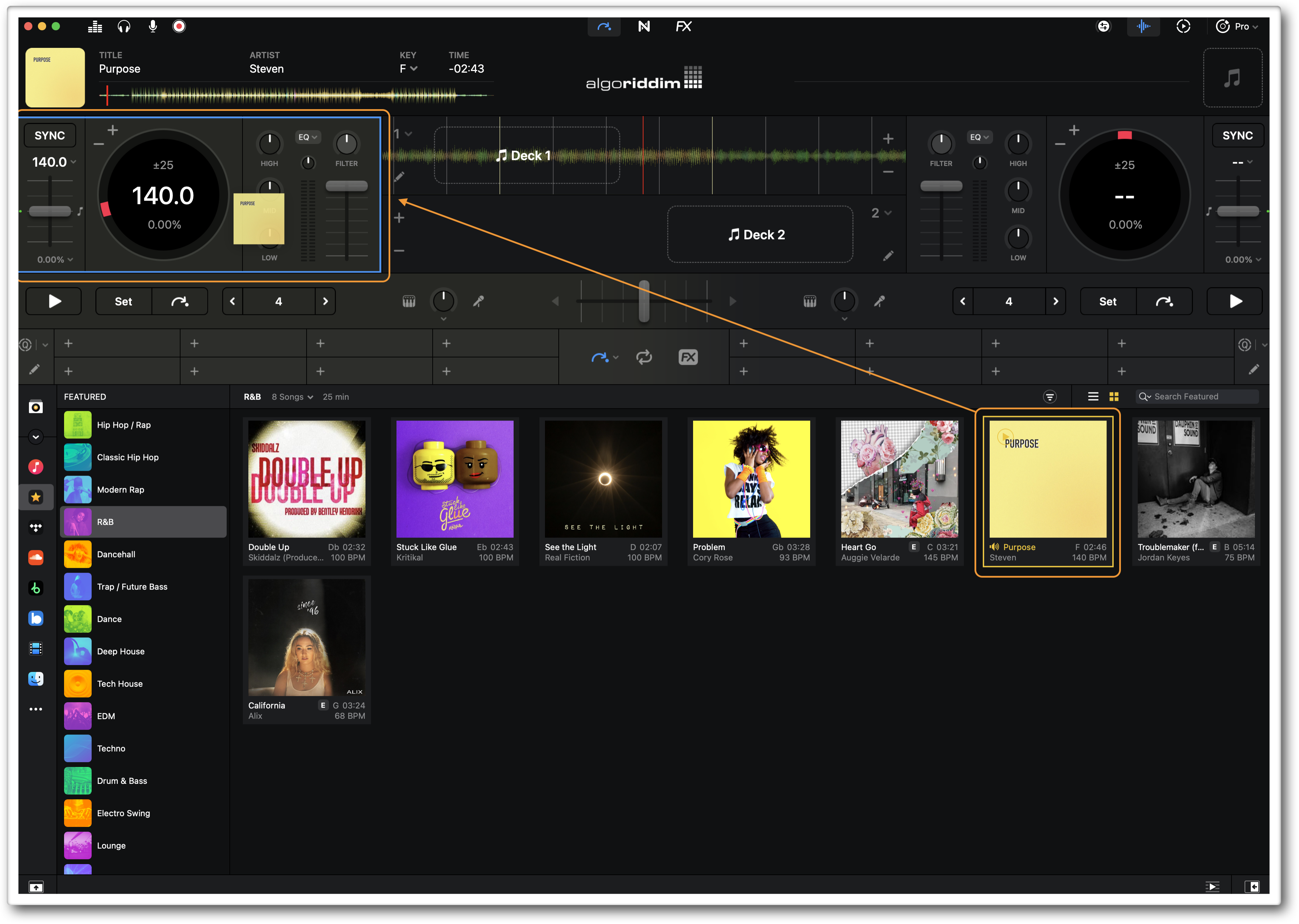
- Load the same song on another device.

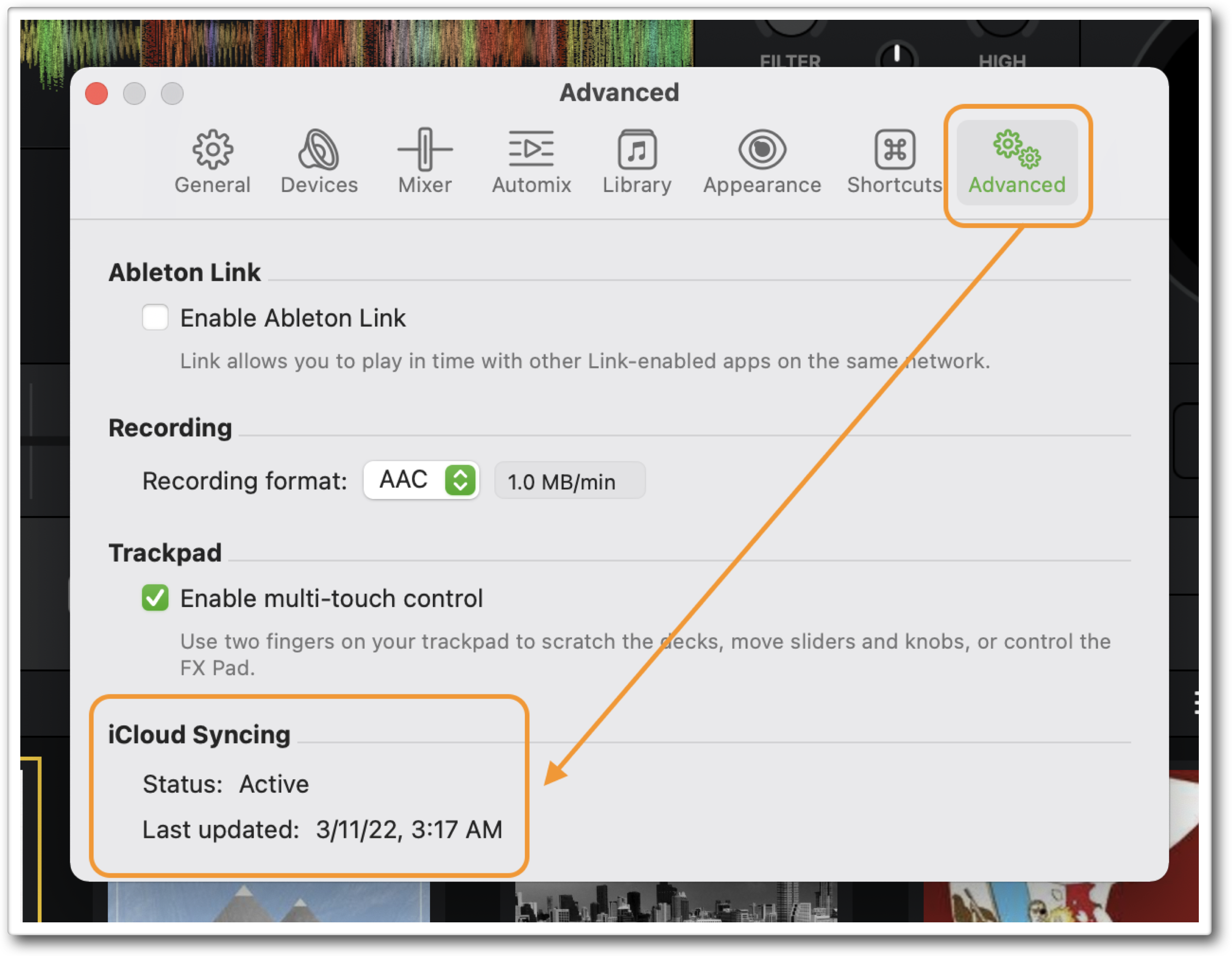
Note: Check sync status in djay > Preferences > Advanced > iCloud Syncing.
Enabling iCloud syncing on iOS
- Open the Settings app.
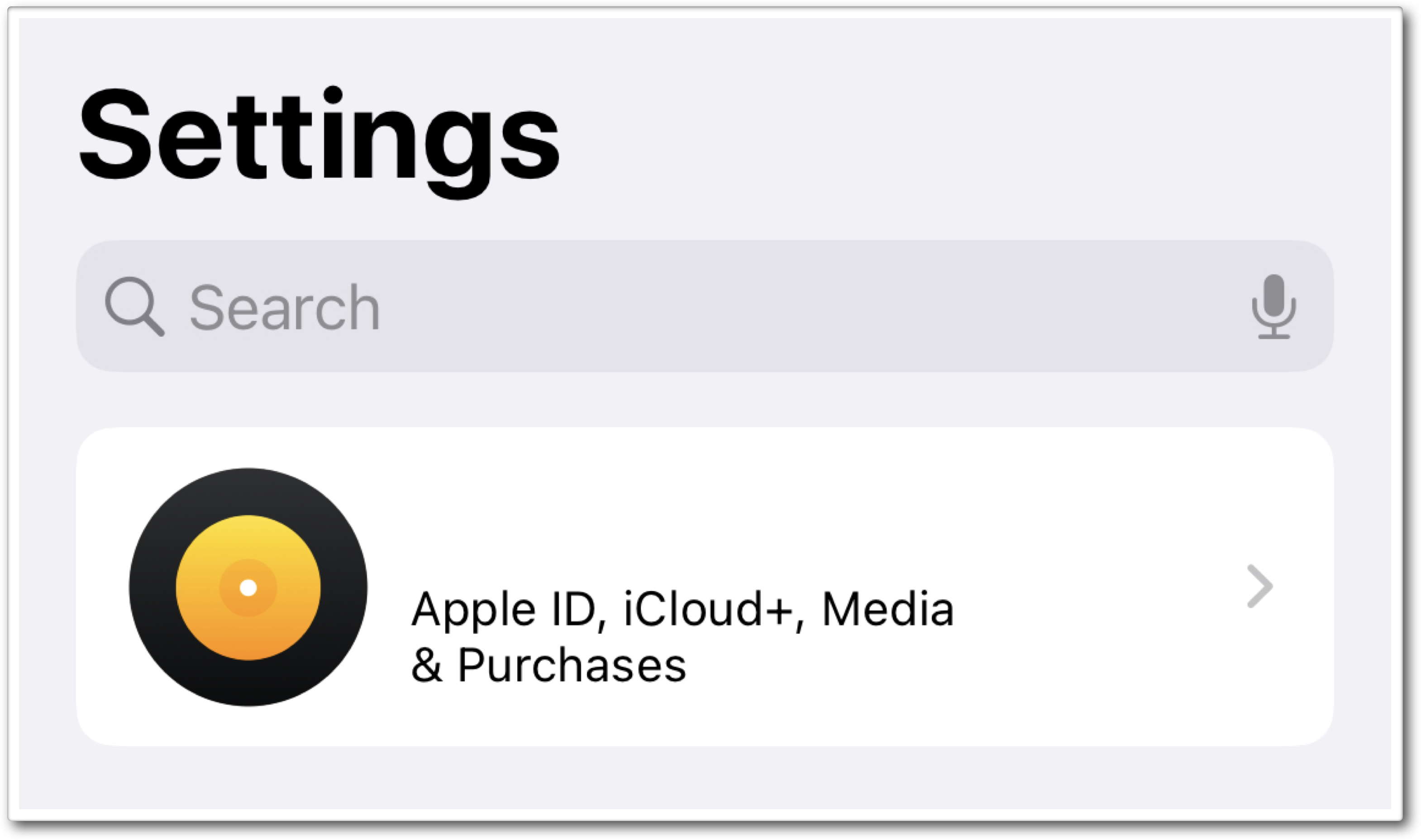
- Tap your Name / Apple ID.
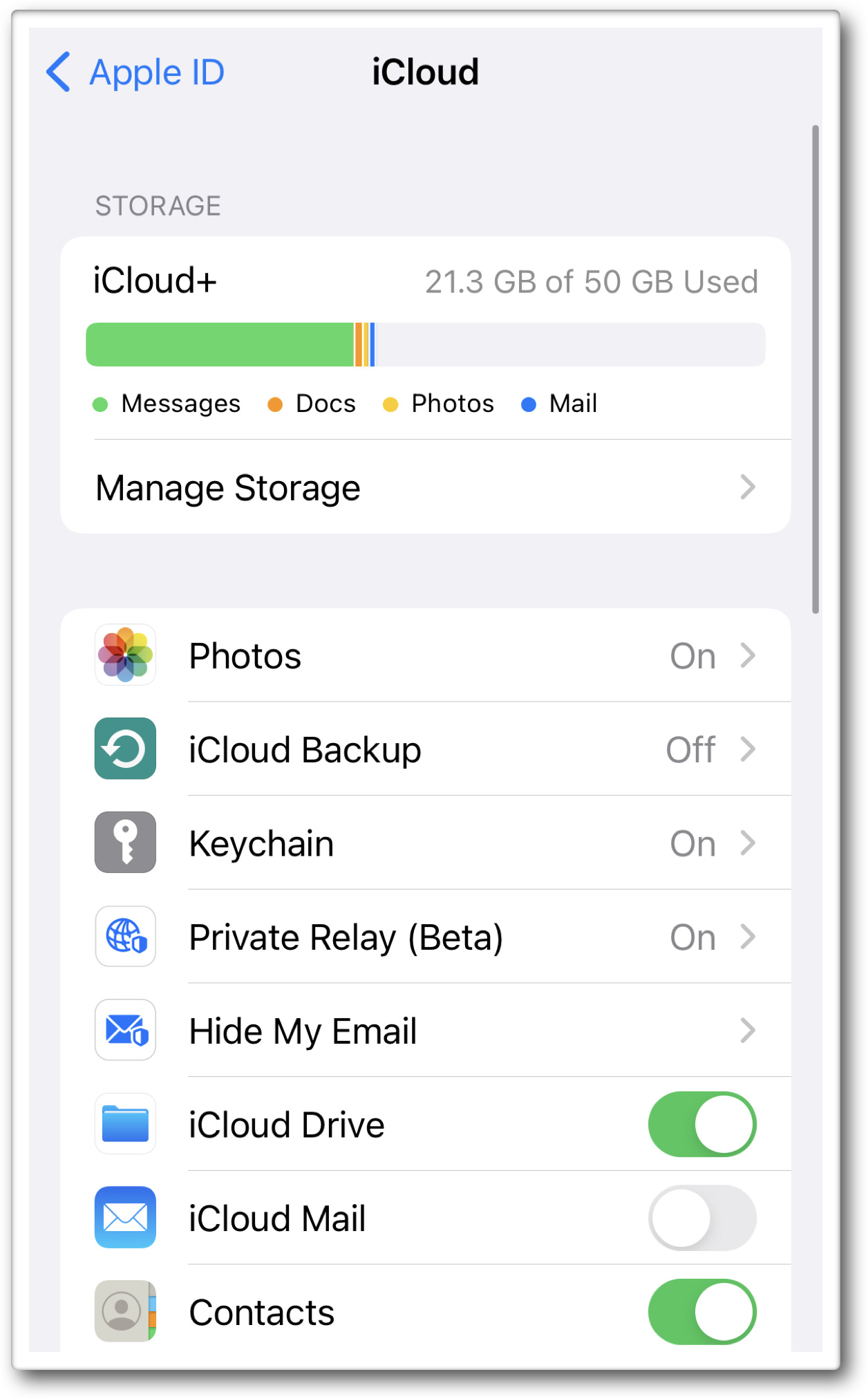
- Tap iCloud.
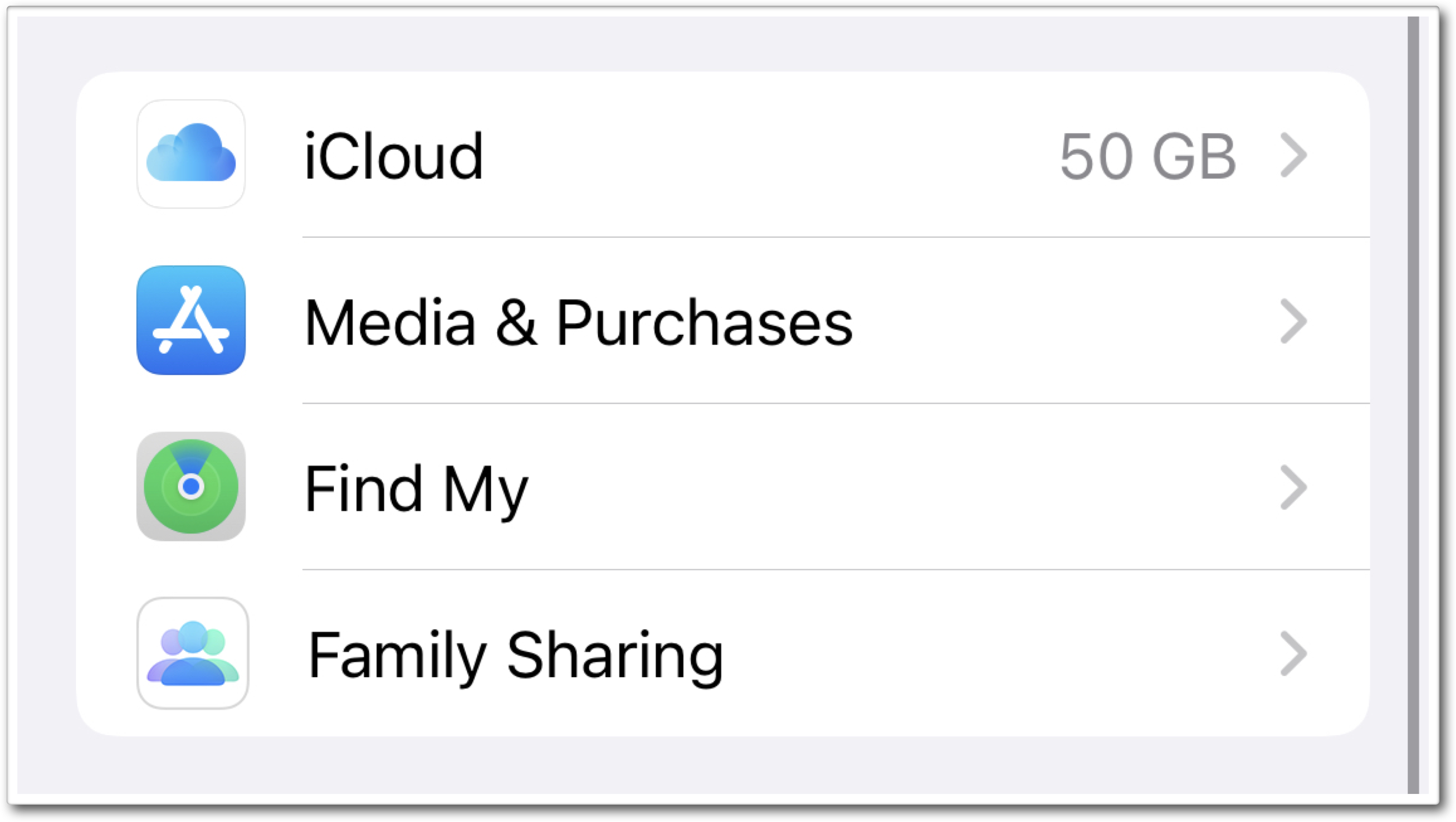
- Ensure iCloud Drive is enabled.
Testing iCloud syncing on iOS
- Load a song and set a cue point.
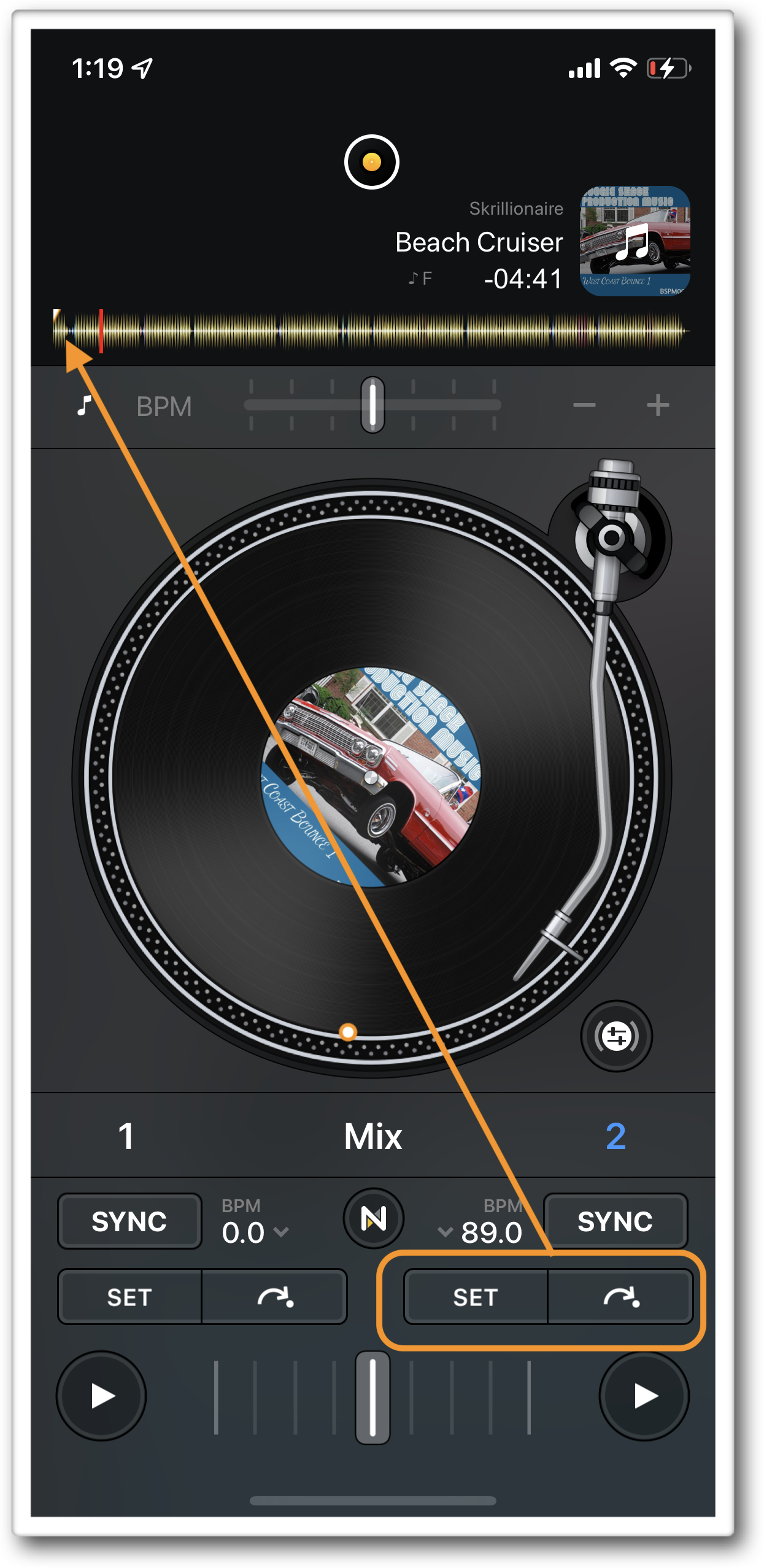
- Load another song to trigger cloud syncing.
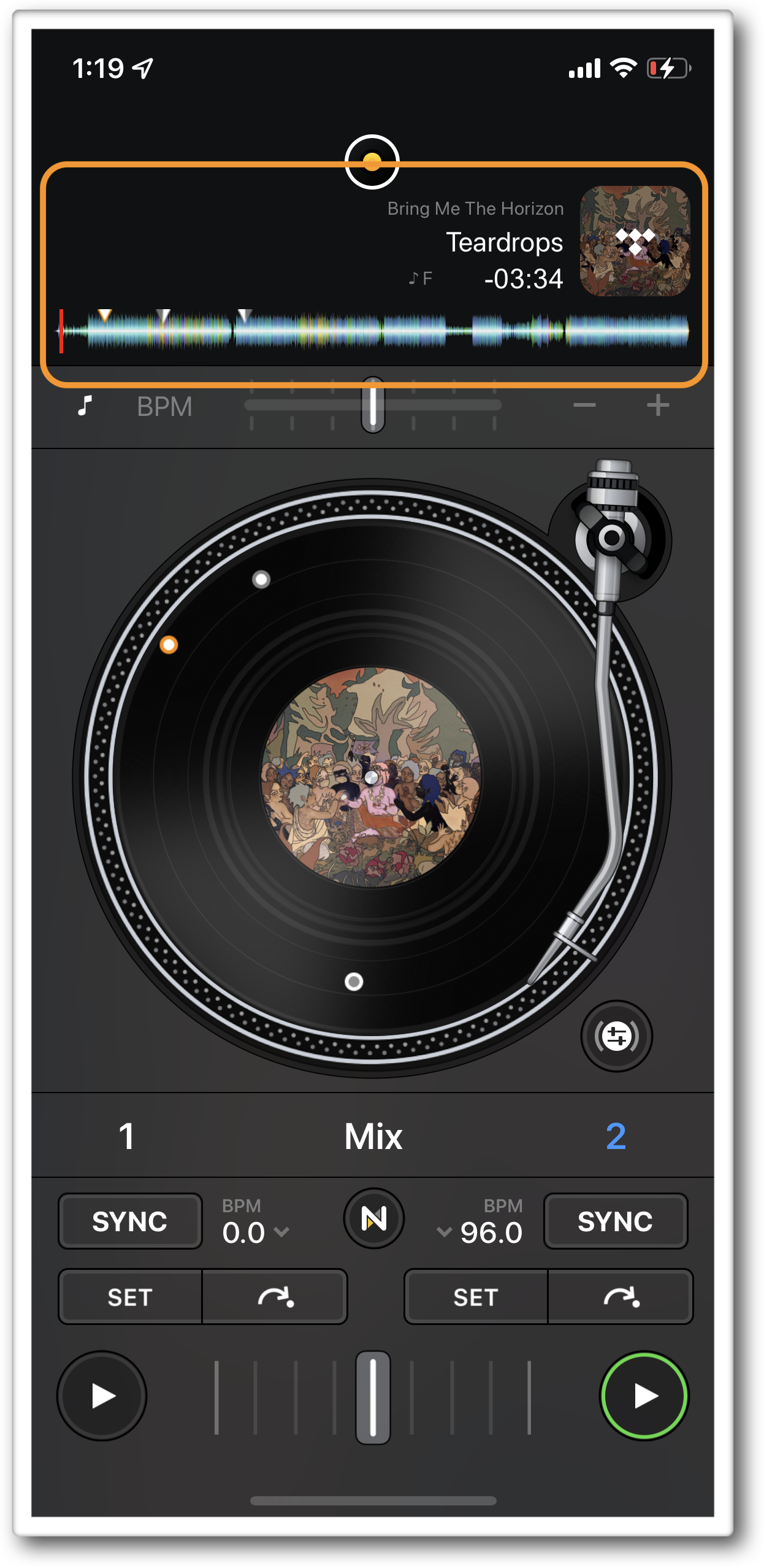
- Load the same song on another device.
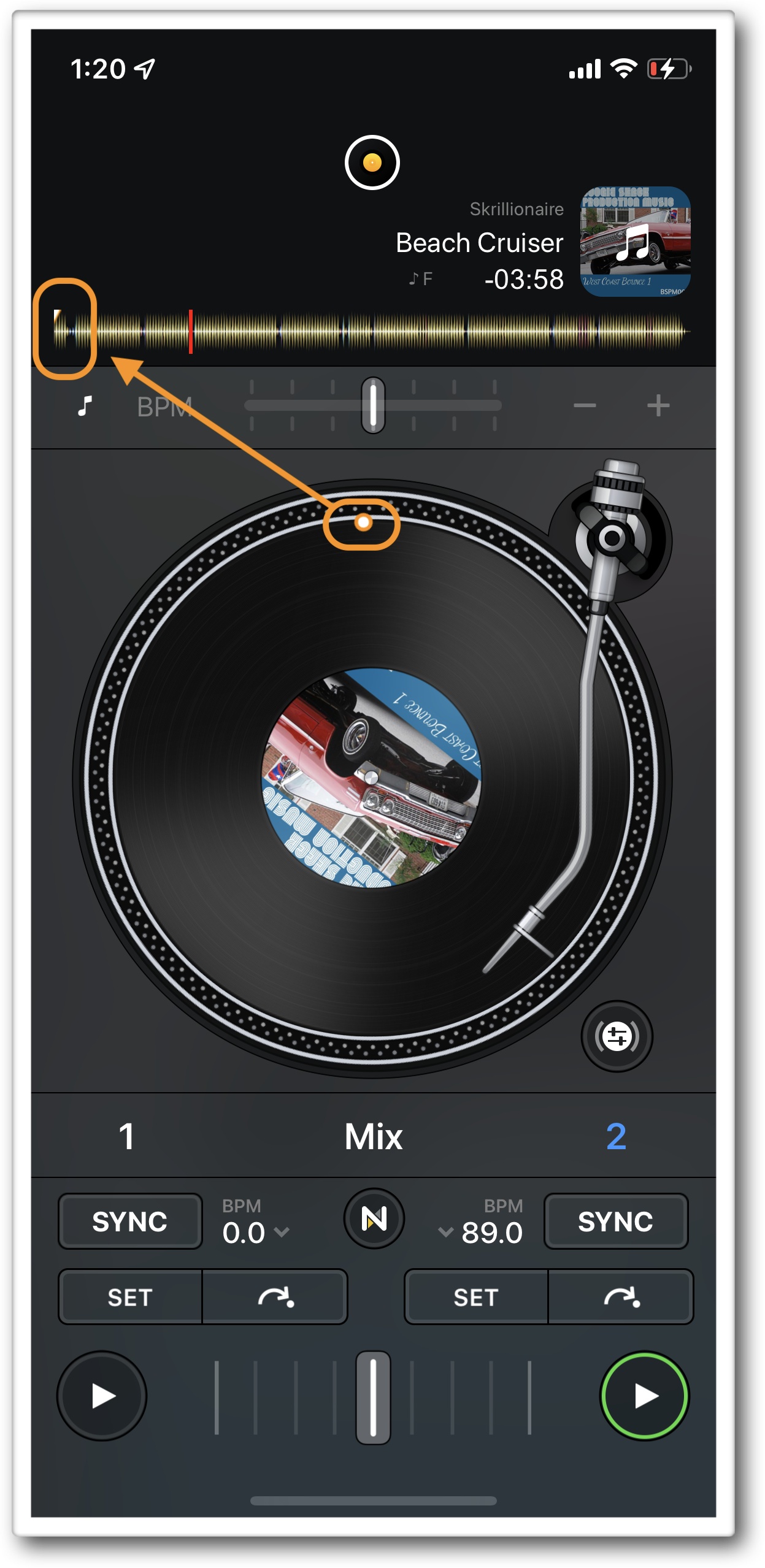
Note: Check sync status in djay > Settings > Advanced > iCloud.
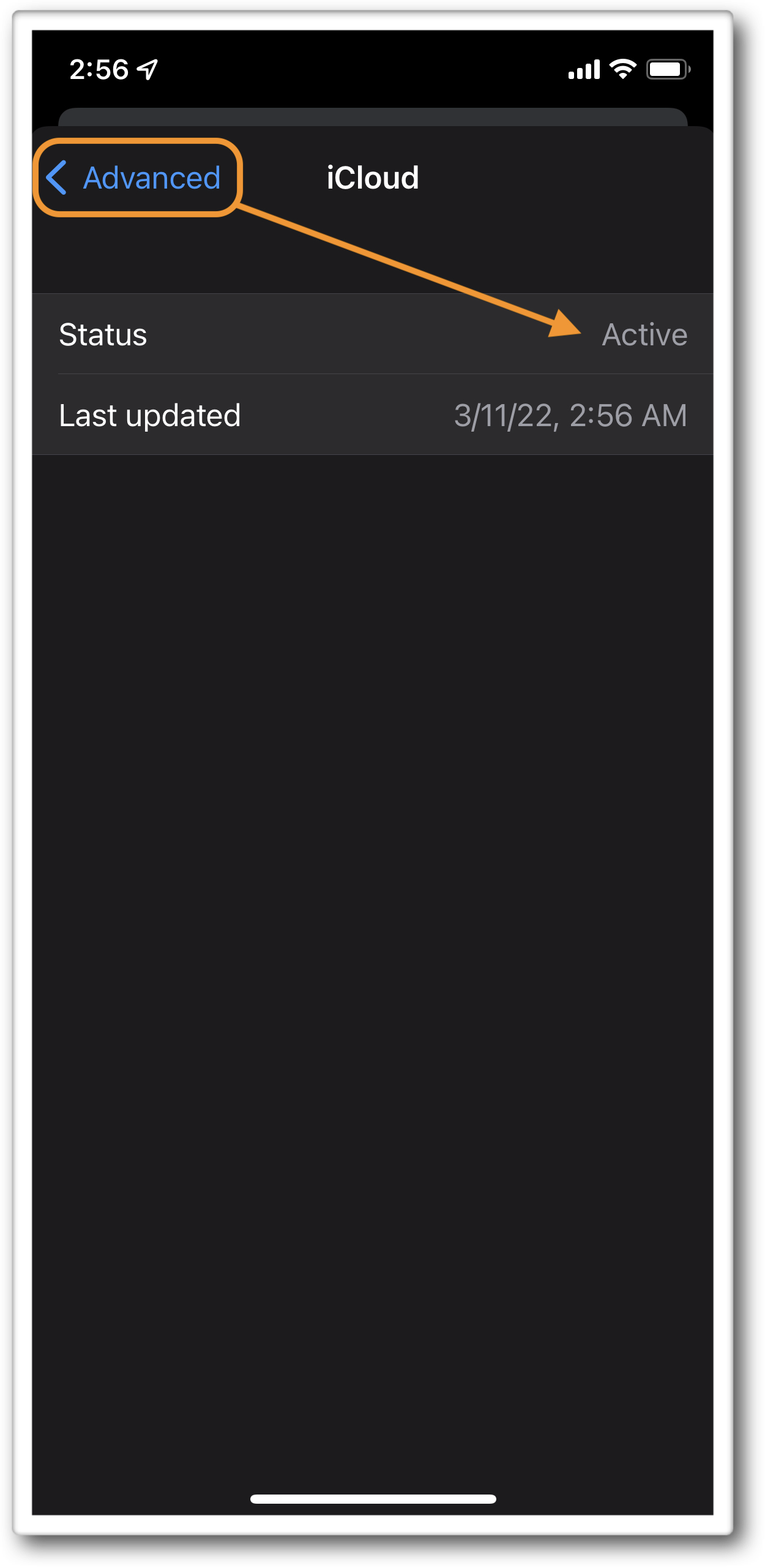
Troubleshooting iCloud syncing on iOS and macOS
- On Mac, confirm you’re using the Mac App Store version of djay.
- Update macOS and iOS to the latest version.
- Ensure all devices use the same Apple ID and have iCloud Drive enabled.
- Confirm all devices are connected to the Internet.
- Make sure song metadata (title, artist, duration) matches exactly.
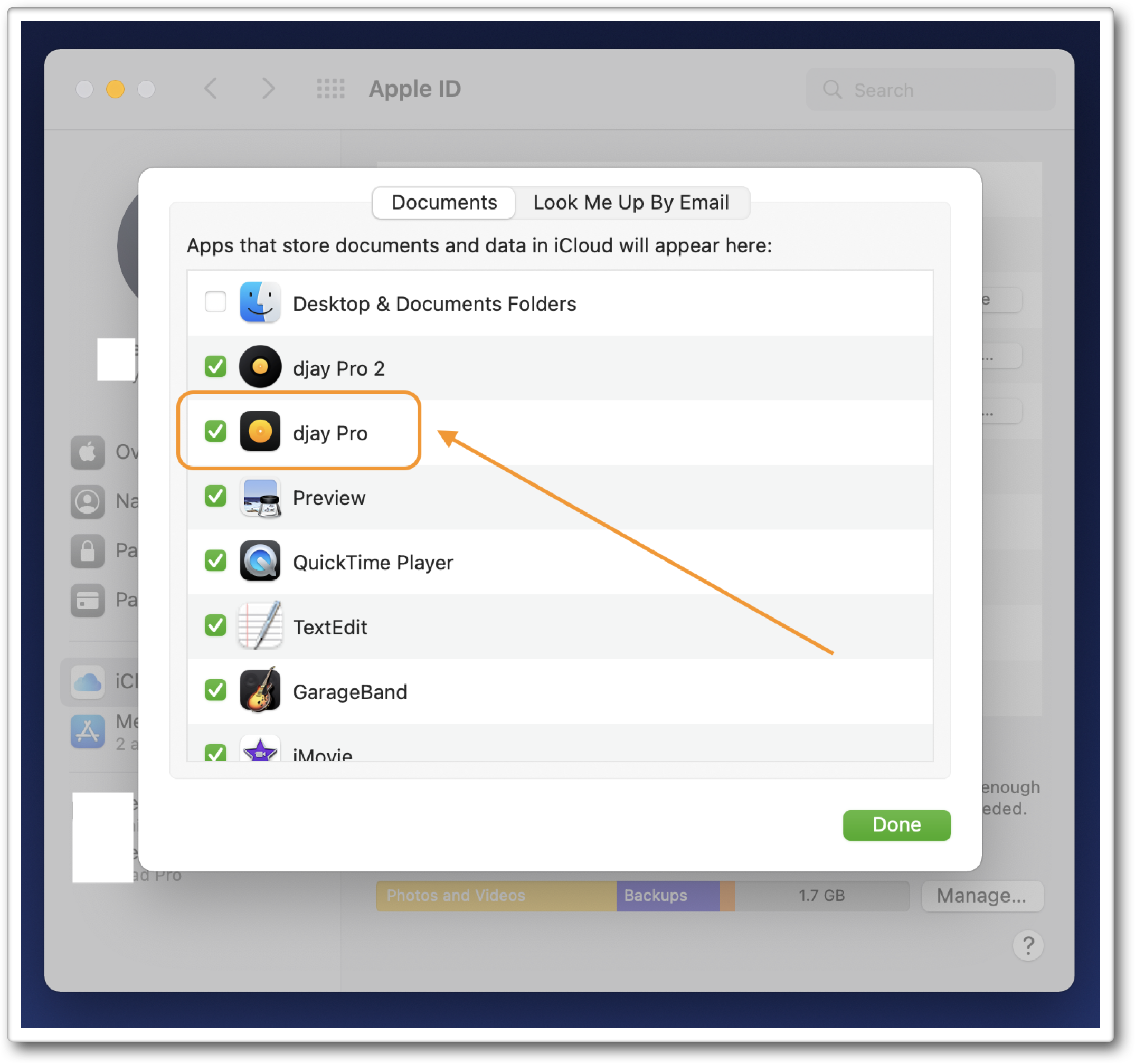
- Check that iCloud Drive is enabled for djay
-
On macOS: go to System Preferences > Apple ID > iCloud > iCloud Drive > Options…
-
On iOS: go to Settings > Apple ID > iCloud Drive

-
- Restart your devices.
- Enable automatic date & time.
- Reset all settings on iOS (does not erase data).
- Sign out of iCloud and sign back in.