


How to move playlists, cue points, and beatgrids from one device to another
You can move playlists, cue points, loops, and beatgrids between djay on macOS, Windows, and iOS using OneLibrary. OneLibrary stores your music and performance data on a USB or SD drive, making it easy to prepare on your laptop and perform on iPhone, iPad, or supported CDJ/XDJ hardware. This guide explains how to export your playlists and how to load them on another device.
Watch the video guide
For a visual step-by-step walkthrough of exporting your playlists to a OneLibrary drive and loading them on another device (including iPhone/iPad), watch our tutorial video:
Introduction
OneLibrary keeps your playlists and performance data consistent across all your devices.
With OneLibrary you can:
- Transfer playlists between macOS, Windows, and iOS
- Keep cue points, loops, beatgrids, and track order fully intact
- Export your library for use on supported CDJ/XDJ/OPUS-QUAD hardware
- Load existing USB libraries directly into djay
On iOS, OneLibrary is read-only.
You can load tracks and playlists, but cannot export or edit playlists.
- macOS
- Windows
- iOS
- Android
How to export or transfer your OneLibrary
Prepare your USB drive / SD card
- Ensure the drive is formatted as:
- exFAT (recommended)
- FAT32
- HFS+
Create a new OneLibrary playlist or folder
- Connect the USB drive to your Mac.
- In the sidebar, click the USB Library icon.
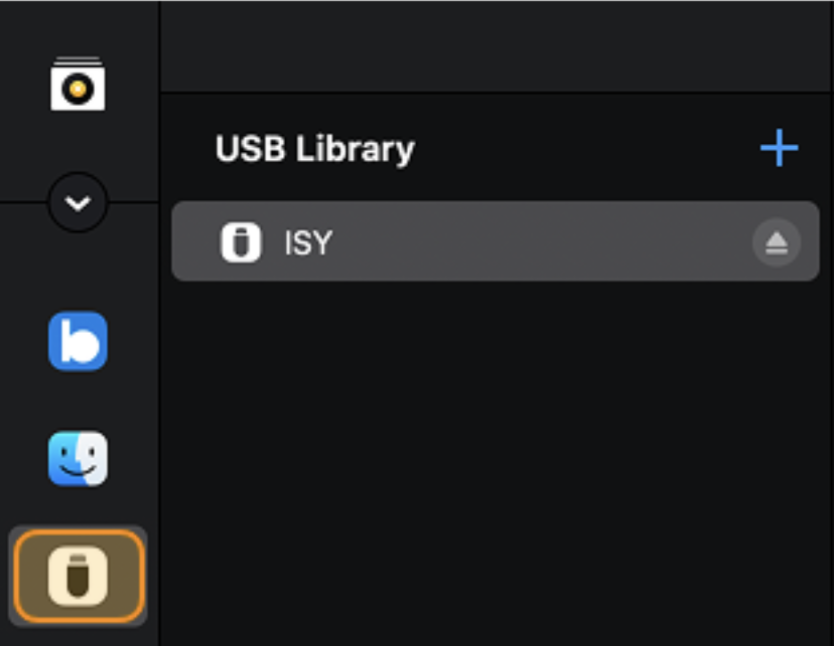
- If prompted, grant OneLibrary access to the drive.
- Choose the drive where you want to create playlists or folders.
- Click the + button to add a new playlist or folder.
- Drag and drop music or files from your collection into your new OneLibrary playlist or folder.
Copying playlists and performance data may take some time, depending on the size of your library.
Adding existing playlists or folders to OneLibrary
- Connect a USB drive to your Mac.
- In the sidebar, click My Collection.
- Right-click a playlist and select Add to USB Library.
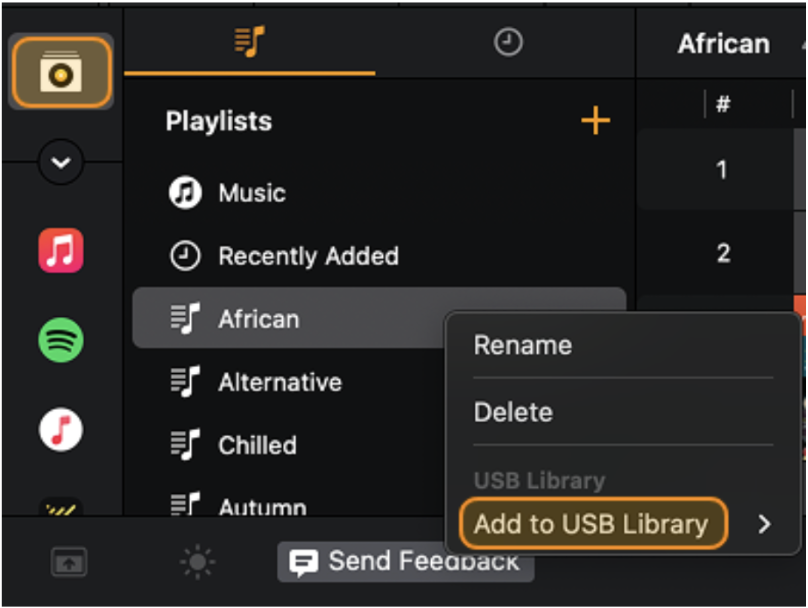
- The playlist will now appear in OneLibrary.
You can also use Split Library mode to drag playlists and folders directly into OneLibrary.
How to load your library on an another device
-
After exporting, safely eject your USB drive.
-
Connect your USB drive to another device (Mac, iPhone, iPad, Windows PC) using the correct adaptor.
-
Open djay.
-
Tap USB Library and select your drive.
You’ll see your playlists exactly as they appeared on desktop — with cue points, loops, beatgrids and track order fully preserved.
You can now:
- Load tracks directly from the USB drive, or
- Import a playlist into My Collection, with the option to copy audio files to internal storage.
How to export or transfer your OneLibrary
Prepare your USB drive / SD card
- Ensure the drive is formatted as:
- exFAT (recommended)
- FAT32
Create a new OneLibrary playlist or folder
- Connect the USB drive to your PC.
- In the sidebar, click the USB Library icon.
- If prompted, grant OneLibrary access to the drive.
- Choose the drive where you want to create playlists or folders.
- Click the + button to add a new playlist or folder.
- Drag and drop music or files from your collection into your new OneLibrary playlist or folder.
Copying playlists and performance data may take some time, depending on the size of your library.
Adding existing playlists or folders to OneLibrary
- Connect a USB drive to your PC.
- In the sidebar, click My Collection.
- Right-click a playlist and select Add to USB Library.
- The playlist will now appear in OneLibrary.
You can also use Split Library mode to drag playlists and folders directly into OneLibrary.
How to load your library on an another device
-
After exporting, safely eject your USB drive.
-
Connect your USB drive to another device (Mac, iPhone, iPad, Windows PC) using the correct adaptor.
-
Open djay.
-
Tap USB Library and select your drive.
You’ll see your playlists exactly as they appeared on desktop — with cue points, loops, beatgrids and track order fully preserved.
You can now:
- Load tracks directly from the USB drive, or
- Import a playlist into My Collection, with the option to copy audio files to internal storage.
How to load your OneLibrary drive
Connect and access your OneLibrary drive
- Connect your USB drive using the correct Apple adapter:
- USB-C devices: USB-C multipurpose adapter
- Lightning devices: Lightning to USB 3 Camera Adapter
- Open djay.
- Tap USB Library in the sidebar.
- Select your drive.
You can browse your exported playlists, complete with:
- Cue points
- Loops
- Beatgrids
- Track order
Load or import playlists on iOS
Option A — Mix directly from USB
Load any track onto the deck and start mixing immediately.
Option B — Import into My Collection
- Open a playlist from the USB Library.
- Tap Import.
- Choose whether to Copy Files to Internal Storage.
Imported playlists do not sync automatically with desktop updates.
Re-exporting and re-importing is required.
OneLibrary export/import is not currently supported on Android.
You can still use local files or supported streaming services.
Supported file systems
OneLibrary supports the following formats:
- exFAT — macOS / Windows / iOS
- FAT32 — macOS / Windows / iOS
- HFS+ — macOS / iOS
Troubleshooting
If your drive doesn’t appear
- Confirm the drive is formatted as exFAT, FAT32, or HFS+.
- Ensure the drive is mounted by the OS.
- Try a different USB port or adapter.
- Restart djay after connecting the drive.
If your performance data didn’t transfer
- Ensure the track was fully analyzed before exporting.
- Re-export the playlist to the USB Library.
- Verify the drive’s file system is supported.