


What syncs via iCloud in djay, and how to enable it
iCloud sync keeps your cue points, loop regions, and Automix start and end points up to date across your Apple devices, so a track you cue up on your iPhone loads the same way when you switch to your Mac. It only works between djay running on macOS and iOS.
This article walks you through enabling, testing, and troubleshooting iCloud sync on iOS and macOS.
iCloud sync isn't available for Windows or Android as it's an Apple-only feature, since it relies on iCloud itself.
What syncs via iCloud
djay syncs the following automatically via iCloud between your Apple devices:
- Cue points
- Loop regions
- Automix start and end points
BPM or Playlists don't sync via iCloud. Even within the Apple ecosystem, moving a playlist between devices needs to be done using OneLibrary, not iCloud. See How to move playlists, cue points, and beatgrids from one device to another if that’s what you need instead.
How to turn on iCloud sync
Before you start, make sure:
- You're using the Mac App Store version of djay on macOS.
- Both macOS and iOS devices are updated to their latest versions.
- You're signed in with the same Apple ID on every device.
- Every device has an active internet connection.
Then, enable iCloud Drive for djay on each device:
- macOS
- iOS
Enabling iCloud sync on macOS
-
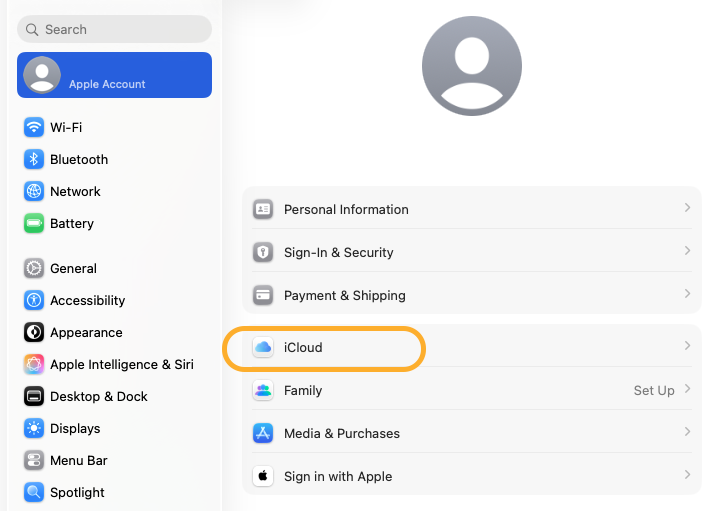
Open System Settings, click your name / Apple ID and then iCloud.
-
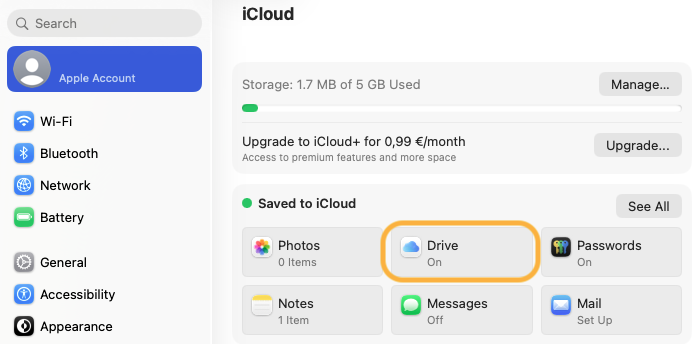
Click Drive.
-
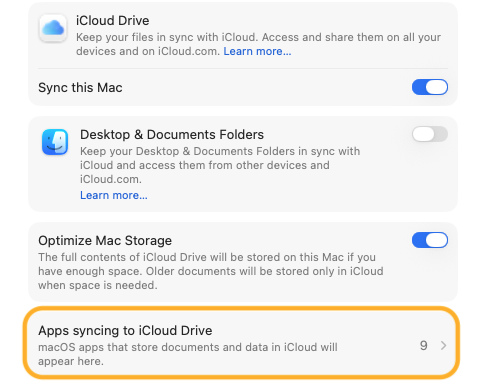
Then Apps syncing to iCloud Drive.
-
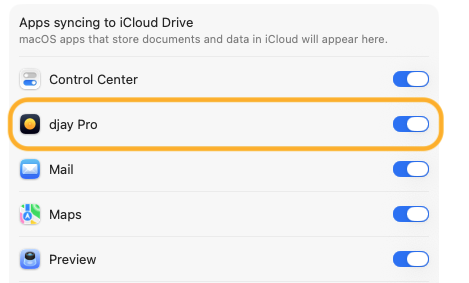
Ensure djay Pro is checked.
Enabling iCloud sync on iPhone or iPad
-
Open the Settings app and tap your Name / Apple ID and then iCloud.
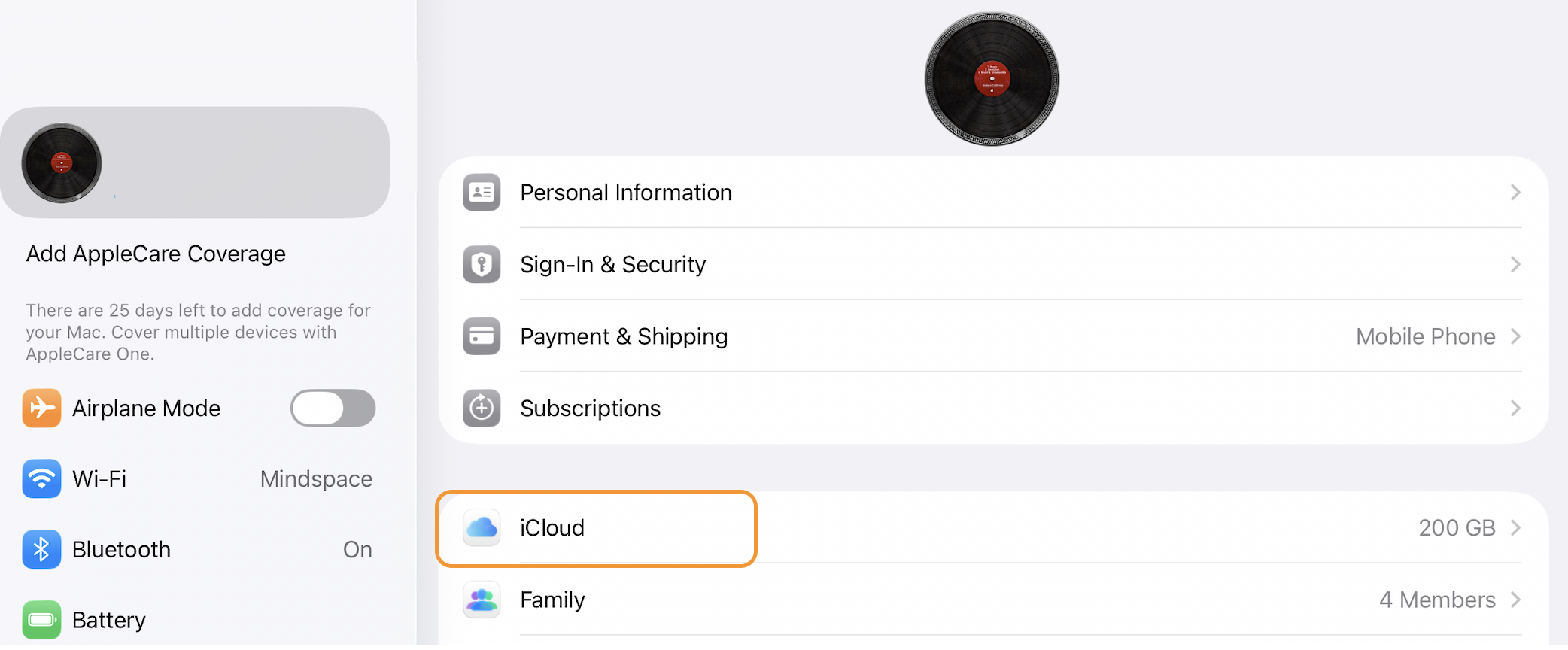
-
Tap Drive.
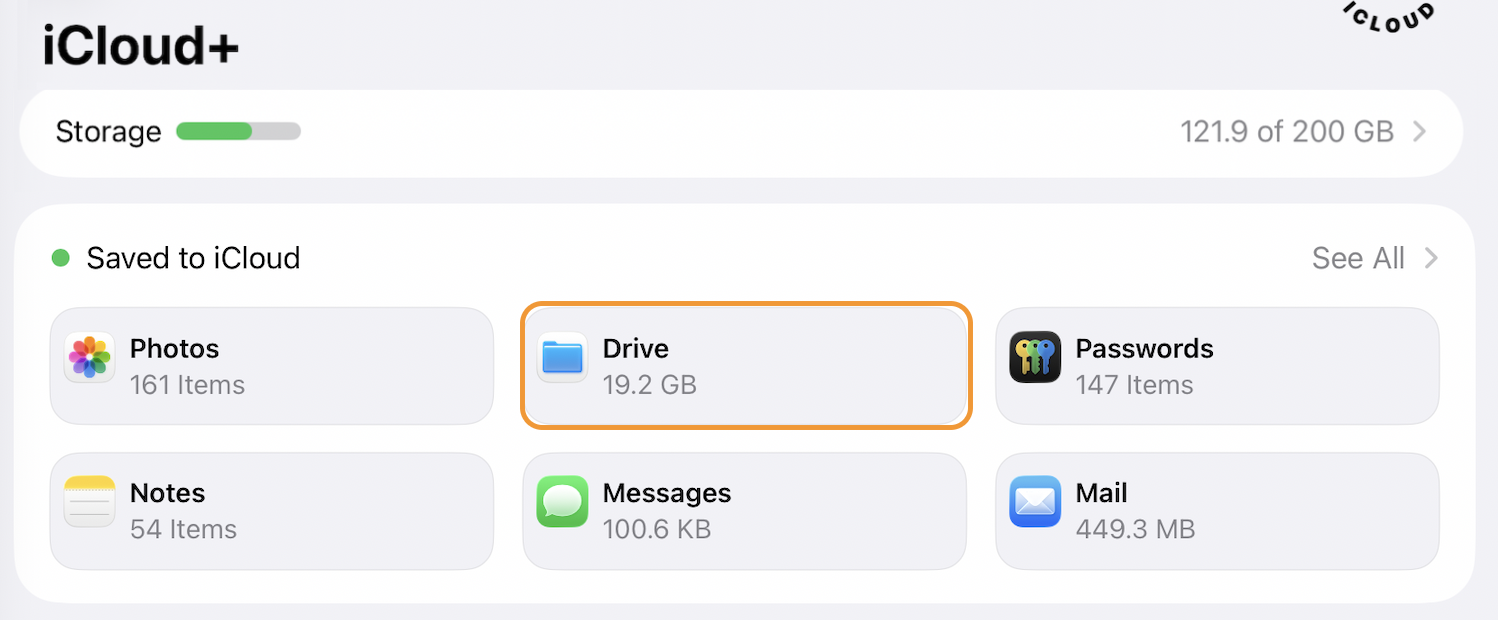
-
Tap Apps Syncing to iCloud Drive
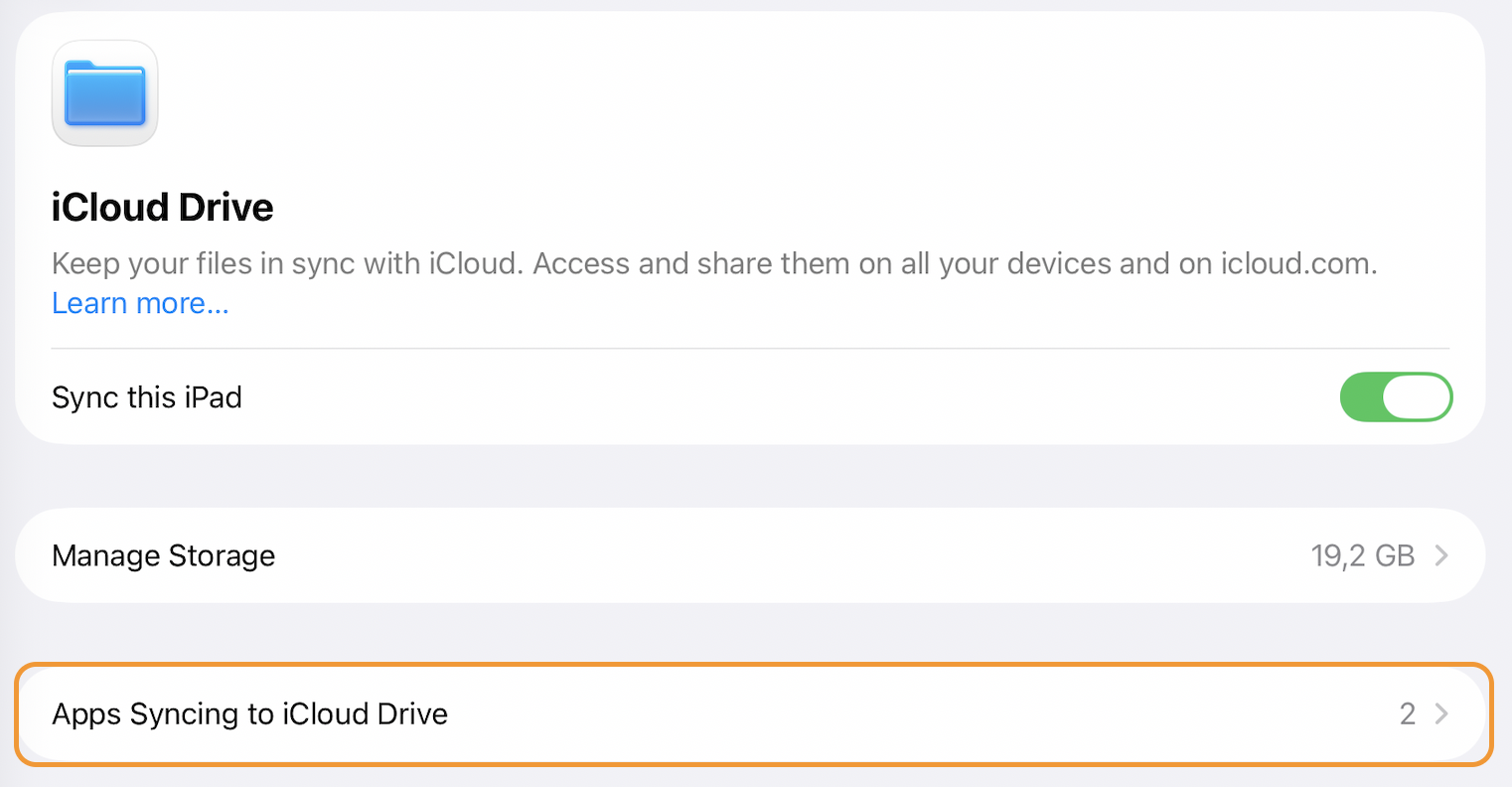
-
Ensure djay Pro is checked.
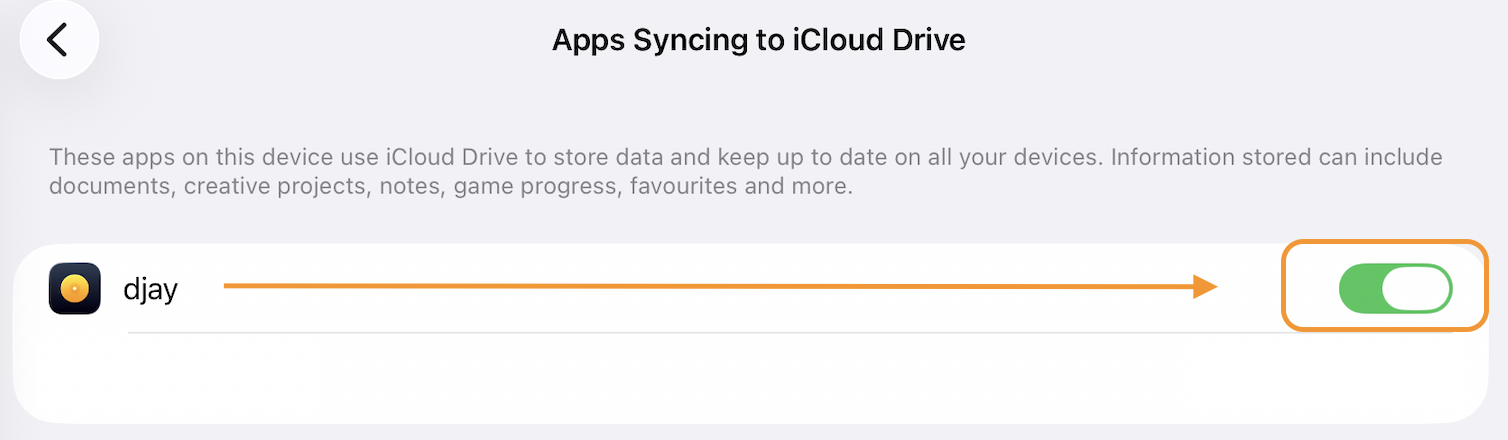
How to test iCloud sync
- One one device, load a track and set a cue point.
- Load a different track on the same device. This lets djay finish saving the cue point.
- On your other Apple device, load the same track. The cue point should appear in the same place.
Troubleshooting iCloud sync
If synced data isn't showing up where you expect it:
- On Mac, confirm you’re using the Mac App Store version of djay and that your macOS and iOS are updated to their latest versions.
- Check that iCloud Drive is turned on for djay on both devices (see the steps above) and that every device is connected to the internet.
- Check that the track's metadata (title, artist, duration) matches exactly between devices. djay matches synced data to a specific track, so even a slightly different copy of the same song won't match.
- Turn on automatic date and time in your device's system settings as a mismatched clock could block iCloud sync.
- If a cue point or loop doesn't show up right away, wait a few seconds, then reload the track or restart djay to trigger a fresh sync check. If sync is still not activating, sign out of iCloud and back in on the affected device.
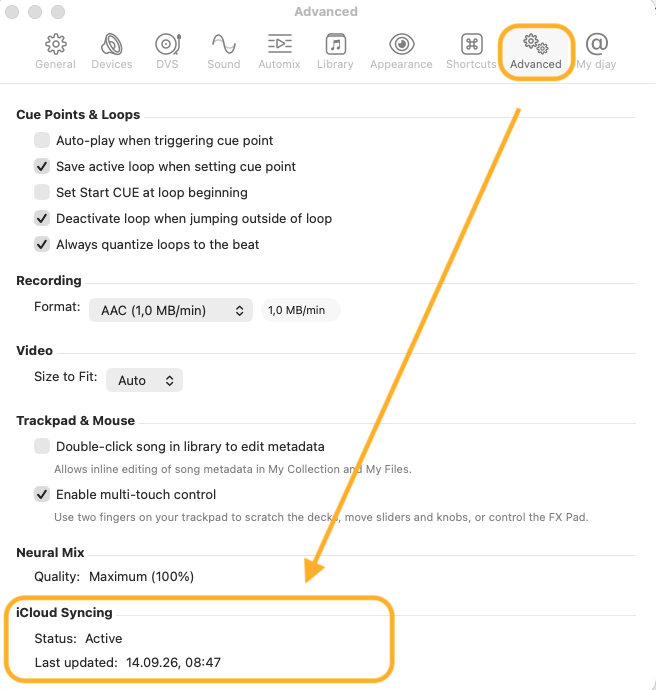
On Mac, djay's Settings > Advanced tab shows the current iCloud sync status and the date and time of the last successful sync, so you can confirm whether djay has synced recently before troubleshooting further.
Go deeper
- Signing in to the same streaming account (Apple Music, TIDAL, Spotify, and so on) on two devices gives you the same playlists and library everywhere. That access comes from the streaming service itself, not from iCloud sync.
- Signing in to the same djay account on two devices doesn't, by itself, sync your cue points, loops, or Automix points. That performance data only syncs through iCloud, so you also need iCloud Drive turned on for djay and the same Apple ID on both devices.
- The information in this article covers automatic, ongoing syncing. Moving a library manually is a one-off transfer, not an ongoing sync. See How to move playlists, cue points, and beatgrids from one device to another.
- Even when sync is set up correctly, djay matches synced data to a specific track. If the file doesn't match exactly on both devices (a different edit, bitrate, or re-encode), the synced data won't appear on the other device.