Side panel overview
The side panel provides quick access to your Queue, History, and other helpful views, making it easy to manage tracks and keep your library organized while DJing.
-
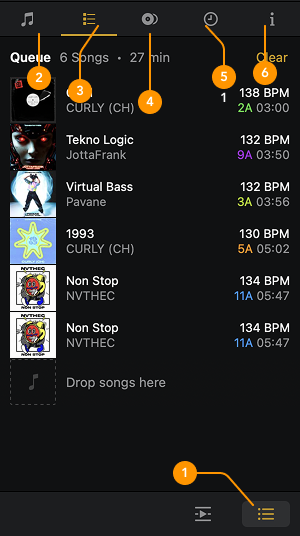
Show side panel: Reveals the side panel options.
-
Library: Browse your music in a second library window—great for organizing and preparing your set. Use the dropdown menu to switch between your personal collection, djay Music, and connected streaming services.
-
Queue: View and manage the list of tracks you’ve played and what’s coming up next.
-
Match: Get intelligent track suggestions that mix well with the song currently playing, or with custom tracks you add to the Match playlist.
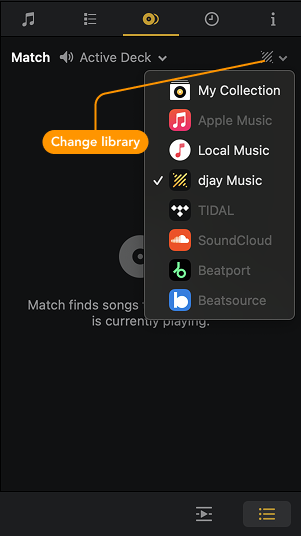
Two dropdown menus allow you to change the Match sources.
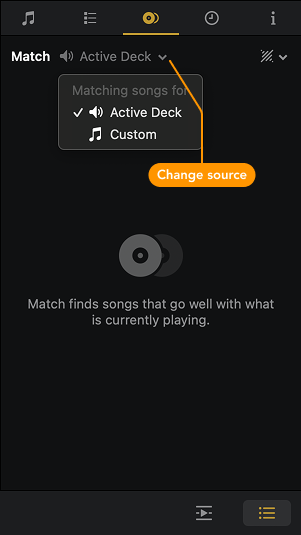
- Change Source chooses whether Match uses the currently playing track or a custom track from the Match playlist.
- Change Library selects the source for Match suggestions: My Collection, Music (local files), Apple Music, TIDAL, Beatport/Beatsource, or SoundCloud.
noteFor djay to provide Match suggestions from any of the streaming services, you must be logged in with your active streaming service account in djay's music library.
-
History: Shows tracks and playlist history from your current and past sessions.
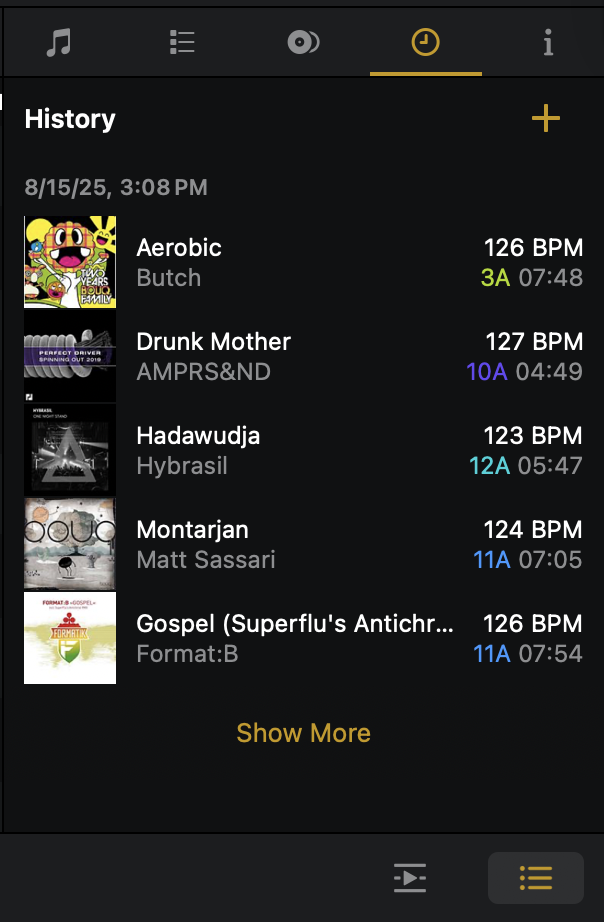
-
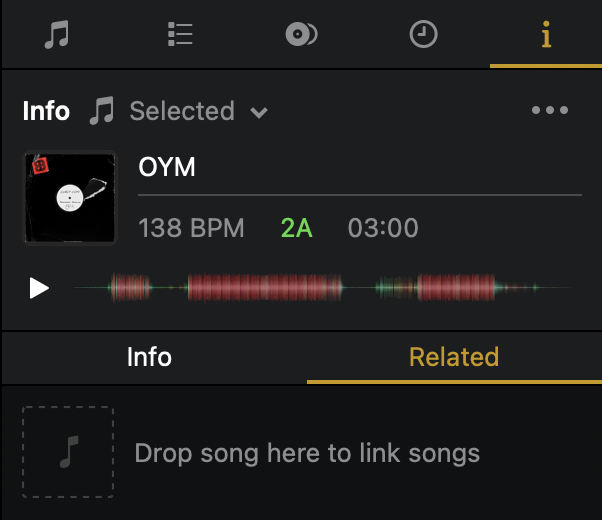
Info: Displays the metadata for the selected track.
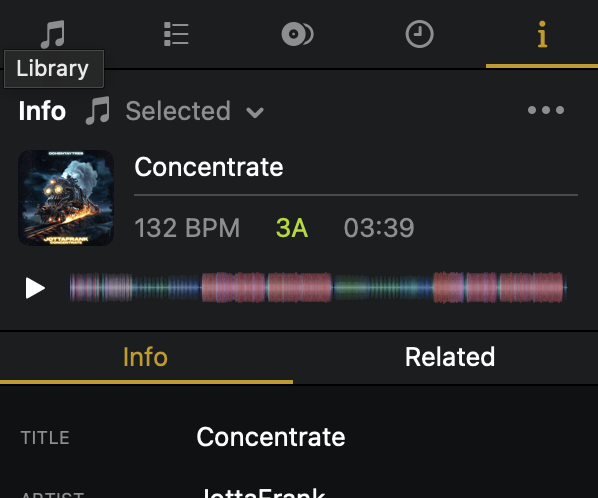
Use the dropdown menu to display information from:
- The track selected in the library
- The track currently playing on the active deck
- The track loaded on the selected deck.
The three-dot menu gives you quick access to Analyze, Add to queue, Load to deck, and more.
noteIn the two-deck view, you’ll see info for both decks. In the four-deck view, you can choose from all four.
Related Tracks
The Related tab, found within the Info section of a track, lets you save songs that pair well with it—ideal for building go-to transitions and remembering seamless blends.
If you’ve found tracks that work perfectly together, add them to Related so they’re always close by when you're performing or prepping a set.