


Adding to Queue
The Queue keeps your upcoming tracks organized so you can focus on the mix.
Queue shows what’s playing now and what’s lined up next, giving you space to plan transitions without breaking your flow.
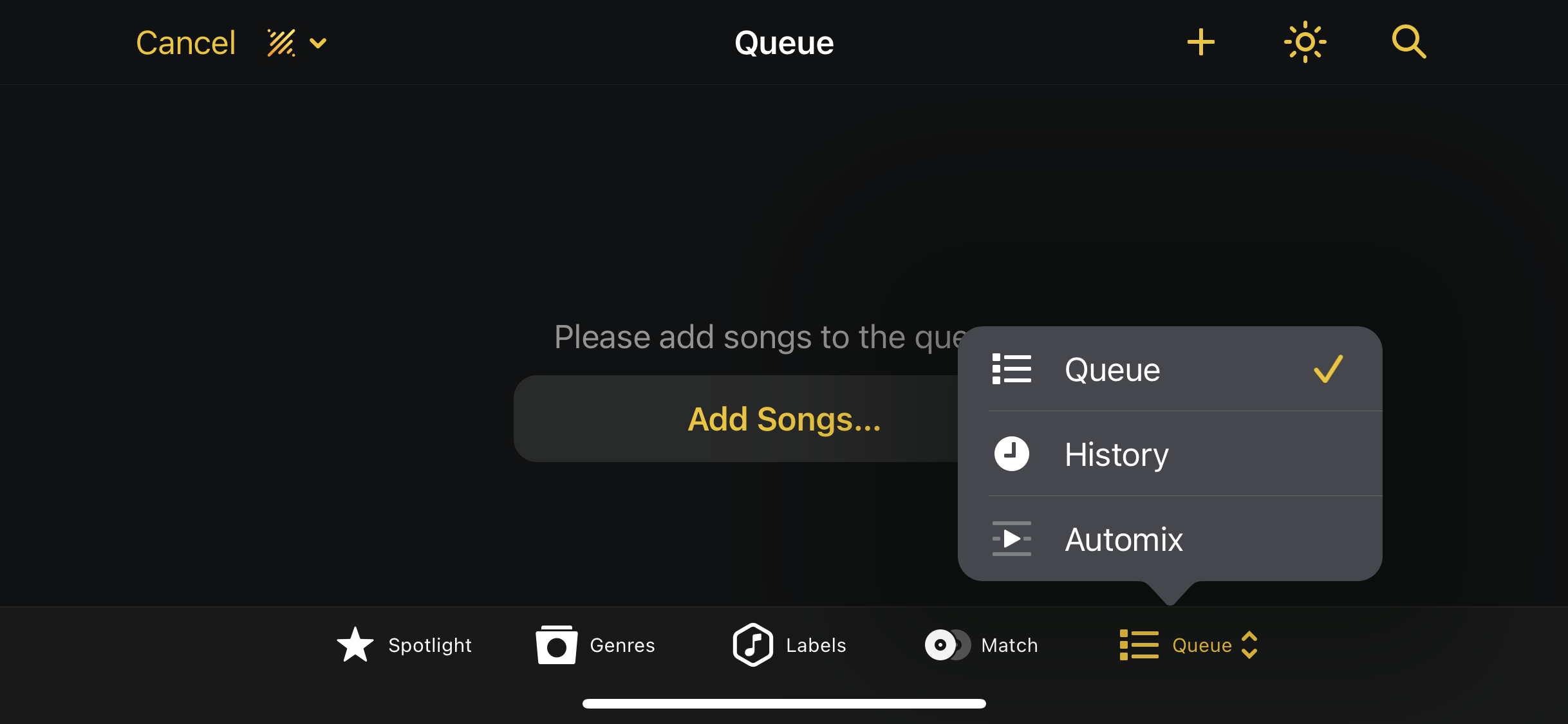
Accessing and adding tracks to the queue
- Select a library and tap the Queue tab at the bottom of the screen.
- If the queue is empty, tap Add Songs to add tracks.
- You can also tap a track’s three-dot menu and choose Add to Queue to add it from a library, playlist, or search results.
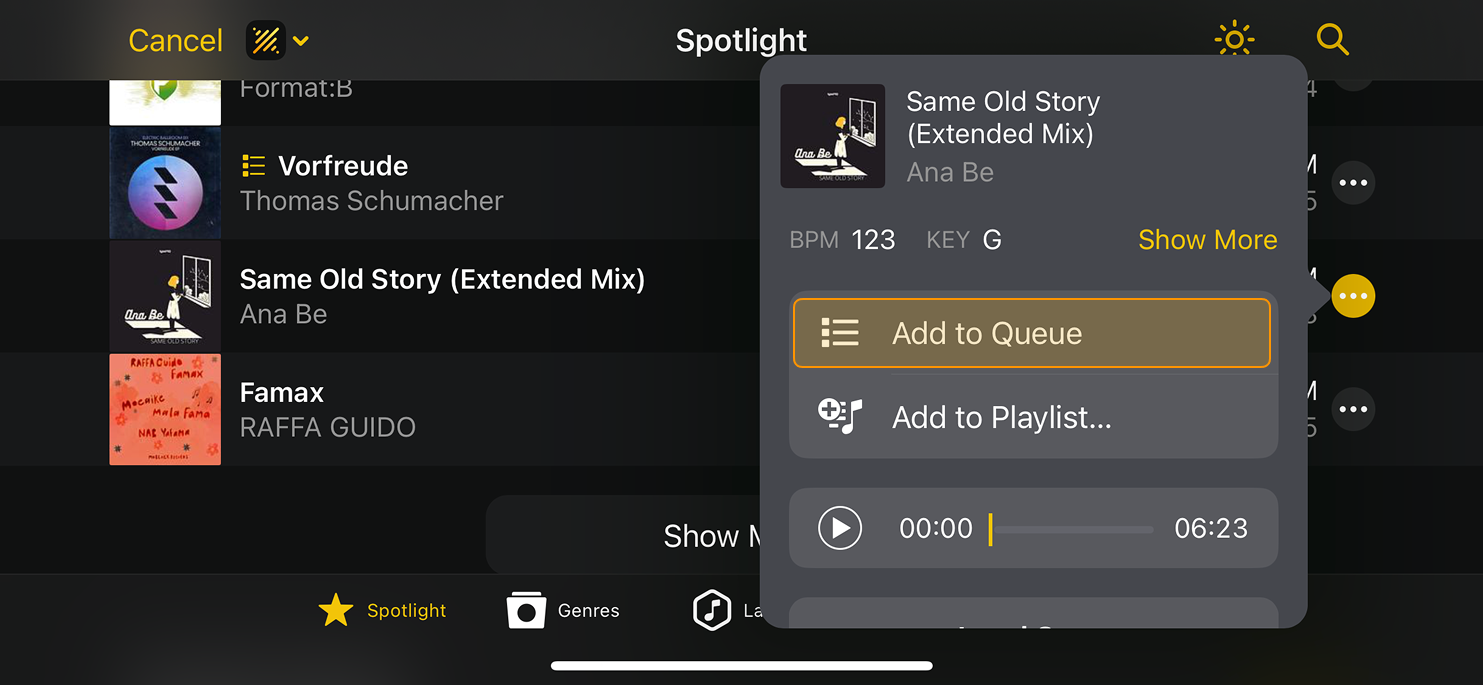
note
Played tracks are marked with a checkmark but are not removed from the queue automatically. To clear them, remove tracks manually or adjust the queue settings under Settings > Library.