


Adding tracks from external hard drives, USB, iCloud, and My Files
Expand your library and keep your music organized your way. djay for iOS lets you add and play music from external drives and cloud storage using the Files app, so you can access your tracks wherever they’re stored—from USB drives to iCloud Drive and other third-party services.
To play a track, it must be fully accessible on your device through the Files app.
Requirements
- djay version 5.3 or later.
- Active djay subscription.
How to add music from external drives (USB, hard drive)
- Connect your external drive using the correct adapter (for example, Lightning to USB 3 Camera Adapter or USB-C Digital AV Multiport Adapter).
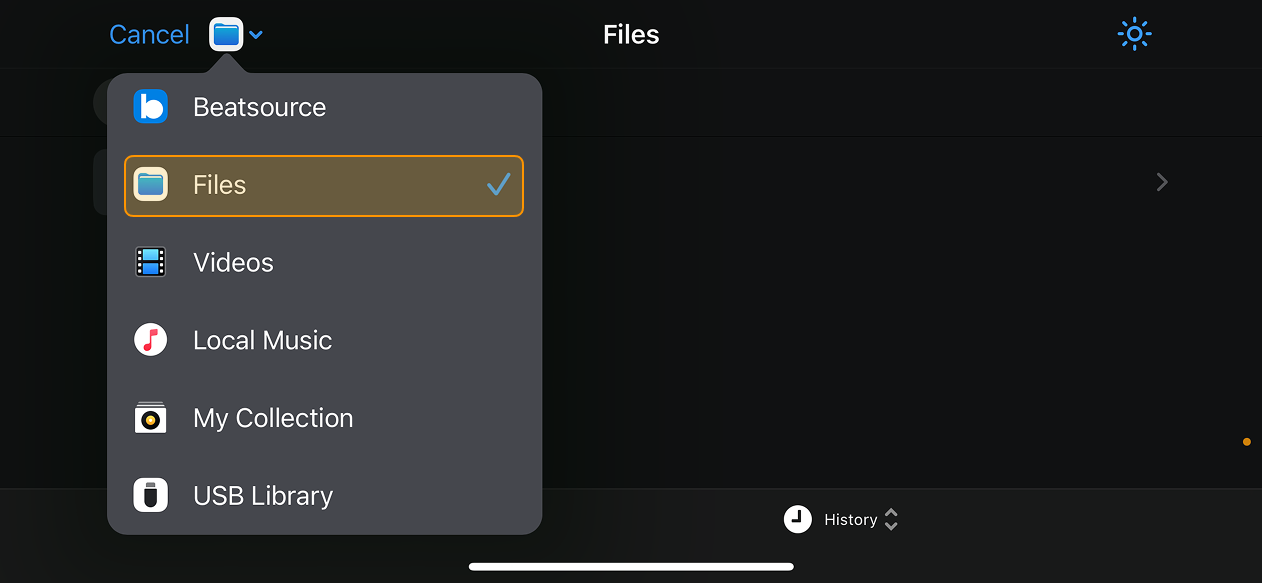
- In djay, open the Files tab in the music library.
- Tap the + icon in the top left corner.
- Choose Add Files to import individual tracks, or Add Folder to import an entire folder.
- In the file browser, navigate to your drive and select the files or folders you want to add.
- Tap Done to confirm.
Your music will now appear in your Files collection.
note
djay doesn’t copy or move your music files—it references their original location. If you remove or rename the drive or folder, djay may no longer be able to locate the tracks.
Adding music from iCloud Drive
- In the Files tab, tap the + icon, then choose Add Files or Add Folder.
- Go to iCloud Drive and select the songs or folders you want to import.
- Make sure the files are downloaded locally to your device. Tracks stored only in the cloud won’t play until fully downloaded.
Adding music from the Files app (On My iPhone/iPad)
- Tap the + icon in the Files tab and select Add Files or Add Folder.
- Navigate to On My iPhone or On My iPad, then choose the files or folders you want to add.
note
Searching within the Files collection is not supported due to iOS system limitations.