Playlists
Playlists are essential for every DJ. They help you structure sets, organize tracks, and create specific moods, so you can quickly find the perfect song while you're in the flow.

How to create a playlist
- Go to My Collection and select the Playlist tab at the bottom of the screen.
- Tap the + icon to create a new playlist.
- Tap Playlist.
- Enter a name for your playlist and tap Add.
- Tap the playlist name and add songs from your libraries or files.
To rename or delete a playlist, tap Edit and then the pencil icon.
Smart playlists
Smart playlists automatically organize your tracks into playlists based on custom filter rules. When you add new music, it is sorted into any matching smart playlist.
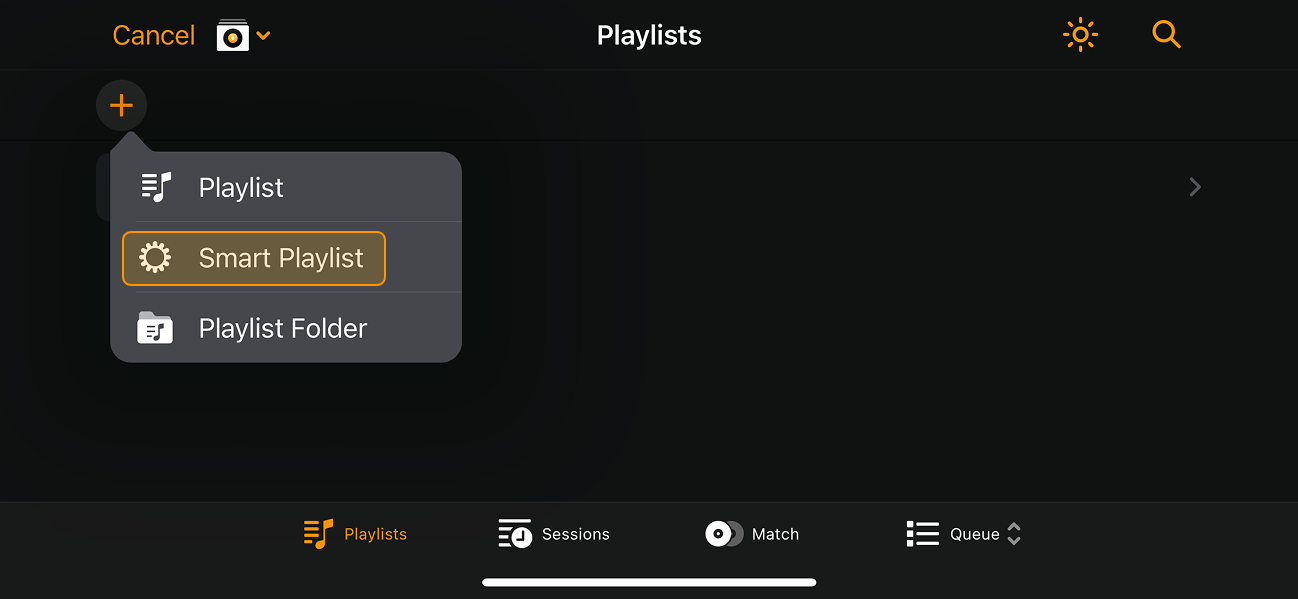
How to create smart playlists
- Go to My Collection and select the Playlists tab at the bottom of the screen.
- Tap the + icon to create a new playlist.
- Tap Smart playlist.
- Enter a name for the playlist and tap Add.
- Tap the new smart playlist.
- Tap Edit (pencil icon) at the top right of the tracklist screen.
- Tap the + icon to add filtering rules.
You can build smart playlists using a wide range of track information and filters, including: Added, Album, Artist, BPM, Comments, Composer, Genre, Grouping, Key, Label, Rating, Released, Title, and Year.
Depending on the rules you choose, you can set different parameters:
- Contains
- Does not contain
- Is
- Is not
- Is greater than
- Is less than
- Is between
- Begins with
- Ends with
For example, you can create a filter such as: BPM is less than 115, if you want to group slower tracks automatically.
To rename or delete a smart playlist, swipe left on the playlist name, or tap Edit.
You can add multiple filters to a playlist. Tap the filter to toggle filters on or off. If the filter is highlighted orange, the filter is active.
Playlist folders
Playlist folders help you keep multiple playlists organized in one place.

How to create a playlist folder
- Go to My Collection and select the Playlists tab at the bottom of the screen.
- Tap the + icon.
- Tap Playlist folder.
- Enter a name for the folder and tap Add.
Once the folder is created, you can add new playlists or smart playlists using the + button, or move existing playlists into the folder.
To rename or delete a playlist folder, tap Edit and then the pencil icon.
Exporting playlists
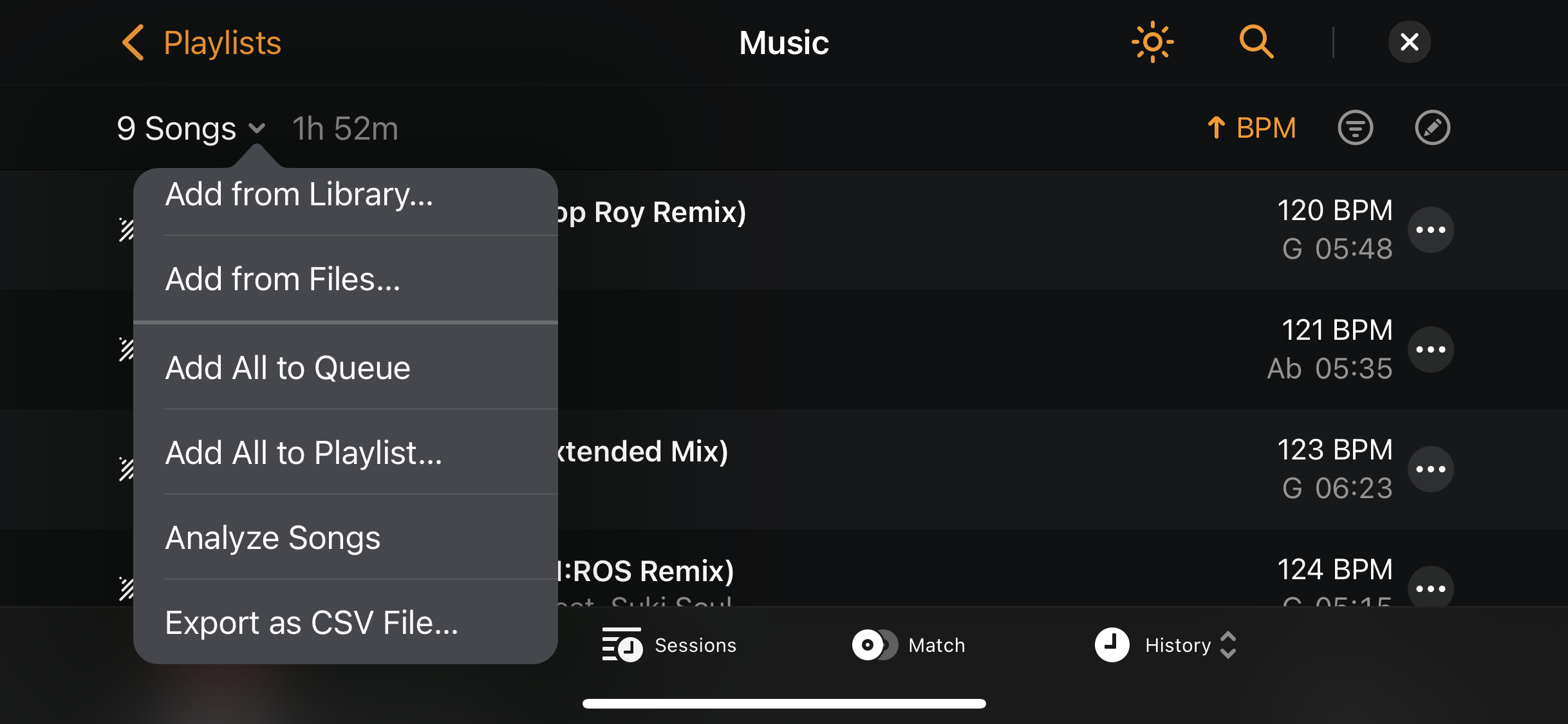
If you want a record of your playlist history to share with friends, or you need to share your latest set for the publishing rights, use Export as CSV file to download your chosen setlist to your device.
Playlists from any music library can be exported as a CSV file.