


OneLibrary
Take your music anywhere with OneLibrary. OneLibrary lets you create a portable djay library that works across devices and platforms. This allows you to take your music collection, playlists, and library data with you and use them seamlessly across djay with supported CDJs, controllers, or other operating systems—including djay for Mac and Windows—so you can plug in and start mixing instantly.

OneLibrary stores all essential DJ metadata, including playlists, BPM, key, waveform data, cue points, and beatgrids. This ensures your music is ready to play instantly, with consistent track information and organization on any supported device.
What you can do with OneLibrary
- Transfer playlists between macOS, Windows, and iOS.
- Keep cue points, loops, beatgrids, and track order fully intact.
- Export your library for use on supported CDJ/XDJ/OPUS-QUAD hardware.
- Load existing USB libraries directly into djay.
OneLibrary is read-only on iOS. You can browse and load tracks or playlists but cannot create, edit, or export them from iOS.
Supported formats
- djay (macOS / Windows / iOS)
- rekordbox (macOS / Windows)
Supported drives & file systems
- FAT32: macOS / Windows / iOS
- exFAT: macOS / Windows / iOS
- HFS+: macOS / iOS
Supported devices
- CDJ-3000X
- CDJ-3000
- XDJ-AZ
- OPUS-QUAD
- OMNIS-DUO
For best performance and compatibility, make sure your device is running the latest firmware.
How to load OneLibrary on your iOS device
- Connect your USB drive using the correct Apple adapter:
- USB-C devices: USB-C multipurpose adapter
- Lightning devices: Lightning to USB 3 Camera Adapter
- Open djay.
- Tap USB Library in the sidebar.
- Select your drive.
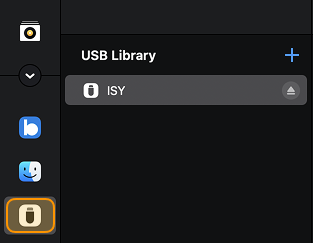
How to load or import playlists on iOS
Mix directly from USB
Simply browse your USB Library and load any track onto a deck to start mixing right away—no importing required.
Import playlists into My Collection
- Open the playlist in the USB Library.
- Tap Import.
- Choose to Copy Files to Internal Storage.
Always eject your OneLibrary drive safely before unplugging it to prevent data corruption when switching between platforms.