


Sound settings
Customize how djay handles your audio with the Sound settings. From EQ and crossfader behavior to Neural Mix™ and FX routing, these options help you shape your mix exactly how you like it.
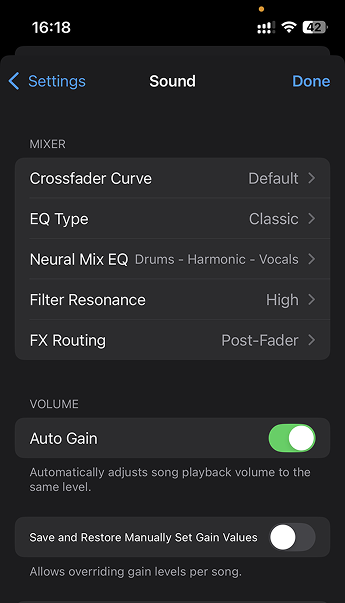
Mixer
- Crossfader curve: Decide how the crossfader fades between tracks. Choose between Default, Linear, Constant Power, Dipped, and Cut.
- EQ Type: Choose between Classic and Isolator EQ controls.
- Classic EQ: The high/mid/low classic EQ controls are set to a range of -24dB to +6dB at 3,300Hz/1,000Hz/264Hz—similar to a standard club mixer. The range means there is no full kill of audio. If all three are set to 0, some sound will still be heard at lower volume.
- Isolator EQ: The high/mid/low Isolator EQ controls offer full kill to +6dB at 275Hz / 275Hz–5000Hz / 5000Hz+. This means turning the bass EQ all the way down will completely cut those frequencies from the mix.
tip
You can use the isolator mode to sculpt the sound by completely eliminating frequencies.
- Neural Mix™ EQ: In Neural Mix EQ mode, choose between two stem layouts for the EQ knobs—Drums/Harmonic/Vocals or Drums/Bass/Melodic.
- Filter resonance: Switch between Low/Medium/High filter resonance. Lower resonance sounds smoother, and higher resonance adds character to the filter’s sound.
- FX routing: controls how effects behave with the channel fader:
- Pre-fader: effects stay active even if you lower the channel fader.
- Post-fader: effects fade out naturally with the track as you move the fader.
tip
Use post-fader for smooth echoes and reverbs during transitions, and pre-fader when you want to layer creative effects over muted or lowered channels.
Volume
- Auto gain: Toggles whether the channel gain is automatically set when a track is loaded to match the rest of your mix. Disable this option to manually adjust the gain of each track.
- Save and restore manually set gain values: When enabled, djay will remember and recall your custom gain settings for each track.
- Unlink controller gain from on-screen gain: Enable this option to let your controller’s gain knobs operate independently from djay’s on-screen gain controls.
This is useful if you’re using Auto Gain but still want to make manual adjustments on your hardware—without causing sudden jumps in the software gain levels.
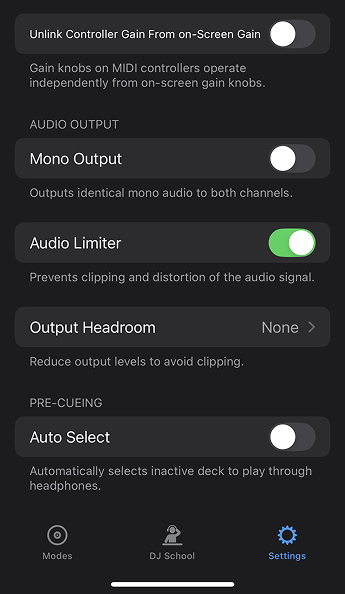
Audio output
- Mono output: Sends identical mono audio to both the left and right channels.
- Audio limiter: Stops clipping and distortion of the audio signal.
- Output headroom: Reduces the volume headroom of the main output by 0 (disabled), -6dB, -9dB, -12dB, or -24dB.
- Pre-cueing: Automatically selects the inactive deck to play through headphones.