


Video decks
Video mixing in djay Pro opens up exciting creative possibilities for DJs who want to engage their audience visually as well as sonically. Whether you're performing in clubs, streaming online, or setting up an AV experience at an event, djay’s built-in VJ features let you mix videos with the same ease and control as audio. You can add dynamic effects, text, images, and output your visuals directly to an external display for a fully immersive performance.
Want to mix music videos from a streaming service, overlay your DJ name during a livestream, or add branded visuals to a club set? djay Pro gives you all the tools you need in one intuitive interface.
Video deck overview
Video mixing differs from mixing audio-only in several key ways:
- You can output both audio and video.
- Apply effects to both the audio and video layers.
- Add images and text overlays to your performance.
djay offers seamless support for external video output, enabling you to project your visuals to a second screen, projector, or livestream. It supports H.264 and MPEG-4 video codecs at up to 1080p HD / 30fps, in the .mov, .m4v, or .mp4 file formats.
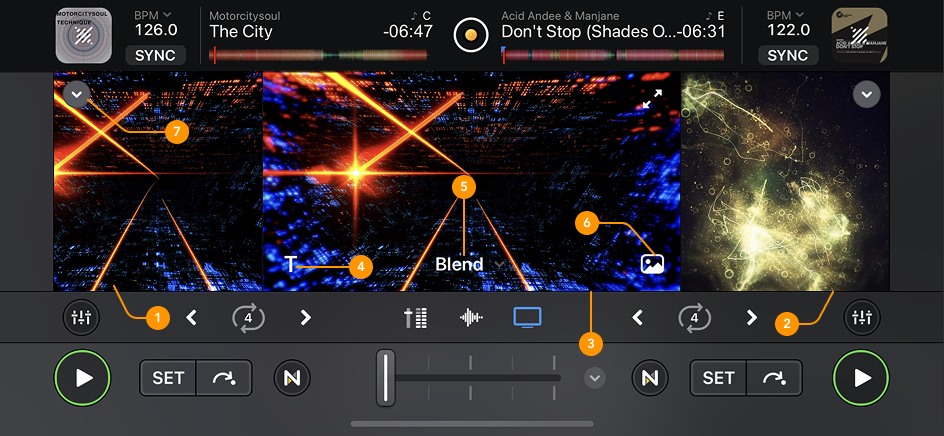
-
Deck 1 video output
Video preview that shows the effects, overlays, and media assigned to deck 1. -
Deck 2 video output
Video preview that shows the effects, overlays, and media assigned to deck 2. -
Main video output
The final video feed sent to your external display. It includes:- Both deck outputs
- Applied effects
- Any added text or images
-
Text overlay
You can add custom text to either deck or the main video output. Customize with:- Font
- Color
- Opacity
- Alignment
-
Image overlay
Add logos, branding, or other visuals to your decks or main output. Adjust:- Scale
- Opacity
- Alignment
-
Transition
The video crossfader lets you transition between decks using different visual effects. Choose from the transition dropdown:- Blend: A smooth fade between videos
- Luma: A high-contrast fade style
- Cube: A rotating cube-style 3D transition
- Swap: Full-screen transitions pulling forward/back
- Grid: Replaces one deck with a tiled screen
- Mosaic: Spins in a mosaic of video tiles
- Push: Pushes one video off-screen
- Blend 50/50: Keeps the outgoing video visible until the crossfader reaches the center, then applies a smooth linear fade.
- Cut: Instantly switches to the incoming video as soon as you move the crossfader.
- Cut50: Creates a sharp cut at center of crossfader (50%), great for for scratching.
- Split Audio/Video: Toggle this to reveal separate audio and video crossfaders, so you can blend them independently.
-
Visualizer: Turn on the Visualizer to display graphics that react in real time to your music. You can also replace the visuals with content from your own collection, choosing between visual loops, videos, or live photos.
Use Split Audio/Video mode to keep your audio transitions smooth while creating more dramatic or abrupt video transitions—and vice versa.