


Mixer overview
The mixer is where you shape your sound and control your mix. Use it to adjust channel volume, gain, EQs, filters, and more. This overview explains what each feature does and how it affects your mix.
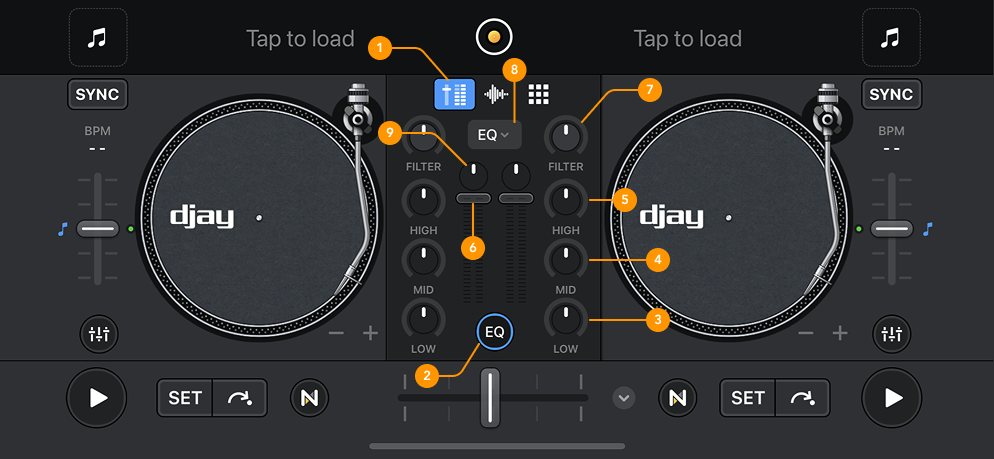
-
Mixer: Tap to open the mixer.
-
EQ: Tap to reveal additional EQ features such as low, mid, and high EQ.
-
Low EQ: Adjusts the low frequencies, typically bass and kick drums. Turn it up to boost the bass, or turn it down to reduce it.
-
Mid EQ: Controls mid-range frequencies like guitars, synths, keys, and vocals. Use the mid EQ to make certain elements stand out or to create space in your mix.
-
High EQ: Affects high-frequency sounds like hi-hats, cymbals, and percussive elements. Boosting the highs adds brightness; cutting them can reduce harshness.
-
Volume fader: Adjusts the output volume of each deck.
-
Filter: The filter knob lets you apply sweeping effects to shape your sound. Use it to build tension, smooth transitions, or create dramatic breakdowns. You can adjust the filter’s resonance characteristics under Settings > Sound.
-
EQ and Neural Mix™ dropdown menu: Use this dropdown to switch between classic EQ, Neural Mix™, and Neural Mix™ crossfaders modes. When Neural Mix™ is selected, the EQ knobs change control:
- Low = Drums
- Mid = Bass
- High = Melodic
Neural Mix™ lets you isolate or remove specific elements from any track, giving you powerful new creative options. Learn more in the Neural Mix™ section.
-
Gain: Controls the audio level going into each deck. Since tracks are produced at different levels, use the gain knob to balance the volume across your mix.
If you don’t tap the EQ button, the mixer is simplified to filters, gain, and volume faders only.