Using Automix
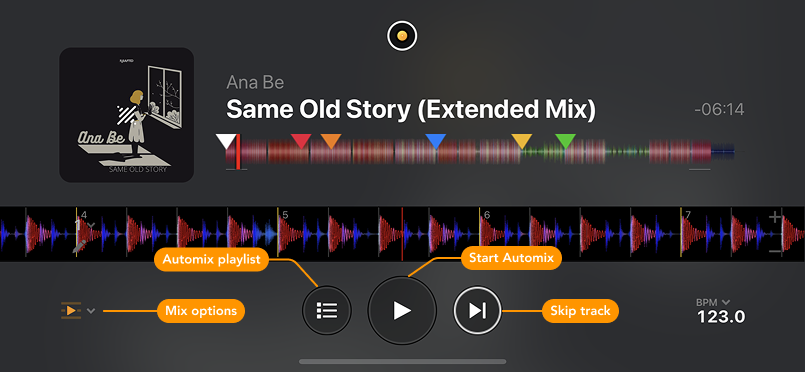
Automix takes the work out of mixing by blending tracks for you. Whether you’re setting the vibe for a party, practicing new transitions, or just want continuous music without worrying about manual mixing, Automix keeps your playlist flowing smoothly.
How to use Automix
- Switch to Automix view via the Dashboard.
- Choose your Mix options.
- Select a playlist or add tracks to the Automix playlist.
- Tap Play if the music doesn’t begin automatically.
- Repeat, shuffle, and add tracks to the Automix playlist.
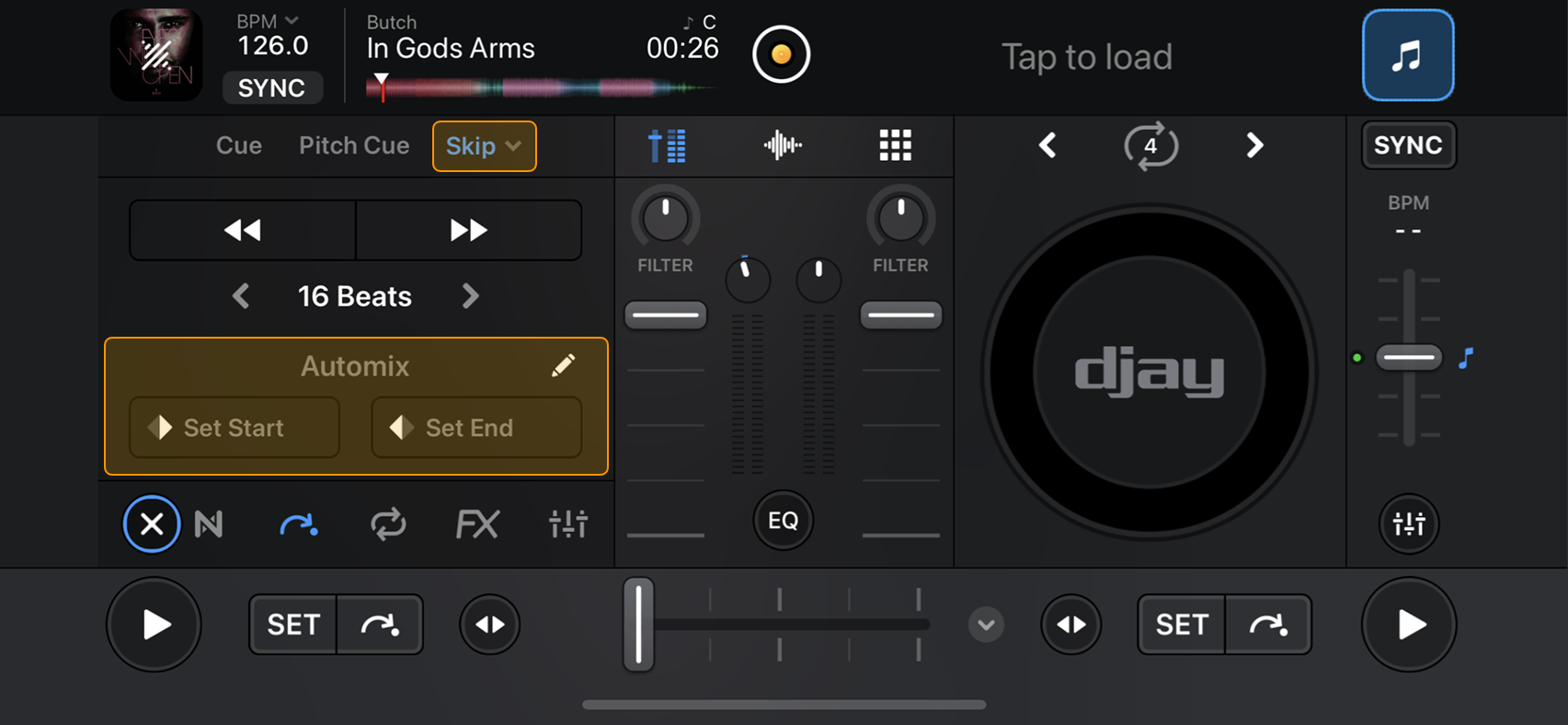
Setting Automix transition points
Automix chooses transition points automatically, but you can set custom start and end points to control exactly where tracks blend. This is useful when preparing a set for an event or when you want smoother, more intentional transitions.
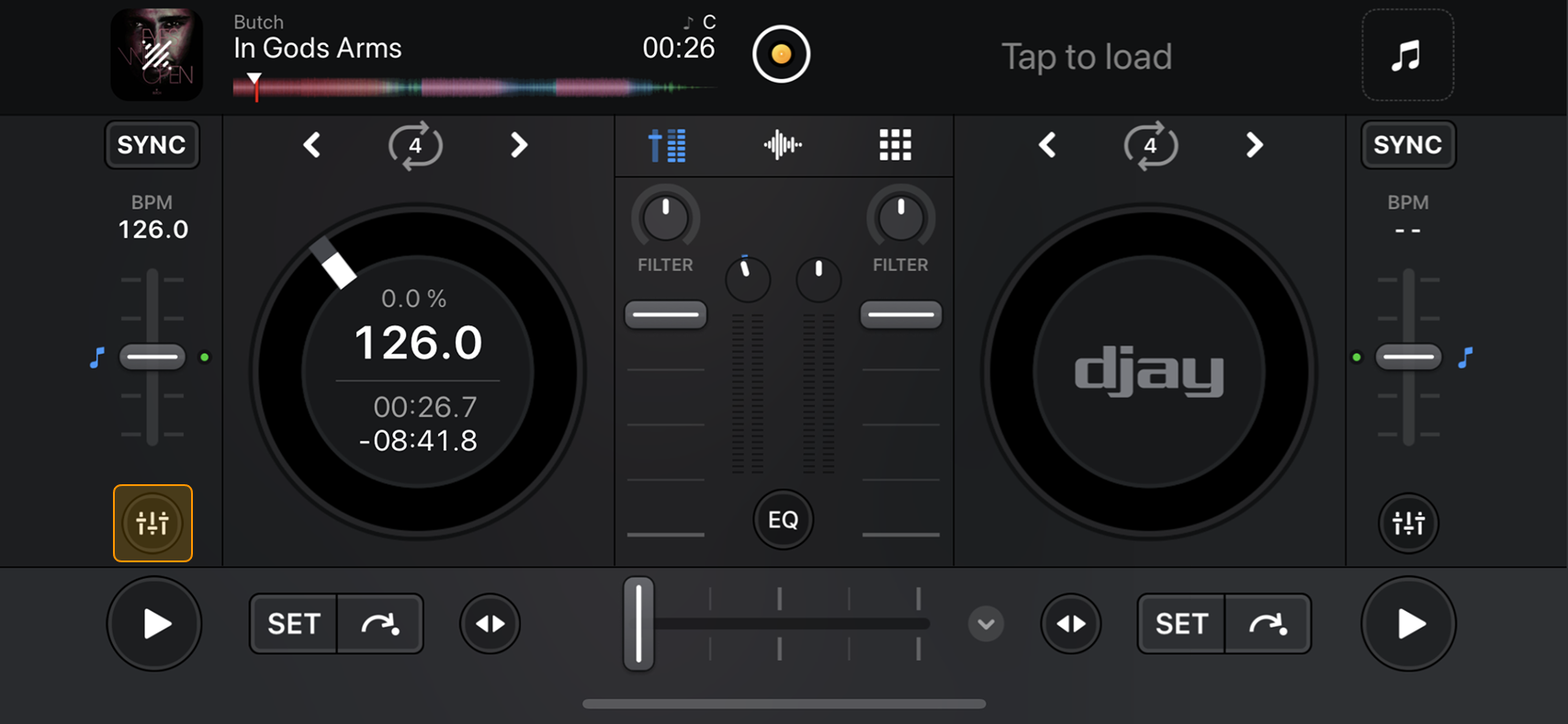
How to create Automix start and end points
- Tap the tools button (highlighted in the image above).
- Tap Skip.
- In the Automix section, set the transition start and end points for the selected track.
- Use Edit mode (pencil icon) to adjust or delete the transition points.