


How to set up the Traktor Kontrol S2 MK3 or S3 with djay
Follow this guide to update your firmware, enter user MIDI mode, and set up your Traktor Kontrol S2 MK3 or S3 for use with djay for Mac.
- macOS
- iOS
- Windows
- Android
Setup on macOS
-
Make sure your controller is running the latest firmware. Older firmware versions may not work with djay.
Visit the Native Instruments download page and scroll to the entry for TRAKTOR KONTROL S2 MK3 or TRAKTOR KONTROL S3:
https://www.native-instruments.com/en/support/downloads/drivers-other-files/ -
Run the firmware installer on your Mac and complete the update steps.
-
Fully disconnect your controller from your Mac and any power source.
-
Hold the left FLX button (located at the top left of the jog wheel), then connect the controller to your Mac using the USB cable.
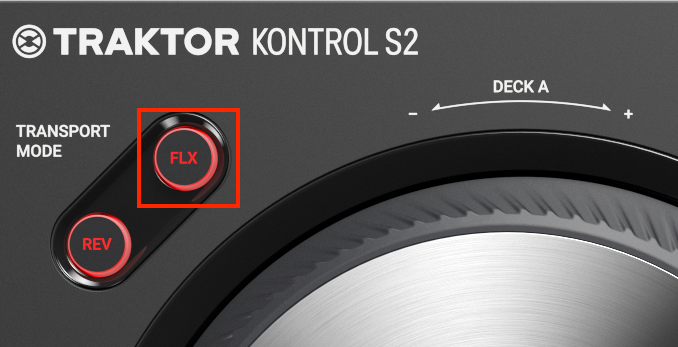
The button is located in the same place on the S3 controller
-
The cue pads will blink green, indicating that the controller is now in user MIDI mode.
-
Open djay Pro for Mac - djay will detect the controller and automatically pre-map all functionality, so you're ready to mix right away!
A PRO subscription is required to use the Traktor S2 MK3 / S3 with djay.
Setup on iPhone / iPad
-
Make sure your controller is running the latest firmware. Older firmware versions may not work with djay.
Visit the Native Instruments download page and scroll to the entry for TRAKTOR KONTROL S2 MK3 or TRAKTOR KONTROL S3:
https://www.native-instruments.com/en/support/downloads/drivers-other-files/ -
Run the firmware installer on your computer and complete the update process.
-
Disconnect the controller from your iPad or iPhone and from the power supply.
-
Hold the left FLX button (located at the top left of the jog wheel), then connect the controller to your Mac using the USB cable.
The button is located in the same place on the S3 controller
-
The cue pads will blink green, indicating that the controller is now in user MIDI mode.
-
Make sure djay for iOS is fully closed by swiping it away in the App Switcher.
-
Connect your Lightning or USB-C data-charging cable to the “iPad” port on the back of the controller, then connect it to your iPad or iPhone.
-
Open djay - djay will detect the controller and automatically pre-map all functionality, so you're ready to mix right away!
A PRO subscription is required to use the Traktor S2 MK3 / S3 with djay.
Setup on Windows
-
Make sure your controller has the latest firmware, as older versions may not work with djay.
Visit the Native Instruments download page and scroll to the entry for TRAKTOR KONTROL S2 MK3 or TRAKTOR KONTROL S3:
https://www.native-instruments.com/en/support/downloads/drivers-other-files/ -
Run the firmware installer on your PC and complete the update steps.
-
Disconnect your controller completely from your PC and the power supply.
-
Hold the left FLX button (located at the top left of the jog wheel), then connect the controller to your Mac using the USB cable.
The button is located in the same place on the S3 controller
-
The cue pads will blink green, confirming the controller has entered user MIDI mode.
-
Open djay Pro - djay will detect the controller and automatically pre-map all functionality, so you're ready to mix right away!
A PRO subscription is required to use the Traktor S2 MK3 / S3 with djay.
The Traktor Kontrol S2 MK2 / S3 is not compatible with Android. You can find a complete list of compatible devices with Android here.