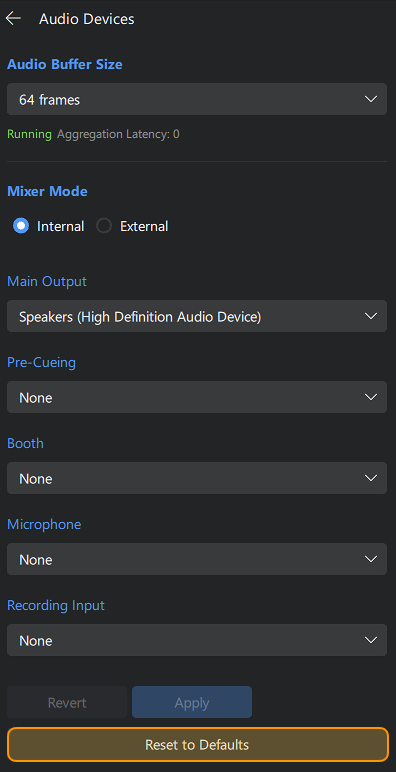
Internal and External mixer mode
Choosing the right mixer mode is key to ensuring your controller’s functions work correctly with djay Pro for Windows.
Internal mode is ideal for most controllers; external mode is needed when using a hardware mixer that handles the audio routing.
The mixer mode you choose depends on the hardware you’re using. Many controllers and mixers will automatically select the correct mode, but some may require manual setup. If your device doesn’t configure automatically, check the manufacturer’s documentation to confirm which mode to use.
Selecting the wrong mixer mode can route audio incorrectly, which may cause your music to play through unexpected outputs.
Internal mixer mode
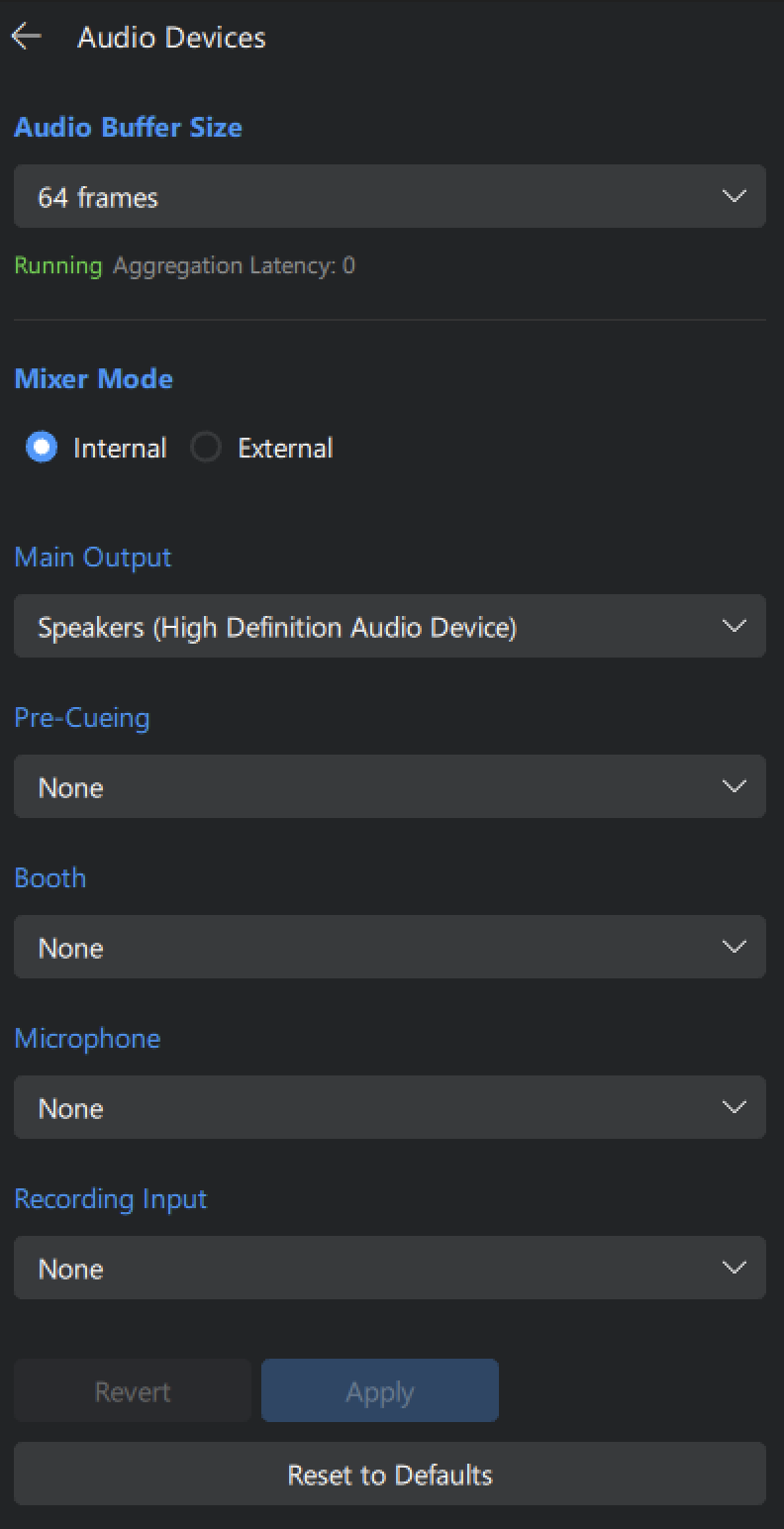
In Internal mixer mode, djay mixes both decks internally and sends the combined output through the Main Output. You can select up to 4 channels (2 stereo) for your audio interface. Most natively supported controllers function via internal mixer mode by default.
External mixer mode
Use External mixer mode when your setup includes a separate hardware mixer. Decks, sampler, looper and pre-cue outputs can be assigned to individual audio channels.
In external mode, djay cannot detect the crossfader position, and the internal recording and Automix functions are disabled.
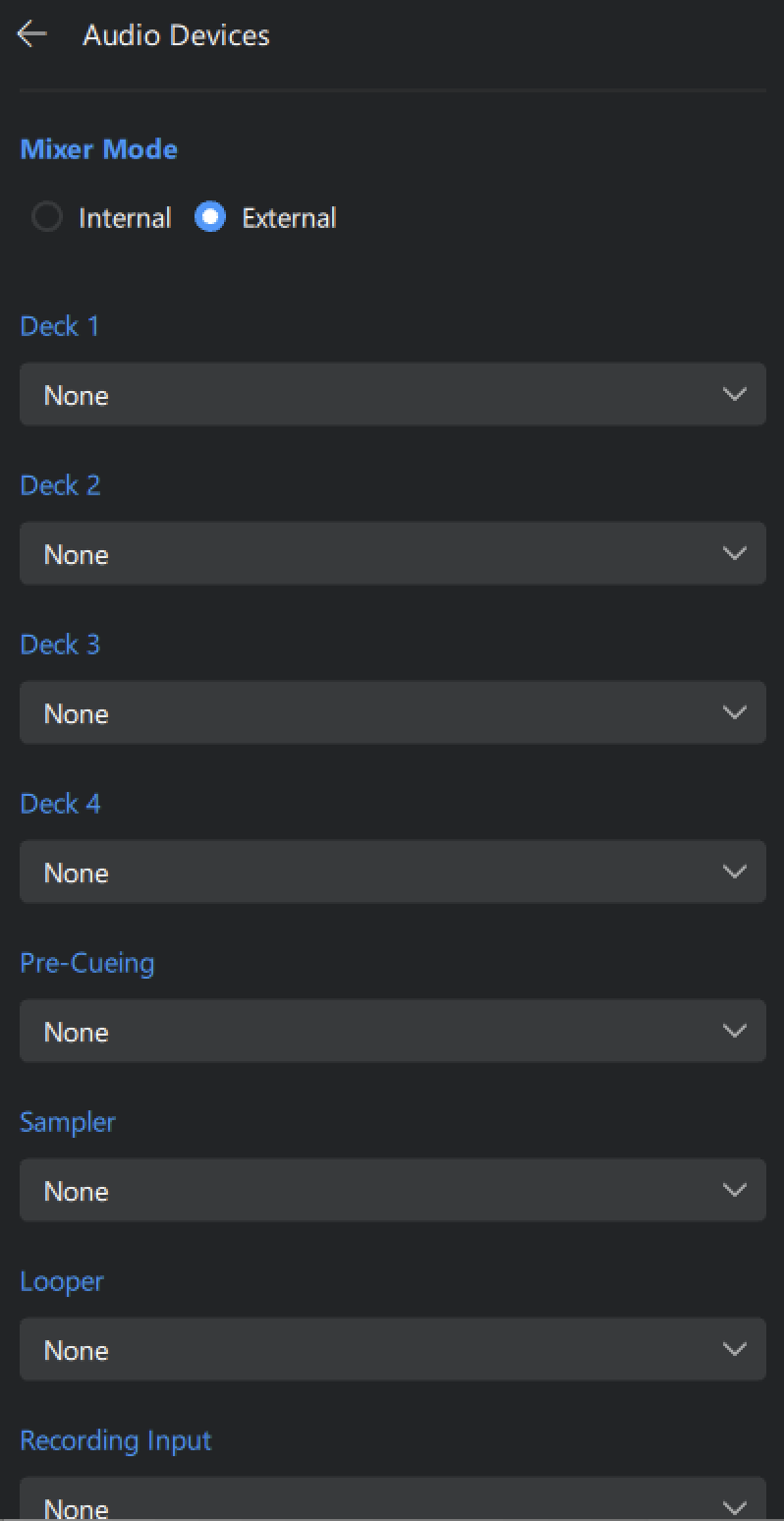
If you don’t need to use one or more of the available channels, you can also leave them set to None. If you're using a mixer with Pre-Cueing output, you won't need to set a channel specifically for it to work properly; this will be done via the mixer.
Resetting audio settings
If you experience issues with audio routing or the output isn’t working as expected, try selecting Reset to Defaults in the Audio Devices settings. This option restores the default audio configuration for your connected hardware, which often resolves common setup issues.