


Connecting a Digital Vinyl System (DVS)
The Digital Vinyl System (DVS) in djay Pro lets you control digital audio or video using traditional turntables and special timecode vinyl. These records contain a 1kHz tone signal instead of music, allowing djay Pro to track the position and movement of the needle in real time.
When properly set up, DVS offers the authentic feel of DJing with vinyl, enabling techniques like scratching, beatmatching, backspins, and needle drops with high precision.
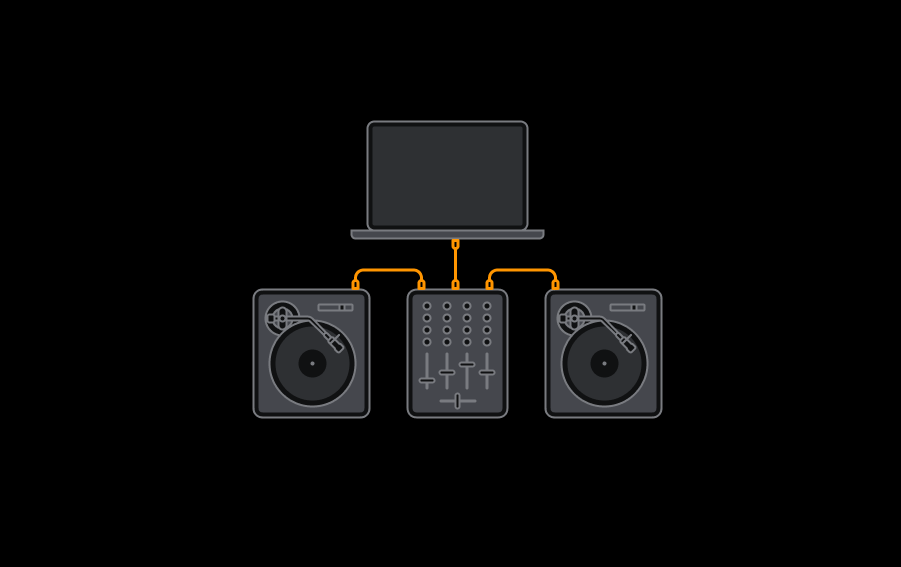
What you need to enable DVS
- djay with a PRO subscription.
- djay Control Vinyl or any DVS record with a standard 1 kHz control tone.
- Properly set up turntables.
- A mixer or audio interface with line or phono inputs (or a controller that provides them).
For the best performance—especially with Neural Mix™ DVS—we recommend using the official djay Control Vinyl, but standard 1 kHz timecode records are also supported.
How to connect your gear
Properly hooking up your setup is essential for a clean, stable timecode signal and reliable DVS performance.
- Confirm whether your turntables can switch between line and phono output.
- Ensure they are both switched to the same setting.
- If using phono, attach each turntable’s ground wire to the mixer’s ground terminal.
- Connect the RCA cables to the corresponding line/phono inputs, making sure left and right channels are correctly matched.
To check that the timecode signal is being sent correctly, play the timecode record while your mixer input is set to line/phono. You should hear a strong, high-pitched tone from the speakers (and from the needle itself). This tone confirms the turntable is generating the proper control signal.
When using DVS, your mixer’s channel inputs must be set to USB so the timecode signal goes into djay—not directly to the speakers.
Calibrating your turntables
Before calibrating DVS in djay, make sure your turntable is properly balanced. This includes adjusting the:
- Counterweight
- Anti-skating
- Tonearm height
Properly balanced turntables ensure stable tracking and prevent skipping. If you’re unsure how to balance your turntables, watch this video tutorial to learn how.
To access the calibration tools, first enable DVS in djay. Enabling DVS switches the interface to show DVS-specific controls and gives you access to all calibration options needed to fine-tune your timecode response.
Enabling and Calibrating DVS
Once your turntables are connected to a DVS-supported mixer or audio interface, follow these steps to enable and calibrate timecode vinyl:
- Open Preferences
- Go to the DVS tab
- Tick the Enable Digital Vinyl Control box
You can now configure your turntables.
Configuring your turntables
- Choose the appropriate input for each turntable on your audio interface.
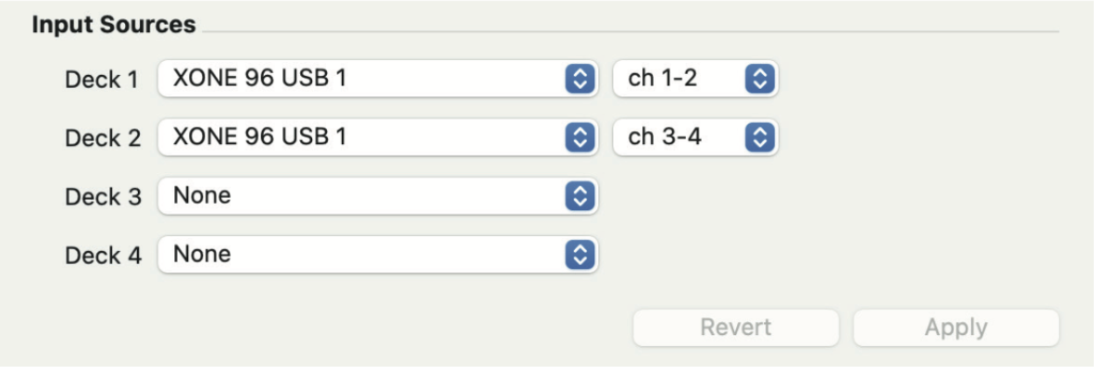
- Click Calibrate to begin timecode calibration.
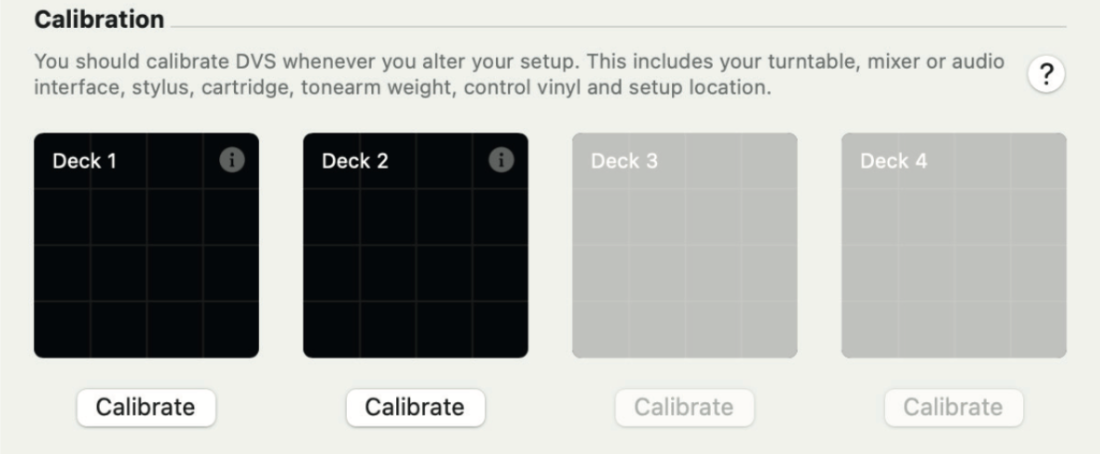
- Follow the on-screen instructions.
- Repeat for each connected turntable.
DVS scope
After your timecode is set up, each deck in the DVS settings displays a black-and-green scope that shows the quality of the incoming timecode signal. A strong, clean signal appears as a circle around the outer edge of the scope. The circle doesn’t need to be perfectly round, but it should remain stable and consistent while the record plays.
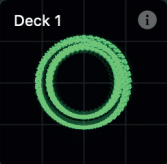
If the scope does not show a clean circle, check the following:
- The turntable’s RCA cables are correctly connected to the mixer’s line/phono inputs.
- The ground wire is attached to the mixer’s ground terminal (when using phono).
- You completed the calibration steps correctly.
- The needle/stylus is not damaged or worn.
- The tonearm balance and counterweight are set correctly.
DVS Scope troubleshooting
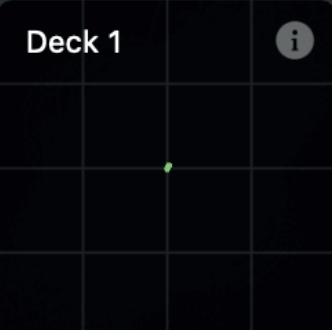
No timecode signal
Check the RCA cables are correctly connected to the mixer’s line/phono inputs.
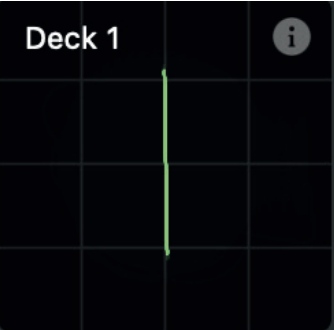
Left channel missing
Check the connections to your left channel.
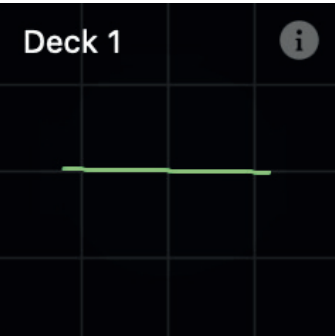
Right channel missing
Check the connections to your right channel.
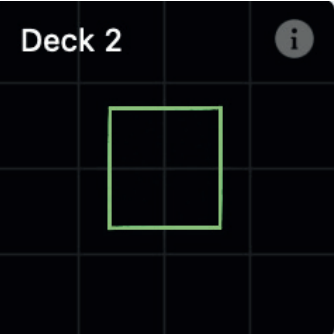
Line signal connected to phono
Make sure the RCA cables are correctly connected to the mixer’s line/phono inputs.
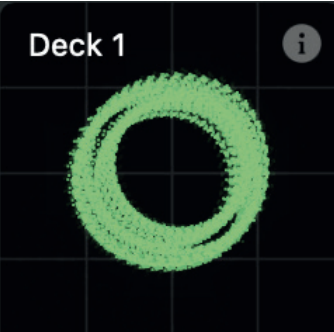
Not grounded
Make sure the ground wire is attached to the mixer’s ground terminal.

Not calibrated
Try following the calibration steps again.
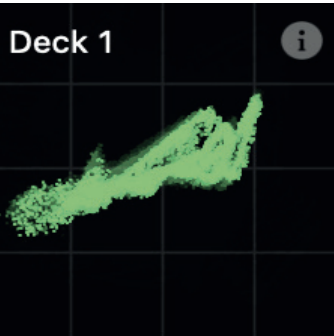
Broken needle
Check the condition of your needles and replace if neccessary.
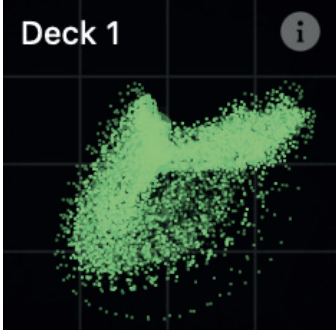
Tone arm too light
Try a heavier tonearm balance and counterweight setting.
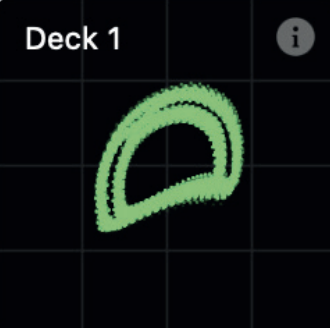
Tone arm too heavy
Try a lighter tonearm balance and counterweight setting.
You'll need to recalibrate DVS if you change your setup or move to a new environment. This ensures accurate tracking based on ambient noise conditions.
DVS controls
When DVS is enabled, djay Pro updates the interface to include a DVS menu next to the transport controls or jog wheels. This menu shows the current control mode for each deck and lets you switch between different DVS modes.

Internal: Internal mode ignores the timecode signal and uses the djay Pro transport controls instead.
Relative: Uses the timecode signal to play, rewind, and fast forward, but ignores the position of the music in relation to where the needle is on the record.
Absolute: Absolute mode, which will track the music with the timecode record, so that when you drop the needle on the record, it will move the playhead in the music to the equivalent location. Because this keeps the position of the song tied to the position on the vinyl it disables cue points and loops.
Remaining time on vinyl: Shows how much time is left on the record’s track.
Calibrate: Gives you a quick-access menu to the DVS preferences.
When DVS is connected, a DVS section also appears in the options toolbar to give you access to the same controls.
DVS options can be set on a per-deck basis, so you can run some decks with turntables in absolute/relative mode, and others running internally.