


Connecting CDJs
CDJs give you the familiar feel of club-standard gear with the flexibility of digital DJing. djay Pro offers native support for a wide range of Pioneer DJ players, giving you seamless plug-and-play control with minimal setup.
Supported Pioneer CDJs
The following Pioneer DJ CDJ models currently have native integration with djay Pro:
- Pioneer DJ CDJ-3000X
- Pioneer DJ CDJ-3000
- Pioneer DJ CDJ-2000
- Pioneer DJ CDJ-2000NXS
- Pioneer DJ CDJ-2000NXS2
- Pioneer DJ CDJ-350
- Pioneer DJ CDJ-400
- Pioneer DJ CDJ-850
- Pioneer DJ CDJ-900
- Pioneer DJ CDJ-900NXS
- Pioneer DJ CDJ-TOUR1
Check the list of officially supported CDJs and hardware to stay up-to-date on which models are officially compatible with djay Pro for Windows.
You can connect CDJ-3000s to a DJM-900NXS2 (or CDJ-TOUR1s to a DJM-TOUR1) using USB-HID control via LAN cables. Connect your device to the mixer with a single USB cable, and djay Pro will automatically sync with both the mixer and CDJs. The DJM mixer's built-in audio interface is used for audio output, providing a streamlined setup.
Setting up a Pioneer CDJ
Like all officially supported hardware, selected Pioneer DJ media players are plug-and-play. Once connected, djay Pro will prompt you to assign each CDJ to a deck.
Setup steps may vary slightly depending on the model.
djay Pro for Windows provides native integration with several popular CDJ models. You can connect up to 4 CDJs simultaneously.
The following guide (except for the PRO DJ LINK setup) also applies to other single deck controllers.
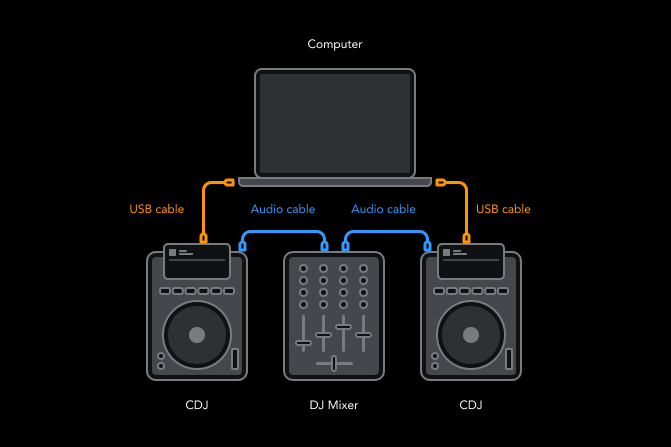
Using CDJs with an analog mixer (using CDJ audio interface)
- Connect your CDJs to your computer using one USB cable per CDJ.
- Connect the RCA output of your CDJ to your mixer.
- Set the input of the mixer for each CDJ channel to Line.
- Make sure that djay Pro is running in external mixer mode, and choose which deck the player controls.
If you’re connecting more devices than your computer has USB ports, use a high-quality powered USB hub for the most reliable performance.
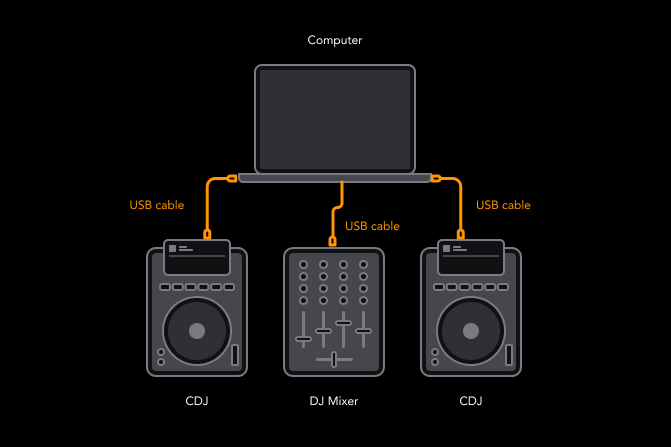
Using CDJs with a digital mixer (using mixer audio interface)
- Connect your CDJs to your computer using one USB cable per CDJ.
- Connect a supported mixer to your computer using a USB cable.
- Set the input of the mixer for each CDJ channel to USB.
- Select external mixer mode in the djay settings and choose which deck the player controls.
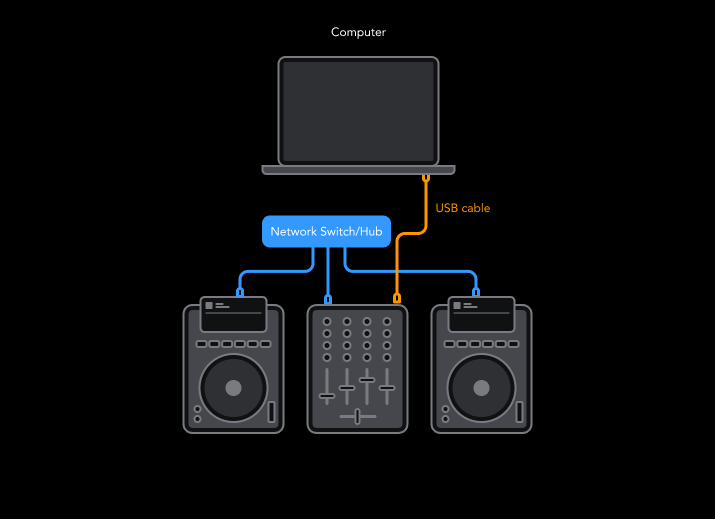
Connecting CDJs using PRO DJ LINK
PRO DJ LINK by PioneerDJ allows you to connect all your devices via Ethernet.
Check the operating instructions of connected equipment for more details about PRO DJ LINK. You can download the operating instructions from the AlphaTheta Help Center.
- Connect CDJs to one of the supported mixers with PRO DJ LINK through LAN using a switch.
- Connect the mixer to your computer with one USB cable.
- Once the connections have been made, turn on the power of all the units. Then, follow the instructions below to set up each multiplayer.
CDJ-3000 + CDJ-3000X
Select [CONTROL MODE (CDJ)]. Press the rotary selector to fix it. The multiplayer is now recognized by djay Pro.
CDJ-2000NXS2
Press the [LINK] button on the multiplayer and select [USB MIDI] for the [CONTROL MODE]. Press the rotary selector to fix it. The multiplayer is now recognized by djay Pro.
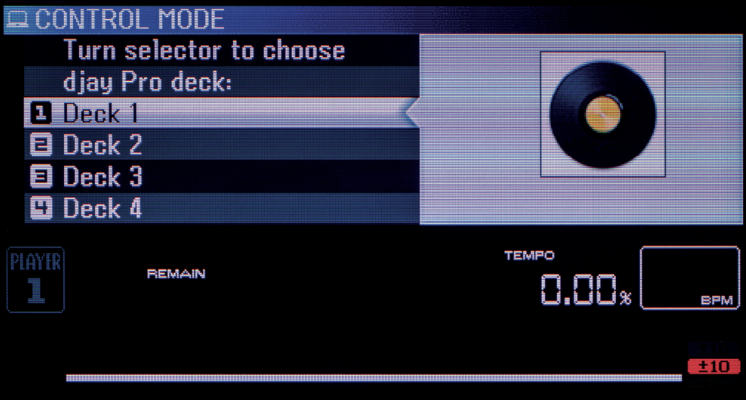
Lastly, set each deck on the CDJs. Turn the rotary selector to select the deck to control (1 to 4). Press the rotary selector to fix it. The multiplayer can now control the selected deck on djay Pro.
Controlling your music with CDJs
Depending on hardware features, you will have direct access to many of the software functions like loops, key lock, or playlist browsing. Generally, you can expect to use your media player as you would with USB or CD. The built-in screens will also display track information in real-time.
If you have nested playlists within folders, you’ll need to access them via the library browser as it isn’t possible via the media player navigation.