


Cue points
Cue points are markers you set within a track to instantly jump to key moments, like the start of a verse, a drop, a breakdown, or your preferred mix-in and mix-out spots. They're essential for both live mixing and track preparation, helping you time transitions, layer samples, and stay creative while performing. With cue points, you can instantly trigger key sections of a song and keep your mixes tight and dynamic.
To access cue points, open the Tools Bar or Tools from the main toolbar. The Tools Bar provides a compact, always-visible set of controls, while the Tools view offers a larger, more detailed layout.
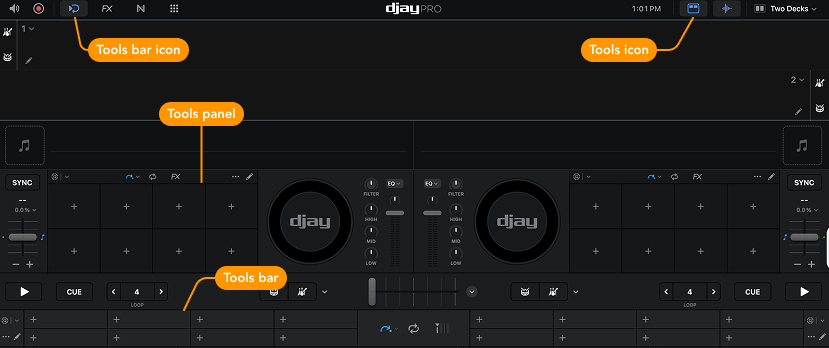
Use both Tools views to keep your most-used tools and effects within easy reach as you mix.
In the following examples, we’ll reference the Tools view, but all steps and controls work the same in either layout.
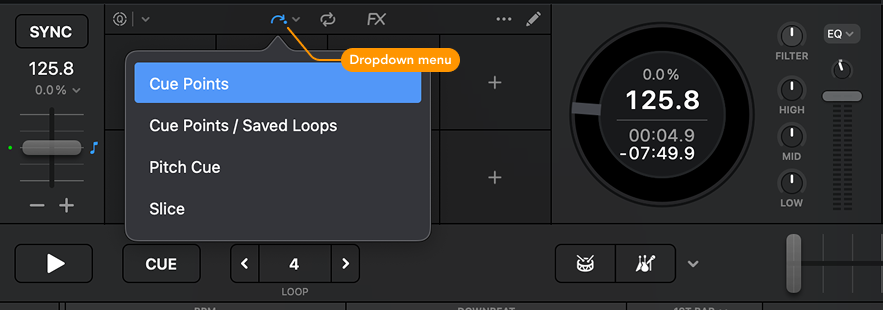
The dropdown menu also includes access to Saved Loops, Pitch Cue, and Slice—powerful tools for enhancing your mix. You’ll learn more about each of these in the following sections.
You can store up to 16 cue points per track in djay Pro. Cue points can be set on the fly during a mix or prepared in advance, and they’ll stay saved in your collection.
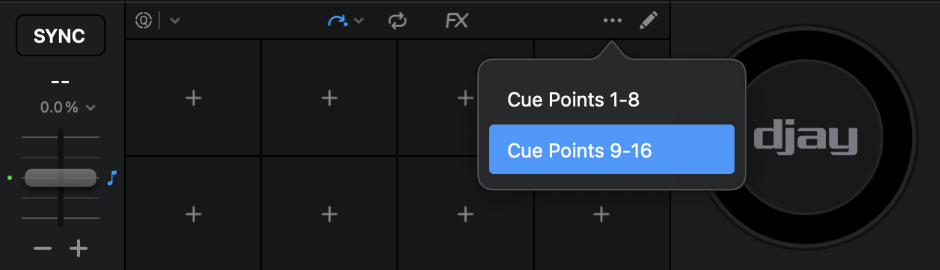
You can switch between cue points 1–8 and 9–16 by clicking the three-dot menu.
How to create a cue point
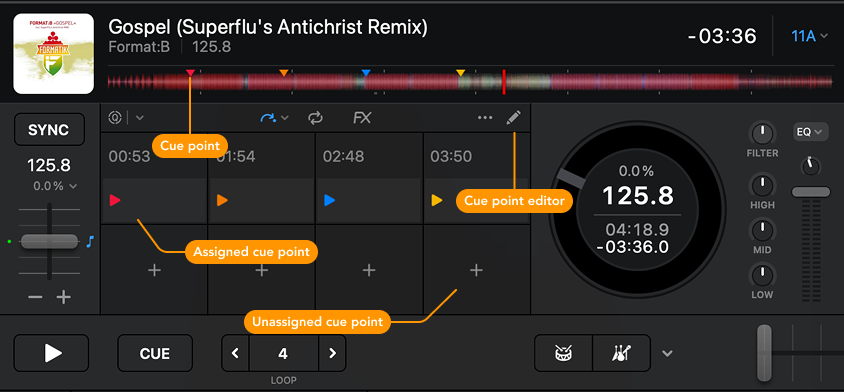
To set a cue point, move the playhead to the spot where you want it and click an unassigned cue button. Each cue point is color-coded and can be renamed for easy identification on the waveform.
Cue points appear in four places:
- The Cue Point section pads.
- The track waveform.
- The cue pad matrix on supported hardware controllers.
- The Tools Bar.
Controller cue pads will only display the correct djay cue color if they support RGB lighting.
How to delete or rename a cue point
-
Hover the cursor over the cue point in the Cue Point section.
- Click the X on the cue button to delete it.
- Click the dropdown next to the time stamp to rename the cue point or assign it a color.
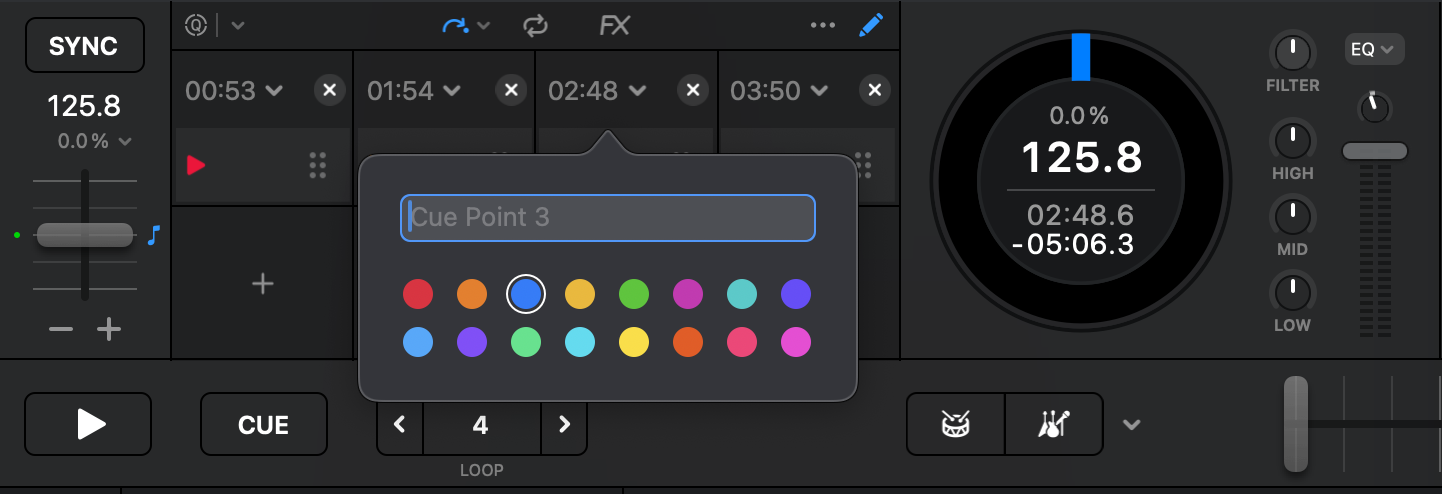
Use a consistent naming and color scheme across your library to quickly identify which section of the track each cue leads to—like intros, drops, or transitions.
How to reorder your cue points
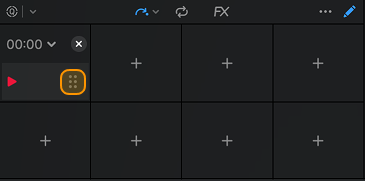
- Click the Edit button (pencil icon) at the top-right of the Cue Point section.
- Drag the cue point using the six-dot handle on the right side of the pad.
How to quantize cue points
You can also enable quantization to ensure cue points stay in sync with the beat. Toggle the Quantize switch to activate it, then select a snap value (1/16, 1/8, 1/4, 1/2, 1 beat, or 4 beats).
A quick tap or click sets the cue exactly at the current playhead position. Holding the cue button down longer while you set the cue will snap the cue to the nearest beatgrid line, even if Quantize is turned off.
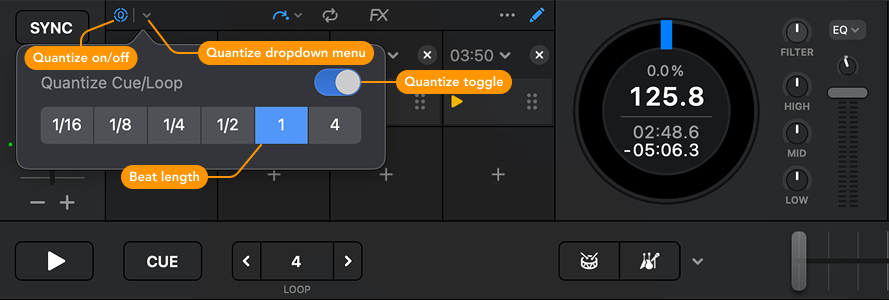
The quantize function works for loops as well, helping you stay rhythmically tight when triggering loops or cue points in real time.