


What to do if djay reports an error with the djay Media Library database
The djay Media Library stores your playlists, history, queue, cue points, loops, and other track-specific metadata.
If the database becomes corrupted or incompatible, djay will show an error on launch. This guide explains what the error means, how automatic backups work, and how to restore a working version of the database.
Understanding the issue
The djay Media Library database is where djay keeps essential user data:
- Playlists
- History
- Queue
- Cue points, loops, and other track metadata
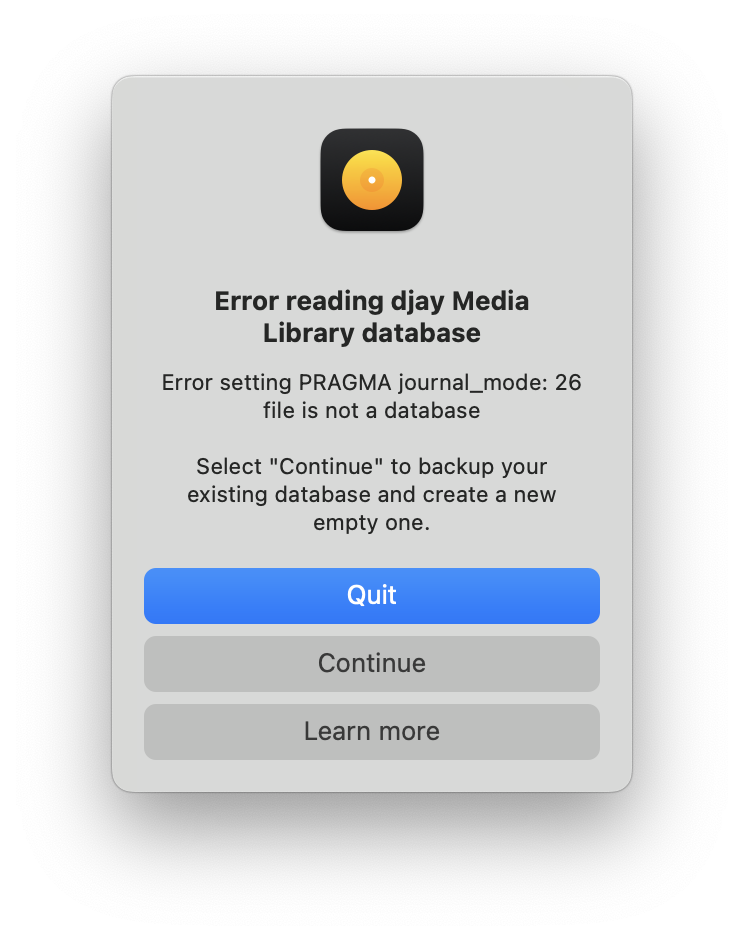
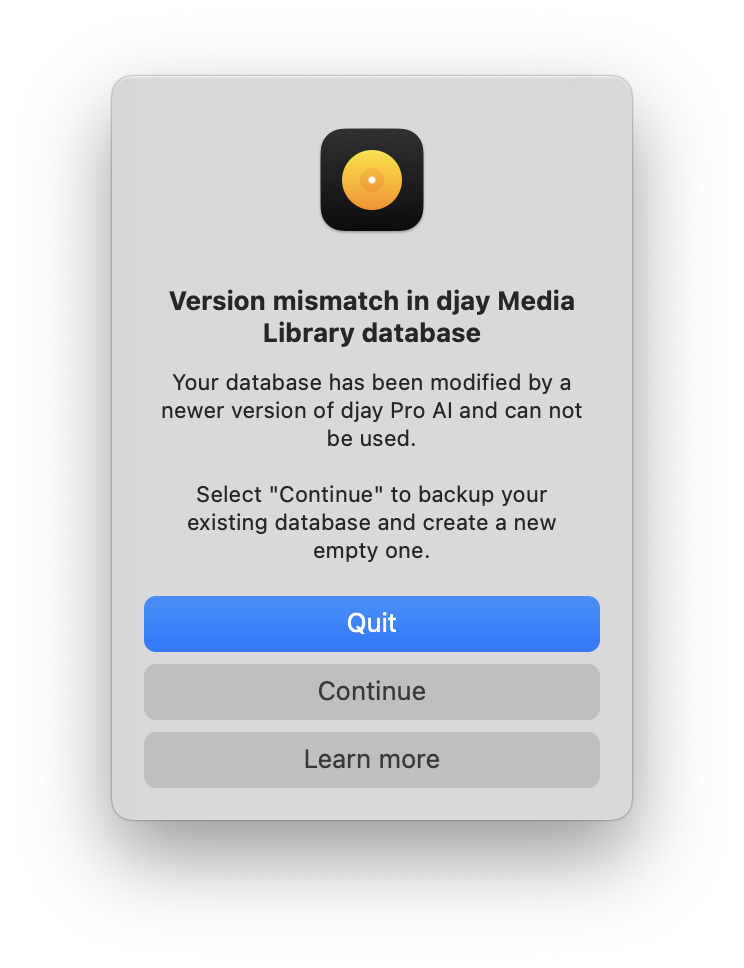
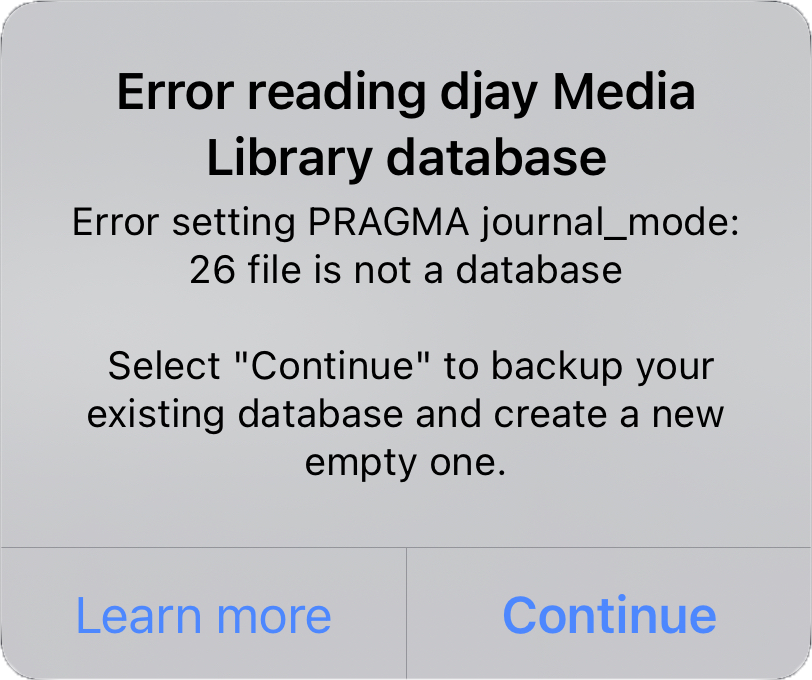
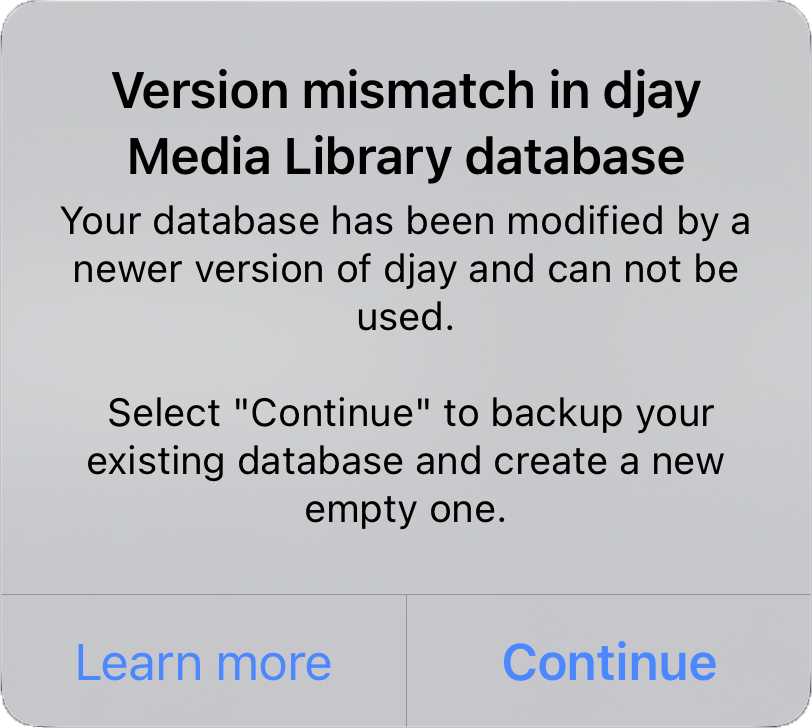
In rare cases, the database can become corrupted or incompatible — for example, after switching between different djay versions. When this happens, you may see one of the following alerts:
macOS examples
iOS examples
Windows example
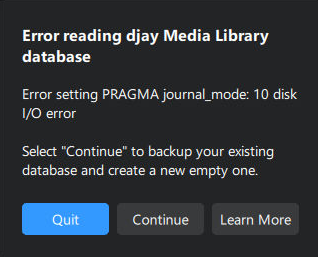
If possible, please contact our support team and attach the corrupted database. This helps us improve the stability of djay.
Automatic backups
djay automatically maintains backups of your Media Library:
- A backup is created each time you launch djay, unless one already exists for that day.
- Up to 10 backups are kept. Older backups are deleted automatically.
- Backup folders are named by date (e.g.,
2023-03-18).
The backups are stored in the following locations:
- iOS:
On My iPhone/iPad → djay → User Data → Backups - macOS:
~/Music/djay/Backups - Windows
%HOMEPATH%\Music\djay\Backups
Restore instructions
- macOS
- iOS
- Windows
How to restore a djay Media Library backup on macOS
When the error appears, you may see one of the following alerts:
- Error reading djay Media Library database
- Version mismatch in djay Media Library database
djay will then offer options such as:
- Quit — closes the app so you can restore a backup
- Continue — creates a new empty database (your old one is saved)
- Learn More — opens this support article
How to restore a backup from ~/Music/djay/Backups
- Quit djay.
- Open Finder and go to your Music folder.
- Open the djay folder. Rename the existing djay Media Library file by adding something like -old or today’s date to the end of the name.
- Open the Backups folder inside the same directory.
- Open the folder for the date you want to restore.
- Locate djay Media Library, then Option-drag it into the main
djayfolder to copy it. - Launch djay again — your restored library will load.
If the restored version still fails to load, try an older backup folder.
How to restore a djay Media Library backup on iOS
When the error appears, you may see one of the following alerts:
- Error reading djay Media Library database
- Version mismatch in djay Media Library database
You will then have these options:
- Continue — creates a new empty database (the existing one is preserved).
- Learn More — opens this support article.
How to restore a backup from On My iPhone/iPad → djay → User Data → Backups
- Open the Files app.
- Tap Browse → On My iPad/iPhone.
- Open the djay folder, then open User Data.
- Long-press djay Media Library and choose Rename
(we recommend adding today’s date to the end of the name). - Open the Backups folder.
- Open the folder for the date you want to restore.
- Long-press djay Media Library and choose Copy.
- Go back to the User Data folder.
- Long-press an empty area and choose Paste.
- Launch djay — the restored Media Library will load.
If the most recent backup does not resolve the issue, repeat the process with an older backup folder.
How to restore a djay Media Library backup on Windows
When the error appears, you may see one of the following alerts:
- Error reading djay Media Library database
- Version mismatch in djay Media Library database
djay will then offer options such as:
- Quit — closes the app so you can restore a backup
- Continue — creates a new empty database (your old one is saved)
- Learn More — opens this support article
How to restore a backup from %HOMEPATH%\Music\djay
- Quit djay.
- Open File Explorer and go to your Music folder.
- Open the djay folder. Rename the existing djay Media Library file by adding something like -old or today’s date to the end of the name.
- Open the Backups folder inside the same directory.
- Open the folder for the date you want to restore.
- Locate djay Media Library, then Ctrl-drag it into the main
djayfolder to copy it. - Launch djay again — your restored library will load.
If the restored version still fails to load, try an older backup folder.