


My hardware device is not recognized by djay
If your controller or audio interface is not recognized by djay, it’s often due to missing OS permissions, incorrect adapters, insufficient power, outdated firmware, or unsupported hardware. This guide provides step-by-step troubleshooting across all platforms to help you get your device detected and ready to mix.
When you connect a supported DJ controller or audio interface, djay should detect it automatically.
If it doesn’t appear in the app, most issues can be resolved by checking compatibility, connections, permissions, or power.
Before You Begin: Confirm Your Hardware Is Supported
Before troubleshooting, please make sure your DJ controller or audio device is supported on the platform you're using. Hardware compatibility can vary between macOS, iOS, Windows, and Android, so it’s important to check the correct section for your device.
Please refer to the full list of compatible devices. This list reflects the current most recent version of djay.
If your device does not appear on the compatibility page for your platform, djay will not be able to recognize or configure it automatically.
If you have a MIDI controller that is currently not natively supported by djay, you can still use it with djay’s easy-to-use MIDI Learn feature.
Class-Compliant vs. Non–Class-Compliant Controllers
Not all DJ controllers communicate with devices in the same way. Understanding whether your controller is class compliant can help explain why it may or may not be recognized by djay.
What does “class compliant” mean?
A class-compliant device follows standard USB audio/MIDI protocols and does not require special drivers.
These devices work out of the box on macOS, iOS/iPadOS, and many Android devices.
Examples
Most modern controllers from Pioneer DJ, Numark, Reloop, Denon DJ, Hercules, and others are class compliant.
Non–class-compliant devices
Some controllers—especially older models or Windows-focused devices—require manufacturer drivers. These devices may:
- Work only after driver installation on Windows
- Not work at all on iOS or Android
- Show power but not send MIDI/audio
- Fail to appear in djay until drivers load correctly
How to identify your device
- Check the manufacturer’s website
- Look for driver downloads
- Look for terms like “plug and play,” “driverless,” or “class compliant”
If a device requires special drivers, it cannot work on iOS or Android, as these systems do not allow installing third-party drivers.
Troubleshooting differences
If your device is class compliant:
- Focus on power, cables, adapters, firmware, and OS permissions.
If your device is NOT class compliant:
- macOS: may still work, but only if the manufacturer provides updated macOS drivers.
- Windows: requires installing the correct driver.
- iOS/Android: will not work at all.
- macOS
- iOS
- Windows
- Android
Troubleshooting your hardware on macOS
1. Check the USB connection
- Connect the controller directly to your Mac.
- Avoid hubs during initial troubleshooting.
- Try a different USB port and cable.
2. Check macOS permissions
Depending on your controller, macOS may require certain permissions before djay can access its USB audio interface or allow the device to connect.
-
USB Accessories (macOS Sonoma and later)
If macOS shows a popup asking whether to allow the connected accessory, select Allow.If you previously tapped Don’t Allow on the USB accessory popup, macOS will continue blocking the controller until you re-enable it.
Go to: System Settings > Privacy & Security > USB Accessories
→ Turn on “Allow accessories to connect”
→ Reconnect your controller -
Microphone Access (for controllers with USB audio)
Some controllers include built-in USB audio interfaces, which macOS labels as “microphones.”If access is denied, djay may not be able to route audio through the device.
Go to: System Settings > Privacy & Security > Microphone
→ Ensure djay is enabled.
3. Check Audio MIDI Setup
- Open Applications > Utilities > Audio MIDI Setup
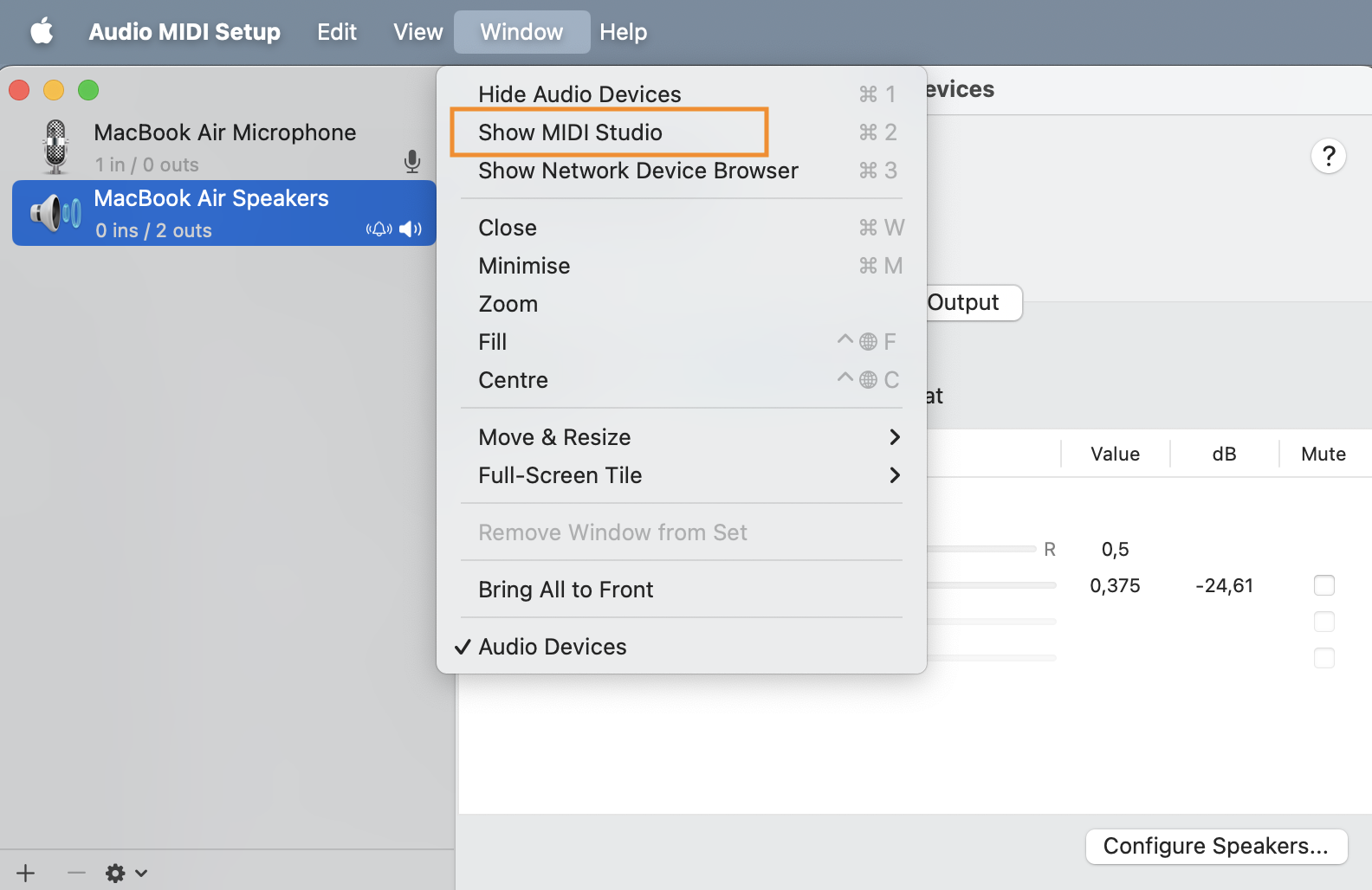
- Open Window > Show MIDI Studio
- Look for your controller
If it appears greyed out:
- Click on the device then click the backspace key
- Disconnect & reconnect the controller
4. Restart your computer
Restarting your computer resets USB and MIDI services.
5. Update controller firmware
Run the manufacturer’s firmware updater for macOS. This can usually be found on the product page of the manufacturers website.
6. Additional steps for non–class-compliant controllers
If your device requires drivers, check the following:
-
Confirm the driver is installed
Manufacturers often provide DMG installers for macOS. -
Approve blocked drivers
- Go to: System Settings > Privacy & Security
- Look for a message such as: “System software from developer company was blocked.”
- Click Allow, then restart your Mac.
-
Check for unsupported drivers
Some older drivers are no longer compatible with macOS Ventura, Sonoma, or later. Consult the manufacturer’s support page.
Most modern DJ controllers are class-compliant, meaning they work on macOS without installing drivers.
macOS has supported class-compliant USB audio and MIDI devices for many years, so only older or legacy hardware typically relies on manufacturer-specific drivers.
Troubleshooting your hardware on iOS
1. Check your adapter
- USB-C devices: use a USB-C Digital AV Multiport Adapter or a powered USB-C hub.
- Lightning devices: use the Lightning to USB 3 Camera Adapter.
- Portable adapters without power often cannot run full-size controllers.
If the controller isn’t fully powered, it won’t appear in djay.
2. Ensure the controller is powered
- Use the controller’s AC adapter if available.
- If USB-powered, use a powered USB hub with passthrough.
3. Accept the “Accessory Connected” popup
Tap Allow when prompted.
If the popup didn’t appear:
Settings > General > USB Accessories → enable access.
4. Force-quit djay and reconnect
- Quit djay
- Disconnect everything
- Reconnect in this order:
- Adapter → device
- Controller → adapter
- Power supply (if needed)
5. Update controller firmware
Must be performed on macOS or Windows. Firmware updates can usually be found on the product page of the manufacturers website.
6. Try a different cable
Be sure to only use certified USB-C/USB-B/Lightning cables.
Troubleshooting your hardware on Windows
1. Install required drivers
Many Windows controllers require specific drivers.
Download the latest version from the manufacturer.
2. Check Device Manager
Look under:
- Sound, video and game controllers
- Universal Serial Bus controllers
- Software devices
If you see a warning icon:
- Right-click → Update Driver
- Or uninstall + reconnect
3. Try a different USB port
- USB 2.0 ports are often more stable
- Avoid USB hubs during troubleshooting
- Use ports directly on the computer
4. Disable USB power saving
- Open Device Manager
- Expand USB Root Hub entries
- Go to Properties > Power Management
- Disable “Allow the computer to turn off this device to save power”
5. Allow MIDI permissions
Go to: Settings > Privacy > App Permissions > MIDI
→ Enable djay.
6. Update Windows
Install all updates, especially USB and audio updates.
7. Update controller firmware
Use the manufacturer’s Windows firmware tool.
8. Additional steps for non–class-compliant controllers
Controllers requiring drivers may fail to appear unless:
-
Drivers are installed before connecting the controller
Some devices must have drivers installed first. -
Drivers match your Windows version
Older drivers may not work on Windows 11. -
You reboot after installation
Many drivers only activate after a restart. -
The correct audio device is selected in djay
Go to Settings > Audio Device and verify the controller is listed.
Troubleshooting your hardware on Android
Requirements
- Android 10 or newer
- djay PRO subscription
- OTG-compatible USB-C adapter
1. Use an OTG adapter
The adapter must support USB OTG.
2. Accept the USB permission popup
Tap Allow when prompted.
If it never appears:
Settings > Apps > Special Access > USB → reset permissions.
3. Provide enough power
Try:
- A powered USB-C hub
- The controller’s AC adapter
- A Y-cable for supplemental power
4. Try a different cable
Be sure to use high-quality USB-A/USB-C cables.
5. Update firmware
Must be performed on macOS or Windows. Firmware updates can usually be found on the product page of the manufacturers website.
If your hardware still isn’t recognized
Please contact us and include:
- Your platform (macOS, iOS, Windows, Android)
- djay version
- Controller model
- How it is connected (adapter or hub used)
- Whether it powers on
- Screenshots of any error messages
This information helps us diagnose the issue quickly.