


Connecting Ableton Link
djay Pro includes built-in support for Ableton Link, a technology that syncs tempo, beatgrid, and phase across multiple apps and devices connected to the same local network. This lets you stay in perfect time with other DJs, music production software, or apps that support Link—whether you're collaborating live or syncing setups across devices.
How Ableton Link works with djay
When djay joins an Ableton Link session, it synchronizes its tempo and beat position with the shared session. Depending on how the session is set up, djay can:
- Follow another app’s tempo and phase
- Take over as the tempo leader (the Master) if other apps stop playback
- Act as the Master from the start
The first app to start playback usually becomes the Master, but control can shift dynamically depending on which apps are playing.
Ableton Link works best when you understand how djay’s Sync feature determines the Active Deck—the deck that acts as the timing reference for syncing other decks or apps. This deck controls the tempo and phase that other decks in djay (or other connected apps) follow.
How to activate Ableton Link
- Make sure your device and any other Link-enabled devices are on the same local Wi-Fi network.
- Open djay Pro.
- Go to Settings.
- Press the Ableton Link button from the menu.
- If prompted, allow djay to access other devices on your network.
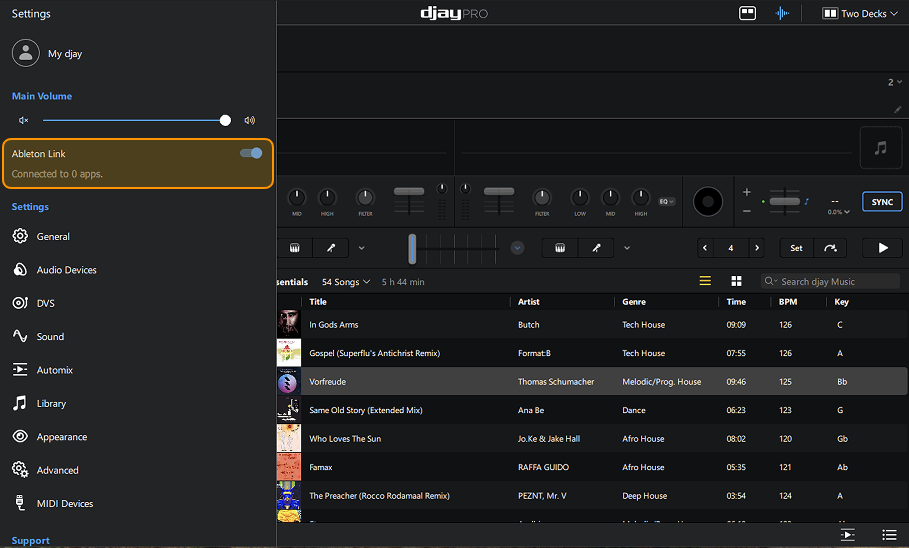
Once Link is enabled:
- A segmented spinning circle will appear next to the record button.
- You’ll see a confirmation message. For example, Connected to 2 apps.
You're now ready to jam in sync with other Link-enabled devices and apps.
