


Recording and adding your own samples
Sampler lets you record sounds from your decks or add your own audio files to create custom samples. This is a great way to add signature sounds, personalize your sets, and make your mixes stand out.
How to record samples from the decks
- Open the Sampler and tap the Edit button (pencil icon).
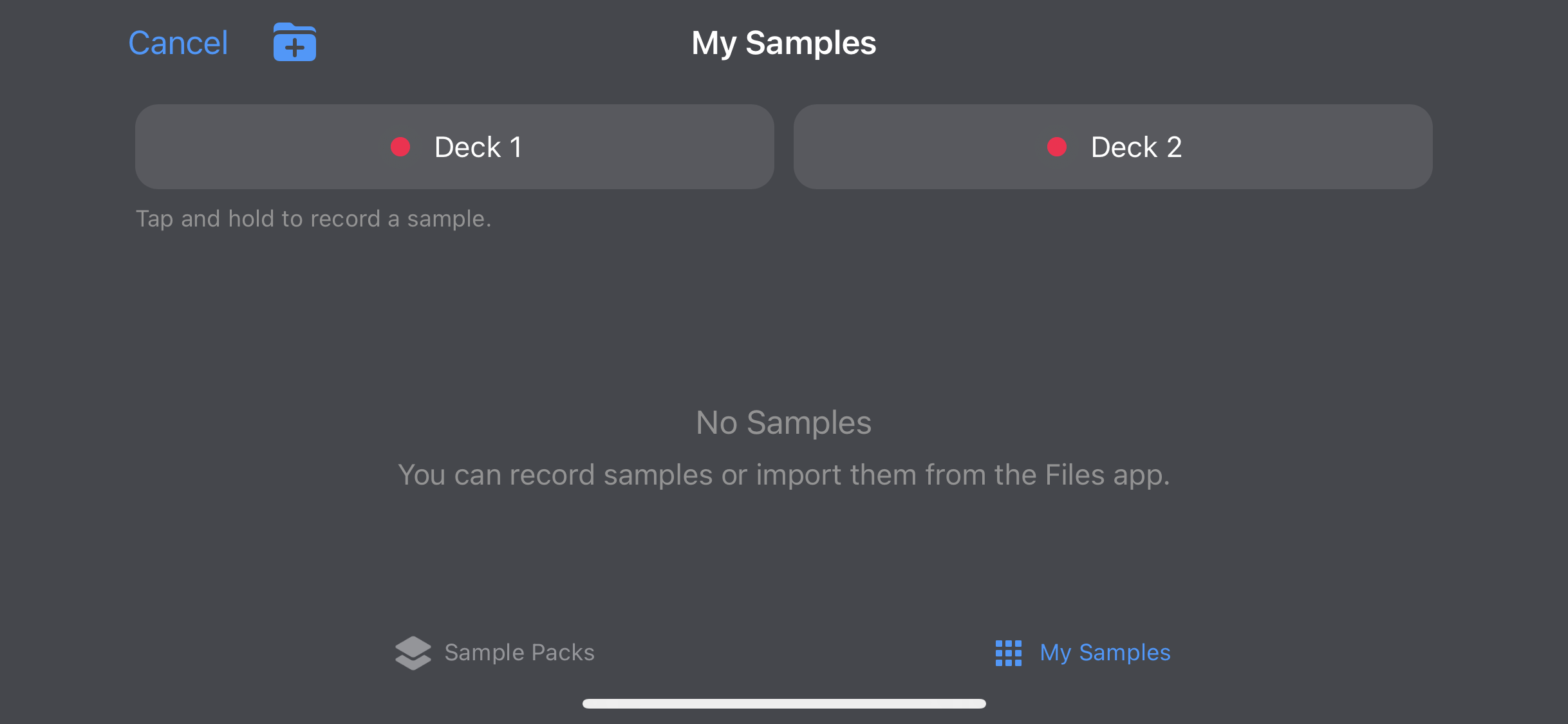
- Tap the three dots on the pad you want to replace to open the My Samples window.
- Choose a recording source:
- Deck 1
- Deck 2
- Tap and hold the button for the deck you want to record. Release to stop recording.
- Your recording will automatically be saved to the My Samples folder. You can rename each sample by tapping Edit.
- You can now add recorded samples to the sampler pads.
- Swipe left on the sample name to delete it from My Samples.
How to add your own samples
- Open the Sampler and tap the Edit button (pencil icon).
- Tap the three dots on the pad you want to replace to open the My Samples window.
- Tap the Add folder icon in the top left of the screen to import your own samples.