Deck views and additional options
djay offers multiple deck views, along with a set of display options, so you can choose the layout that best fits your style, needs, and setup. You can switch between different deck views, and adjust these options, from the View Modes dropdown menu in the top right corner.
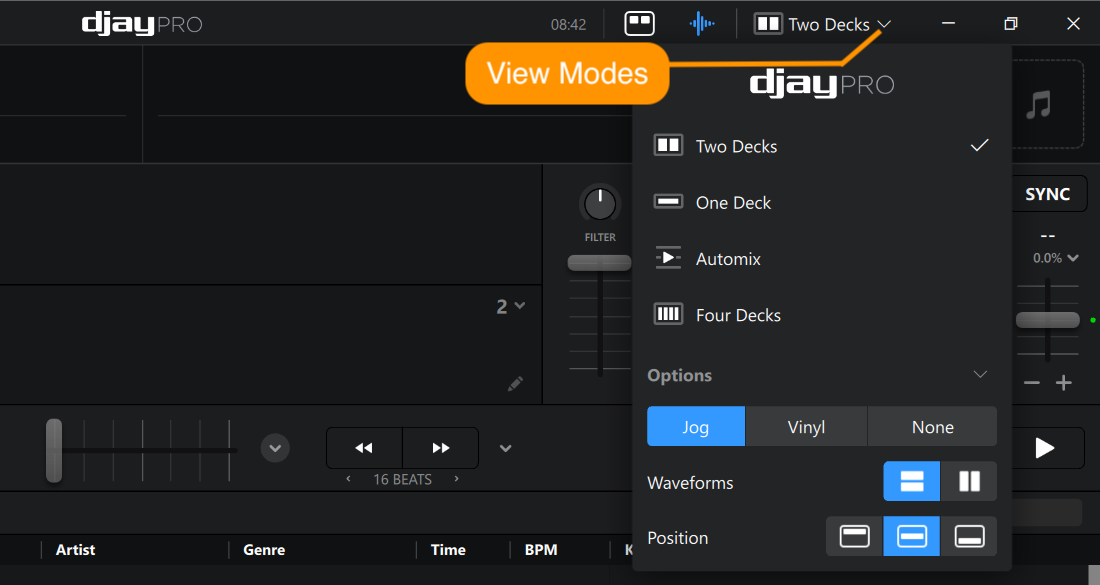
Deck display options
If you choose two deck or four deck view, you will see additional options to further customize the layout. The display options available depend on the view that you have chosen.
This covers how the deck looks and how its waveform is oriented, not per-deck waveform settings like zoom level or a high-contrast mode. For those, see Deck options.
Two Decks
The default layout in djay Pro displays two decks with virtual jog wheels that emulate the look and feel of traditional DJ hardware. This is where you'll find the full crossfader and mixer controls, ready for mixing live between two tracks.
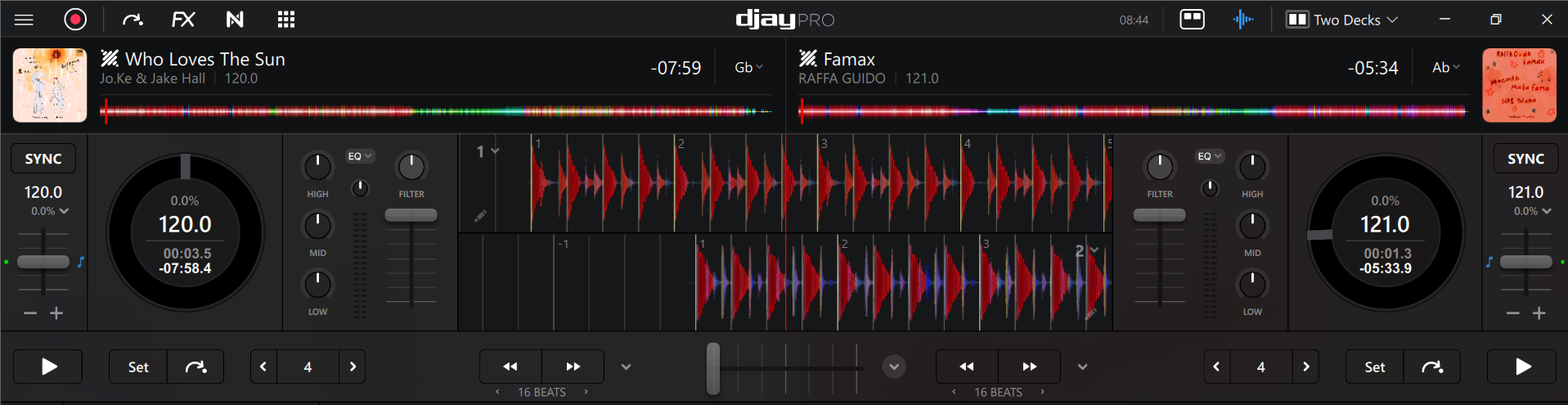
In Two Decks view, you can choose how you want the decks to look: Jog view shows virtual jog wheels, Vinyl shows virtual vinyl platters, and None hides both so the waveform takes up the full deck.
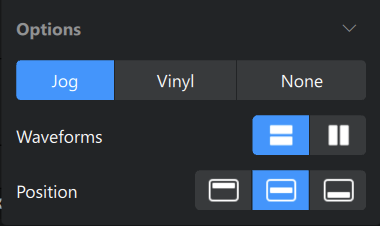
You can also choose either horizontal or vertical waveforms. Horizontal waveforms show a longer section of the scrolling track, while vertical waveforms save space and allow for a more compact layout. With the vertical layout, you can additionally configure the position of the waveform in relation to the decks; above, inbetween or below.
In both horizontal and vertical waveform views, you can use the waveform overview to see the waveform's position on the track. Clicking anywhere in the waveform overview will jump to that part of the track.
One Deck
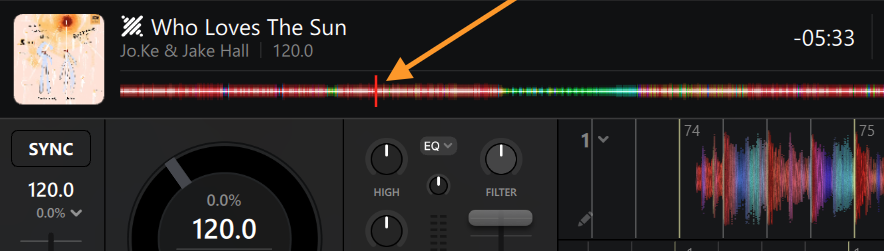
The One Deck view lets you focus on a single track at a time, perfect for preparing your set or casual listening.

One Deck clears away the crossfader, second deck, and mixer controls, so it gives you more screen space than any other view. That's what makes it the ideal view to use when you're getting ready for a set rather than performing one. Use it to:
- Create and manage playlists, edit metadata, and tag and organize your library
- Set cue points
- Set loops
- Set Automix start and end points
- Adjust a track's beatgrid on the expanded, full-screen waveform
- Browse and audition new tracks, for music discovery or casual listening
When you're ready to perform or mix tracks together, switch back to Two Decks or Four Decks.
One Deck can also be used to play your tracks in a playlist straight through, one after the other. This might be preferrable to using Automix which transitions between the songs (more about that below). In One Deck mode, when the track you're playing reaches its end, djay automatically loads the next track from your playlist. That makes it a good fit for anything where you just want your music to keep going on its own, background music at an event, a long recording session, or casual listening, without having the transitions the way you would with Automix.
To set this up:
- Go to Settings > General > Song Loading and turn on Start Playback.
- Switch to One Deck view.
- Load the first track in your playlist and press play.
Automix
Automix mode automates track transitions, allowing you to step away from the decks, without interrupting the playback.
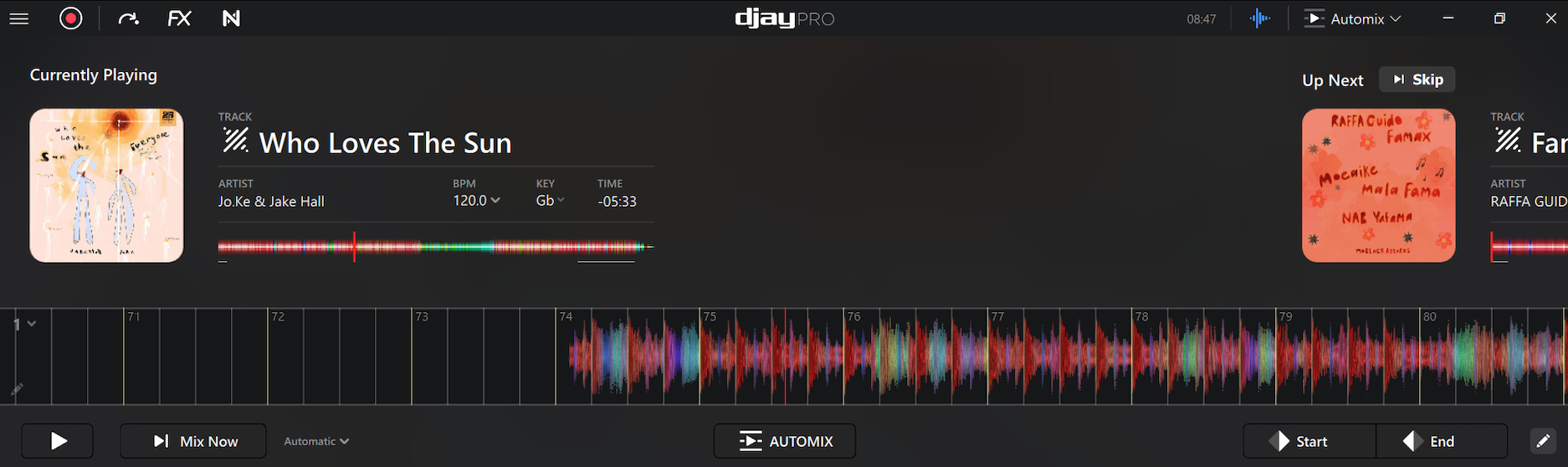
For the full walkthrough, including mix settings and transition types, see Using Automix.
Four Decks
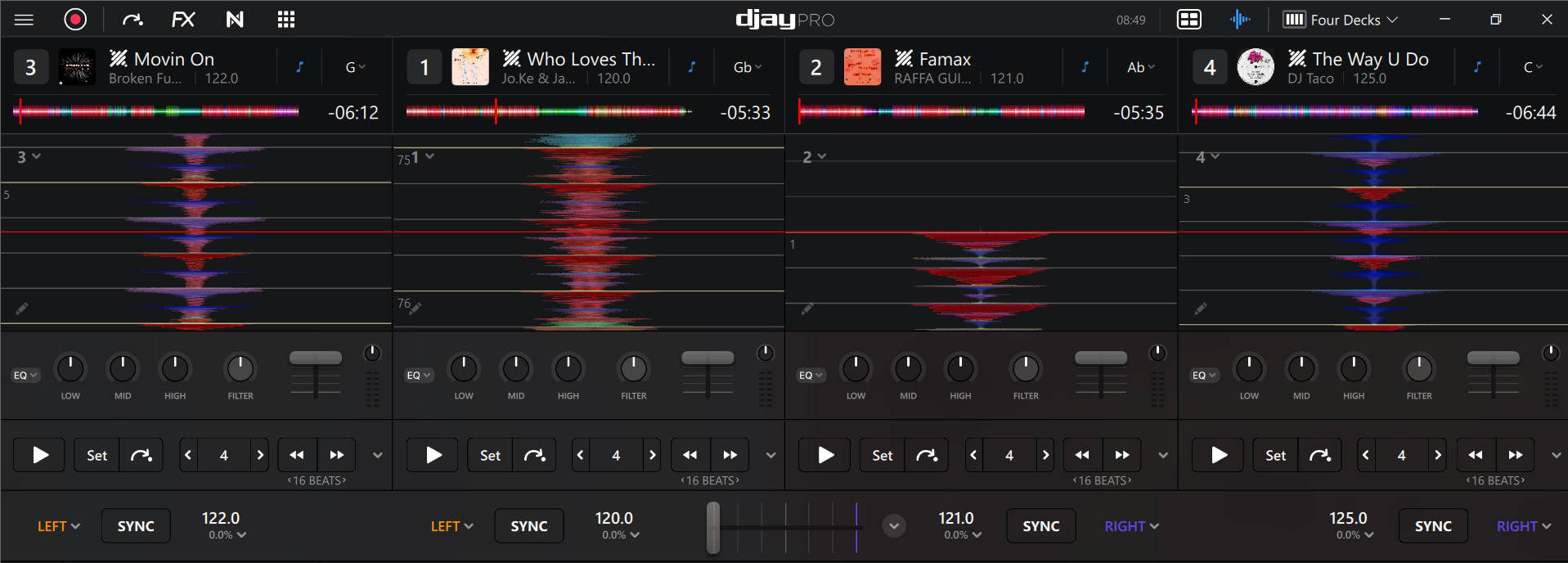
In Four Decks mode, you can mix live between four tracks. It's similar to the two-deck layout, but with a few changes to the interface to fit the extra controls.
In Four Decks mode, you can also choose horizontal or vertical waveforms. Vertical waveforms save space and allow for a more compact layout, while horizontal waveforms show a longer section of the scrolling track. The corresponding deck is numbered on each waveform.