


Appearance settings
Tailor the visual experience of djay to match your workflow and aesthetic. From customizing jog wheels and waveforms to tweaking font sizes and color coding, these settings help you see the information that matters most, exactly how you like it.
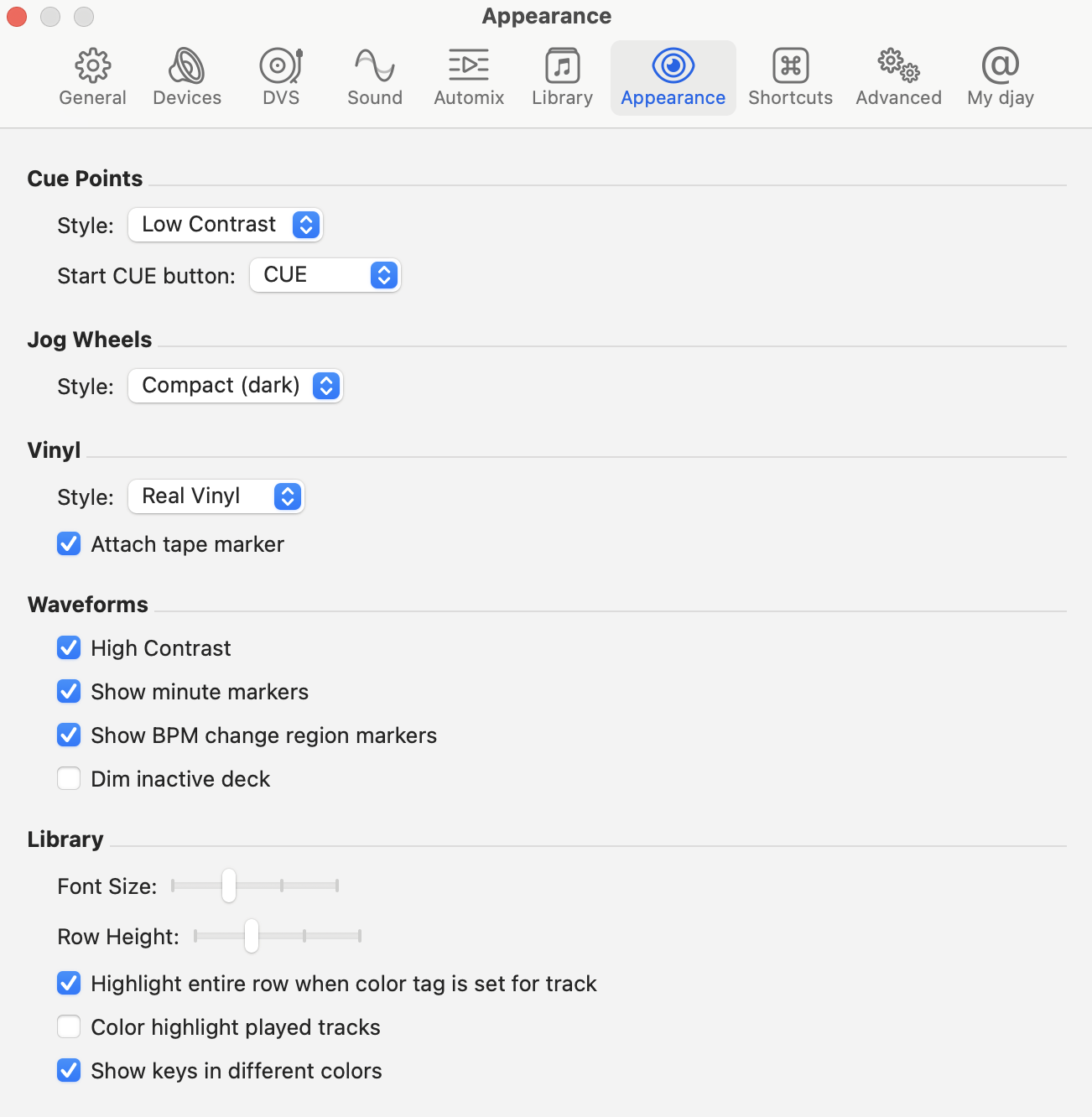
Cue points
- Style: Toggle between low or high contrast for clearer cue point visibility based on your preference.
- Start cue button: Choose between classic CDJ-style Cue button or separate Set and Jump buttons for more precise cue control.
Jog wheels
- Style: Choose between Compact (dark), Compact (light), or Extended jog wheels. Extended displays additional details like pitch percentage and upcoming cue points.
Vinyl
- Style: Choose a traditional vinyl appearance or a picture disc that uses your track artwork.
You can also add a white strip to visually mark the vinyl rotation point—great for scratching and cue reference.
Waveforms
- High contrast: Increases visual contrast between waveform and background.
- Show minute markers: Displays white dots at every minute to help with timing and phrasing.
- Show BPM change region markers: Highlights regions of tempo change for better visual beatmatching.
- Dim inactive deck: Visually fade the deck that’s not currently active for better focus.
Library
- Font size: Adjust the size of the text in your library for comfort and readability.
- Row heights: Change how compact or spacious the rows appear in the music list.
- Highlight entire row when color tag is set for track: When a track has a color tag, the entire row will be shaded in that color for quicker visual recognition.
- Color highlight played tracks: Tracks that have been played are dimmed or highlighted, helping you avoid repeats during a set.
- Show keys in different colors: Apply color coding to keys based on musical compatibility, helping you spot harmonically compatible tracks at a glance.