


Understanding the interface
Before you start mixing, it helps to know your way around the djay interface. The layout is designed to feel familiar whether you’re using digital decks or hardware, with all the essential tools placed within easy reach. In this section, we’ll walk through the main areas of the screen so you know exactly where to find the controls you’ll use most.
-
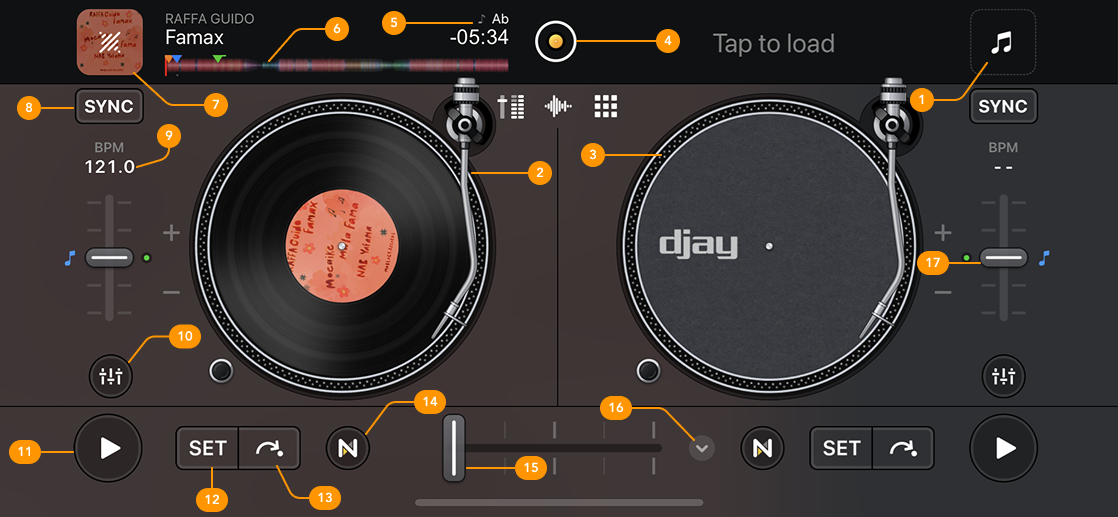
Track load: Tap to add a track to the deck.
-
Deck 1: This is where you play and manipulate tracks on the left deck—via the digital turntables or hardware.
-
Deck 2: This is where you play and manipulate tracks on the right deck—via the digital turntables or hardware.
-
Dashboard button: Opens the main menu with view modes, Mix Recorder, Automix, and more.
-
Track information: Displays the track’s key and elapsed or remaining time. Tap to toggle between time views.
-
Waveform overview: The visual representation of track 1's audio. Waveforms show volume and frequency content, often using color to distinguish highs, mids, and lows. If cue points, loops, or cue loops have been saved, they’ll also appear here to help you stay on track while mixing.
-
Cover art display: Displays the artwork of the track loaded on the deck.
-
Sync button: Tap to match the BPM of the current track to the one playing on the opposite deck.
-
BPM: Shows the tempo of the loaded track.
-
Tools: Opens djay’s creative controls, including Neural Mix™, cue points, loops, audio effects, and more.
-
Play button: Press to start or pause playback on the deck. Each deck has its own play button, so you can control tracks independently.
-
Cue set: Sets a temporary cue point at the current location of the red play marker.
-
Cue jump: Returns playback to the set cue point. If held, plays from the cue point. If no cue point is set, returns to the start of the track.
-
Essential Tools: Provides two FX channels next to each deck. Switch between Neural Mix™, FX, and Beat Skip via the dropdown menu.
-
Crossfader: Blend audio between the left and right decks. Move it left to play the left deck, right for the right deck, or center the crossfader to mix both.
-
Crossfader FX: Applies transition effects to the audio when blending between decks.
-
Tempo slider: Change the speed of the track by moving the slider up or down to slow down or speed up playback.
If you’re new to djay or DJing, you’ll find step-by-step explanations of every feature later in this manual.