


Cue points
Cue points are markers within a track that let you instantly jump to important sections, such as a verse, drop, breakdown, or your preferred mix-in and mix-out spots. They are essential for both live mixing and track preparation, helping you time transitions, layer elements, and stay creative during your set.
To access cue points, tap the Tools button. Tools are available in Classic, Pro, and 4 Deck views.
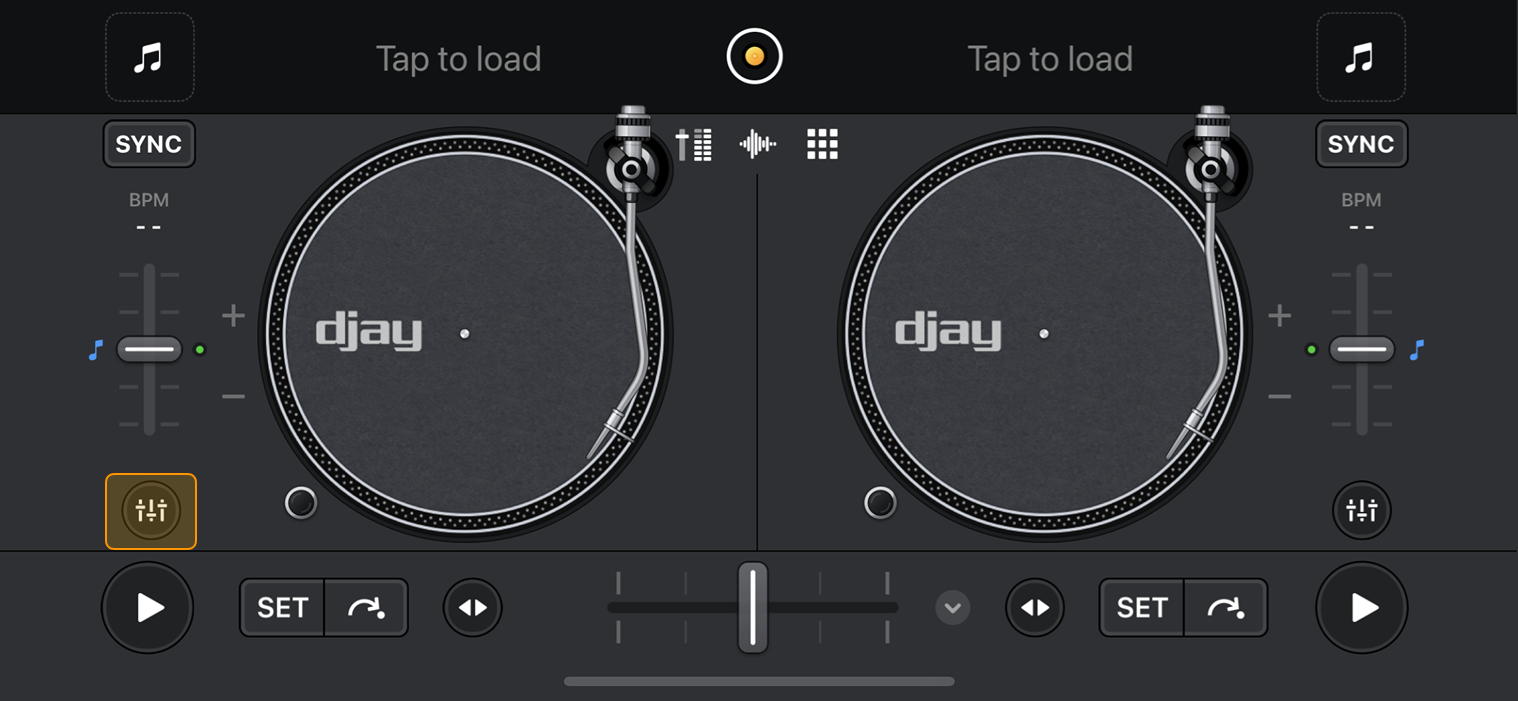
The location of the Tools button may vary depending on the deck view.
To find cue points, tap the Cue points icon > Cue to open the cue section. From here, you can also access Pitch Cue and Skip.
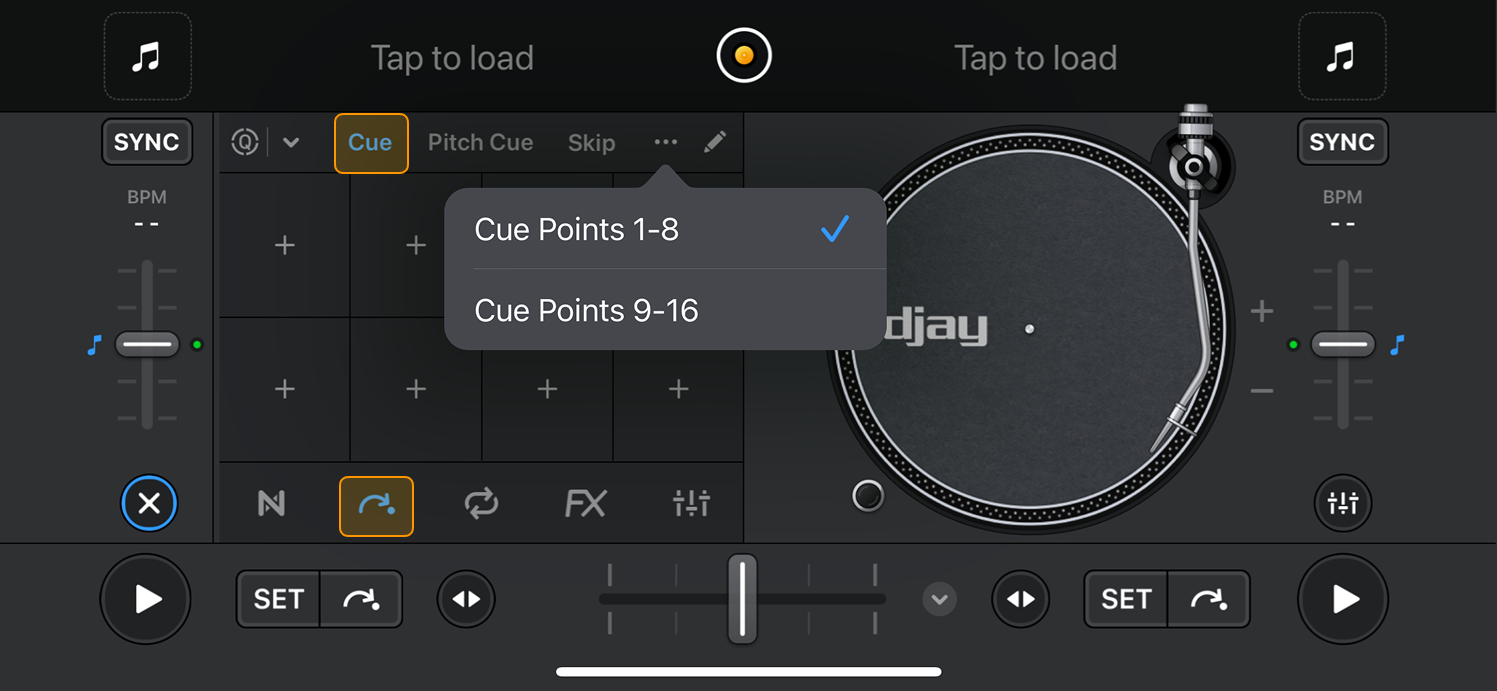
You can store up to 16 cue points per track. Cue points can be set on the fly during a mix or prepared in advance, and they remain saved in your collection. You can switch between cue points 1–8 and 9–16 by tapping the three-dot menu.
How to create a cue point
To set a cue point, move the playhead to the desired position and tap an unassigned cue pad. Each cue point is color-coded and can be renamed for quick identification on the waveform.
Cue points appear in three places:
- The Cue Point Section pads
- The track waveform
- The cue pad matrix on supported hardware controllers
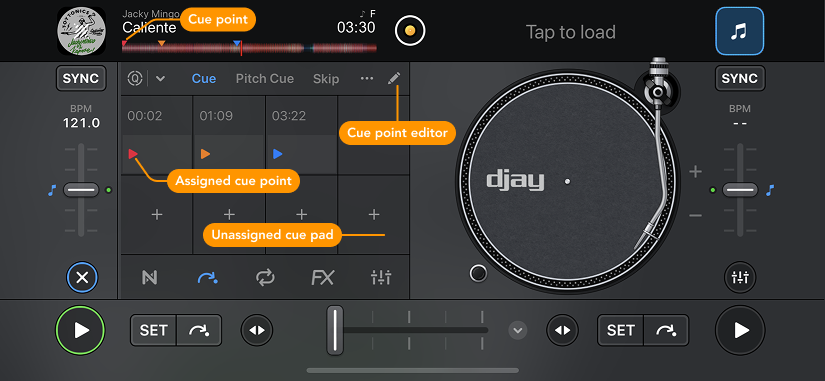
How to delete or rename a cue point
Tap the cue point editor (pencil icon) in the cue point section.
- Tap the X on the cue button to delete it.
- Tap the dropdown menu next to the time stamp to rename the cue point or assign it a color.
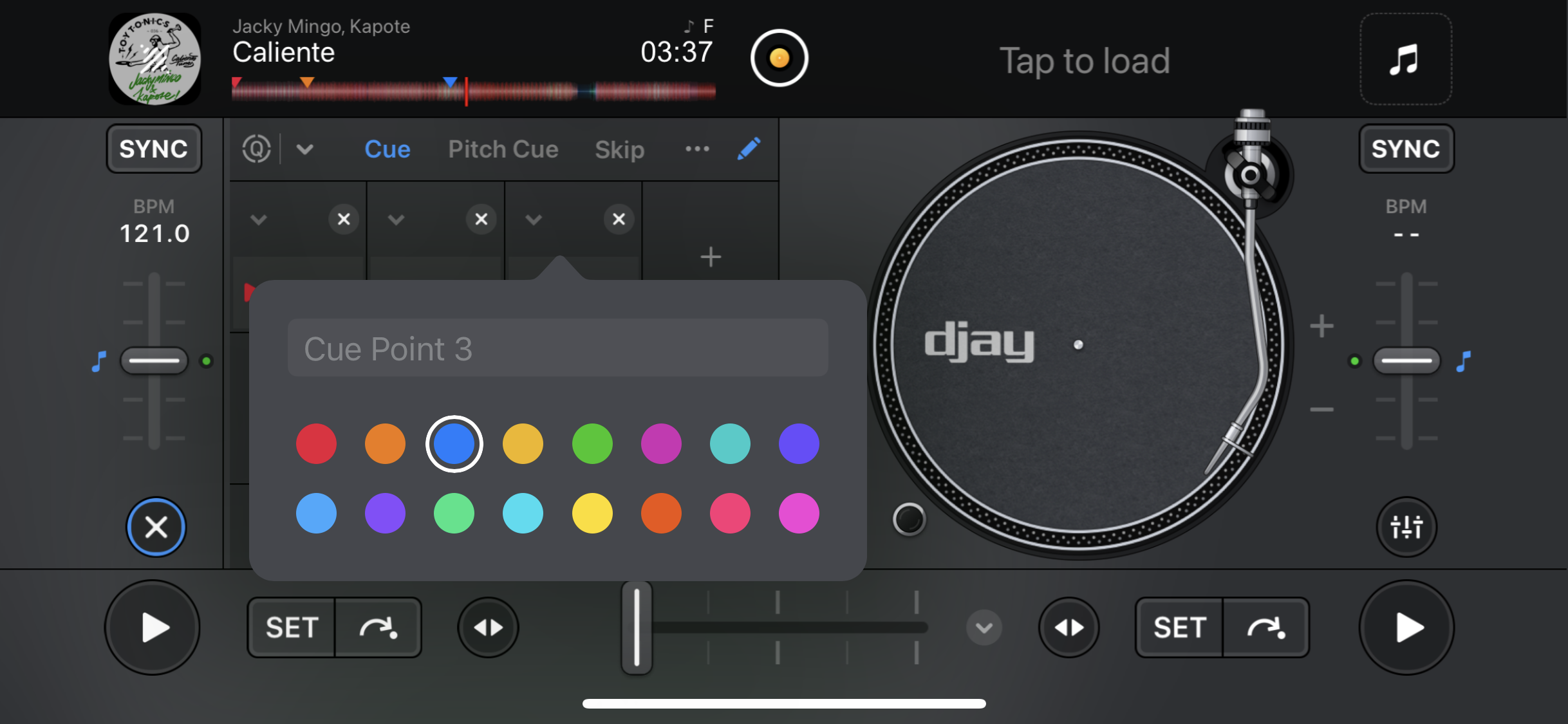
Use a consistent naming and color scheme across your library to quickly identify which section of the track each cue leads to—like intros, drops, or transitions.
Quantizing cue points
You can enable Quantize to ensure cue points stay in sync with the beat.

- Toggle the Quantize switch.
- Select a snap value (1/16, 1/8, 1/4, 1/2, 1 beat, or 4 beats).
The quantize function works for loops as well, helping you stay rhythmically tight when triggering loops or cue points in real time.