


Adding music from external storage in djay
djay lets you load music directly from external storage devices such as SD cards, USB drives, and external hard disks. You can drag and drop tracks straight into djay or add folders to the My Files library source for quick access. This article explains the different ways to access and use external files in djay.
- macOS
- Windows
- iOS
- Android
Adding music from external drives on macOS
- Connect your external drive (USB stick, SD card, or hard drive) to your Mac using the appropriate adapter or port.
- In djay, open the My Files source in the music library and click the + button.
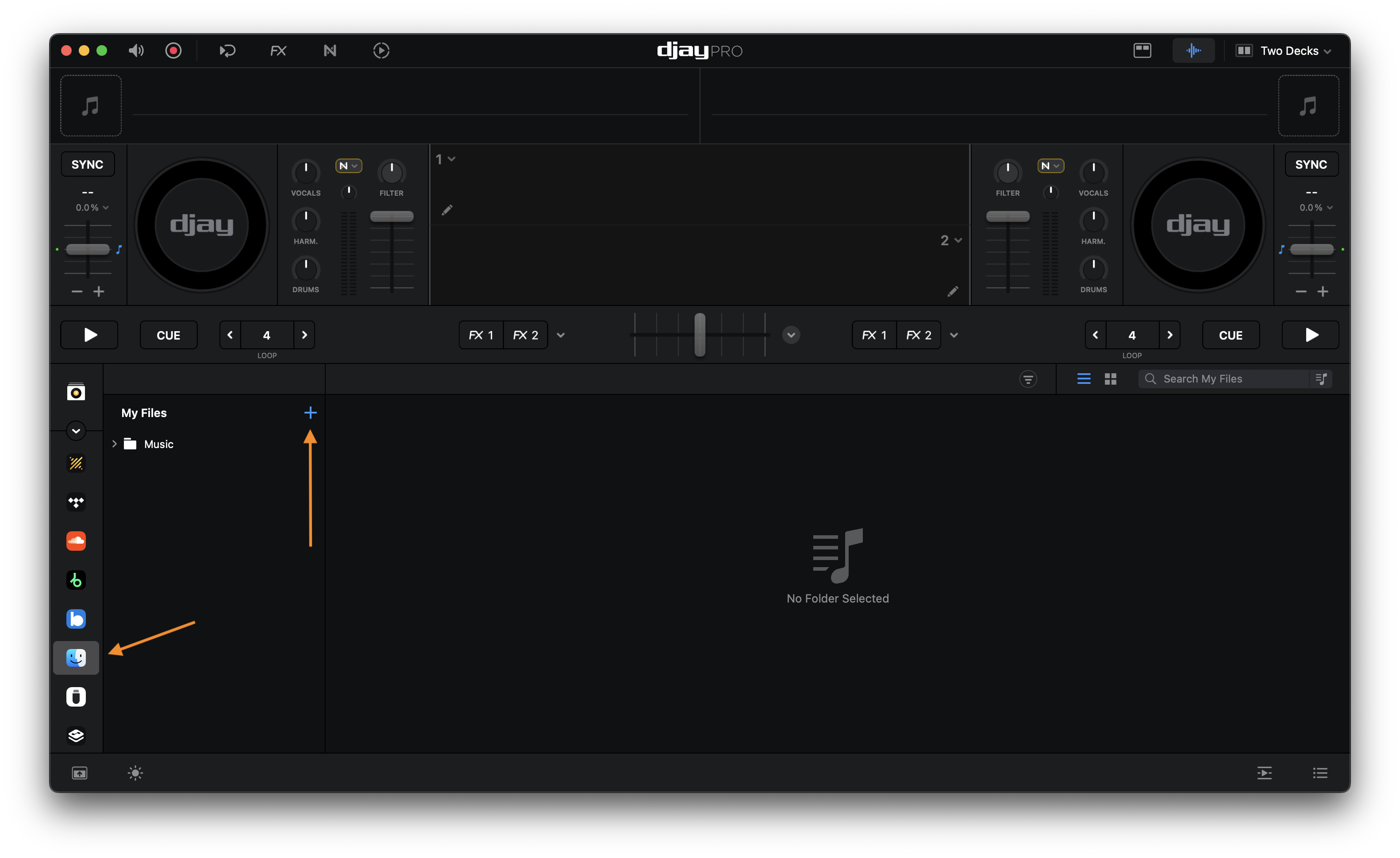
- Choose Add Files to select individual tracks or Add Folder to add an entire folder.
- In the file browser, navigate to your external drive (e.g., USB MUSIC).
- Select the files or folder you want to add.
- Click Open to confirm. Your selected music will now appear in the My Files collection.
djay creates a reference to the original folder — your music stays on the external drive and is not duplicated or moved.
Using drag-and-drop
- Open a Finder window and navigate to your external drive.
- Locate an audio file you want to use.
- Drag the file directly onto one of the decks in djay to load it instantly.
- (Optional) When using Automix, drag one or more tracks from Finder directly into the Automix Queue.
Adding music from external drives on Windows
- Connect your external drive (USB stick, SD card, or hard drive) to your Windows PC using an available USB port or adapter.
- In djay, open the My Files source in the music library and click the + button.
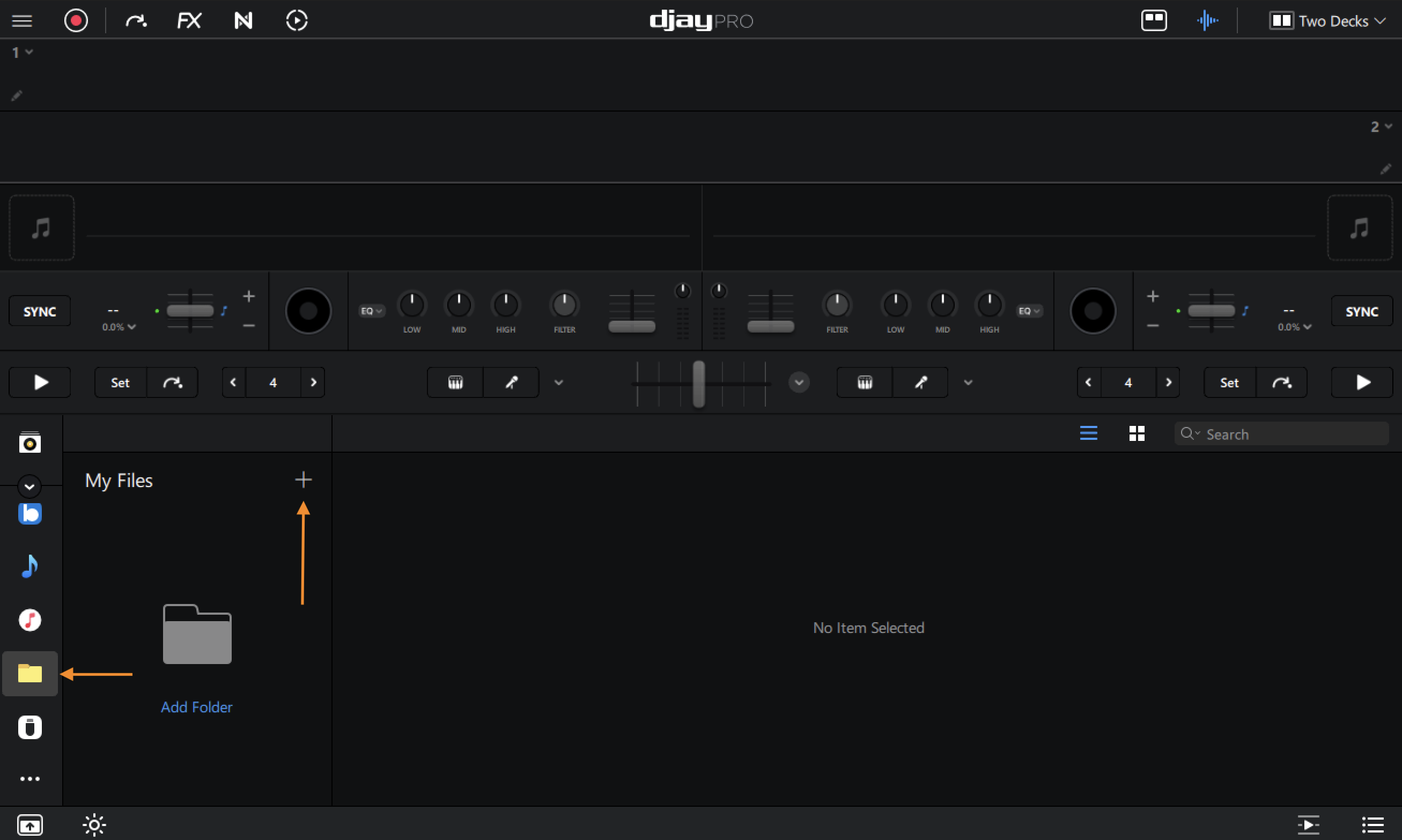
- Choose Add Files to select individual tracks or Add Folder to add an entire folder.
- When the file browser opens, navigate to your external drive (e.g., USB DRIVE or *D:*).
- Select the files or folder you want to add.
- Click Select Folder or Open to confirm. Your selected music will now appear in the My Files collection.
djay creates a reference to the original folder — your music stays on the external drive and is not duplicated or moved.
Using drag-and-drop
- Open File Explorer and navigate to your external drive.
- Locate an audio file you want to use.
- Drag the file directly onto one of the decks in djay to load it instantly.
- (Optional) When using Automix, drag one or more tracks from File Explorer directly into the Automix Queue.
Using the Files collection on iOS
djay for iOS allows you to load and play music from a variety of external and cloud-based sources using the Files app. This includes connected USB drives, iCloud Drive, and third-party storage providers. Tracks must be fully accessible in the Files app for djay to load them.
Requirements
- djay for iOS version 5.3 or later
- An active PRO subscription
- iPhone with iOS 15 or later, or iPad with iPadOS 15 or later
Adding music from external drives
- Connect your external drive using the correct adapter:
- Lightning devices: Lightning to USB 3 Camera Adapter
- USB-C devices: USB-C Digital AV Multiport Adapter
- In djay, open the Files tab in the music library.
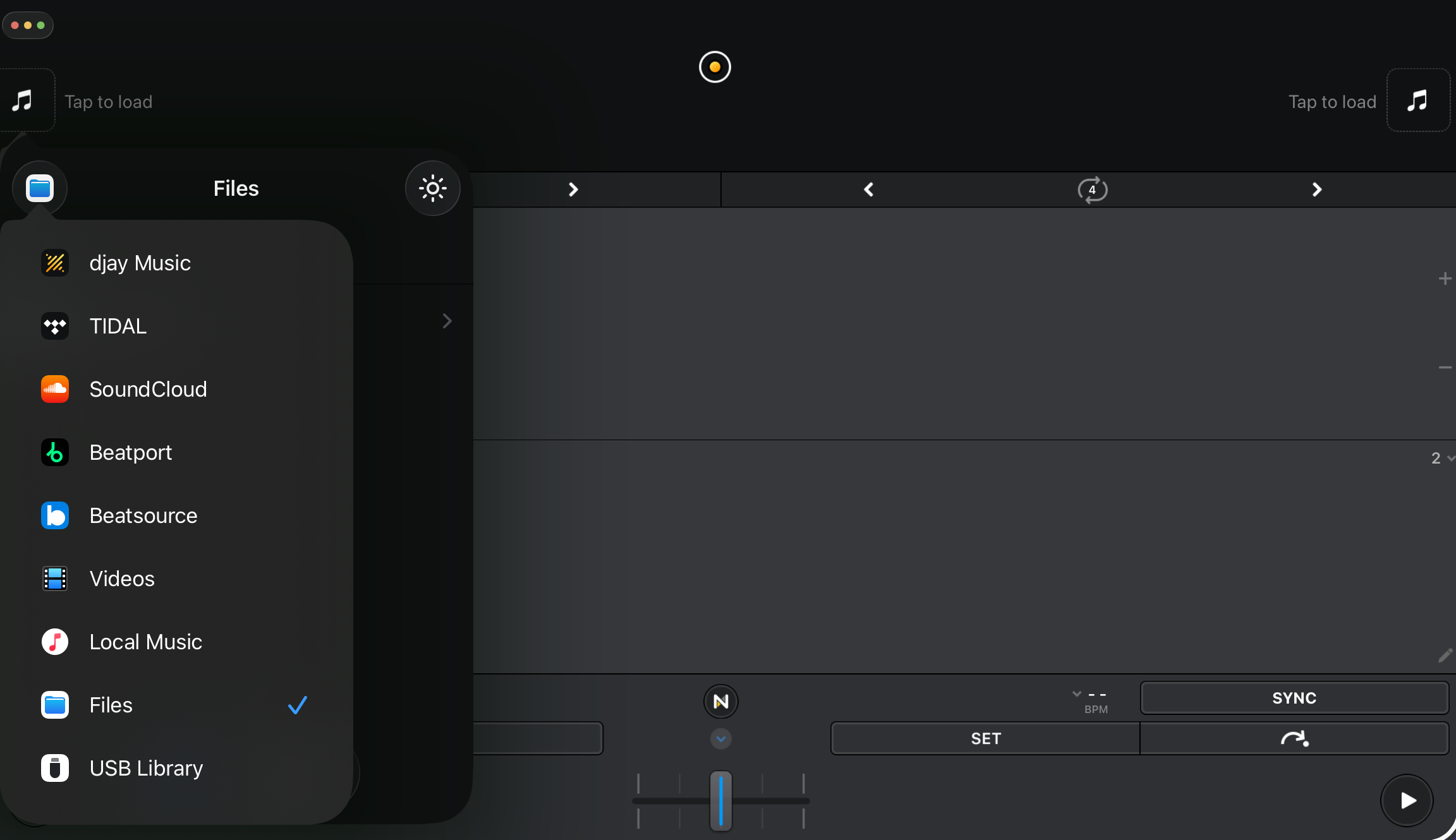
- Tap the + icon (top-left) and choose Add Files to select individual tracks or Add Folder to add an entire folder.
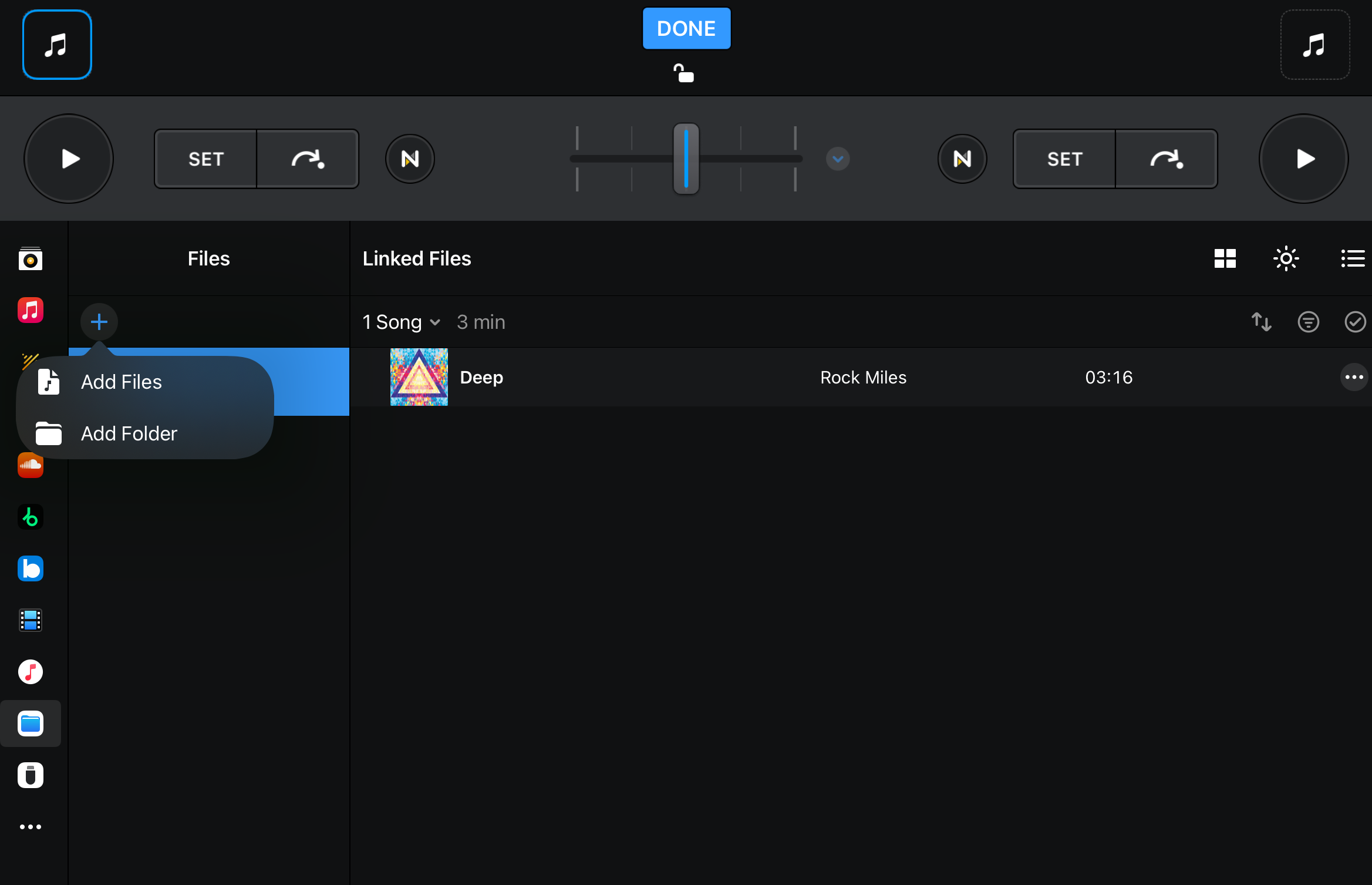
- In the file browser, navigate to your external drive (e.g., USB MUSIC).
- Select the files or folder you want to add.
- Tap Done. Your selected music will now appear in the Files collection.
Adding music from iCloud Drive
- In the Files tab, tap the + icon and choose Add Files or Add Folder.
- Navigate to iCloud Drive and select the songs or folder you want to import.

- Ensure the selected tracks are fully downloaded on your device.
Files stored only in the cloud cannot be played until they are downloaded locally.
Adding music stored locally in the Files app
- In the Files tab, tap the + icon and choose Add Files or Add Folder.
- Navigate to On My iPhone or On My iPad, then choose the files or folders you want to add.
- djay does not duplicate or move your music files — it creates a reference to the original location.
- Searching within the Files collection is not supported due to iOS system limitations.
Using the Files collection on Android
The Files collection in djay for Android lets you access and play music stored on external media such as USB sticks and hard drives. Once added, your tracks appear in the Files collection for easy browsing and loading.
Requirements
- Device running Android 10 or newer
- An active PRO subscription
- OTG-compatible adapter (USB-C, Micro USB, etc.) to connect external media
Adding music from external drives
- Connect your external drive (USB stick, hard drive, etc.) to your Android device using the correct OTG-compatible adapter.
- In djay, open the Files tab in the music library and tap the + icon in the upper-right corner.
- Select Add Folder.
- A system pop-up will appear showing available folders on your device. Navigate to your external drive and choose the folder you want to add.
- Tap Use this folder to confirm.
- If prompted, grant djay permission by tapping Allow.
- The folder will now appear in your Files collection, with all of its songs available to load in djay.
djay creates a reference to the selected folder — your music stays on the external drive, and files are not duplicated.