


Playlists
Playlists are essential for every DJ. They help you structure sets, organize tracks, and create specific moods, so you can quickly find the perfect song while you're in the flow.
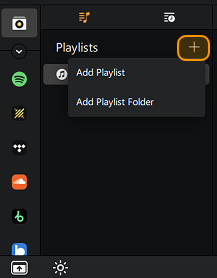
How to create a playlist
- Click My Collection.
- Open the Playlists browser.
- Click the + button and select Add Playlist from the menu.
- A new blank playlist will appear.
- Rename your playlist.
- Drag and drop tracks from your collection into the new playlist.
To rename or delete a playlist, right-click or press delete on the playlist name.
Playlist folders
Playlist folders help you keep multiple playlists organized in one place.
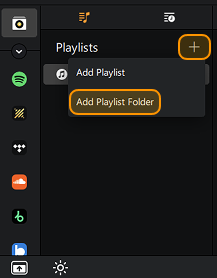
How to create a playlist folder
- Go to My Collection.
- Click the + button.
- Click Add playlist folder.
- Enter a name for the folder.
Once the folder is created, you can add new playlists using the + button, or move existing playlists into the folder.
To rename or delete a smart playlist, right-click or press delete on the playlist name.
Windows Media Player playlists
Any playlists created in Windows Media Player can be accessed via the Music playlists tab in the side panel.

Changes made in Windows Media Player will be reflected in the djay Pro for Windows library browser when you launch it. This library contains all audio in the user home\Music folder.
iTunes playlists
You can browse your iTunes playlists by clicking the iTunes icon in the side panel.

You will need to make sure to export your iTunes.xml and point djay Pro to the correct location. When connected the library will show your playlists.