


An overview of the interface
Before you start mixing, it helps to know your way around the djay Pro interface. The layout is designed to feel familiar whether you’re using digital decks or hardware, with all the essential tools placed within easy reach. In this section, we’ll walk through the main areas of the screen so you know exactly where to find the controls you’ll use most.
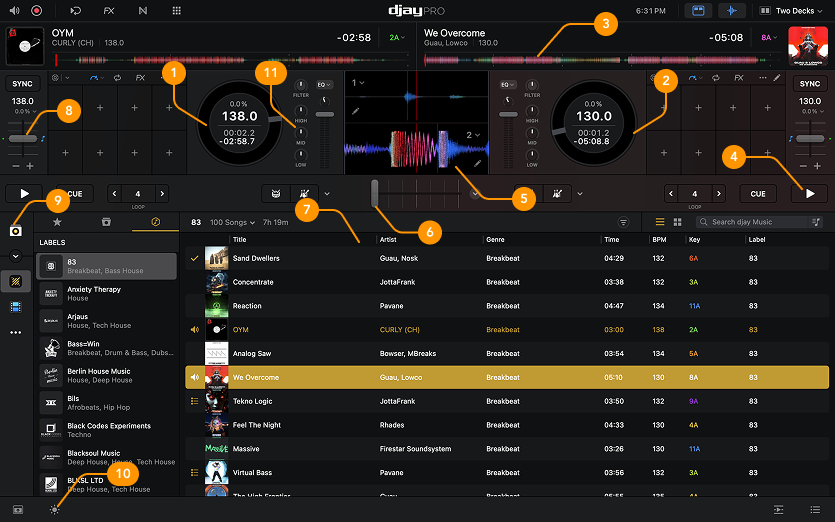
-
Deck 1: This is where you load, play, and manipulate tracks on the left deck—via the digital turntables or hardware.
-
Deck 2: This is where you load, play, and manipulate tracks on the right deck—via the digital turntables or hardware.
-
Waveform overview: The visual representation of deck 2's audio. Waveforms show volume and frequency content, often using color to distinguish highs, mids, and lows. If cue points, loops, or cue loops have been saved, they’ll also appear here to help you stay on track while mixing.
-
Play button: Press to start or pause playback on the deck. Each deck has its own play button, so you can control tracks independently.
-
Scrolling waveform: A zoomed-in view of the track’s audio, showing beat and sound detail as the track plays. The waveform scrolls in real time to follow the deck’s progress.
-
Crossfader: Blend audio between the left and right decks. Move it left to play the left deck, right for the right deck, or center the crossfader to mix both.
-
Playlist window: Shows the contents of the currently selected playlist, including tracks and relevant details like BPM, key, and duration.
-
Tempo slider: Change the speed of the track by moving the slider up or down to slow down or speed up playback.
-
My Collection: Organize and manage your music library. Features include smart playlists, search filters, and split library mode for easier browsing and control.
-
Light/dark mode: Quickly toggle between light and dark mode
-
Mixer: The hub of the equipment where you control the output of your mix by adjusting channel volume, gain, EQs, filters, and the crossfader.