


Sampler overview
Sampler lets you trigger one-shot sounds and audio clips on top of your mix—live and in sync with the beat. It’s a powerful way to add extra layers, textures, and energy to your set. Whether you’re dropping vocal chops, sound effects, percussion hits, or custom samples, Sampler helps you create unique transitions, build tension, and play samples like an instrument.
Use the 8x2 pad grid to launch one-shot samples such as vocals, drums, or FX. You can add or replace samples by using the sample editor (pencil icon). You can use Sampler with built-in sample packs or your own recordings, and also adjust the volume of each individual sample using the knob on the left side of the pads.
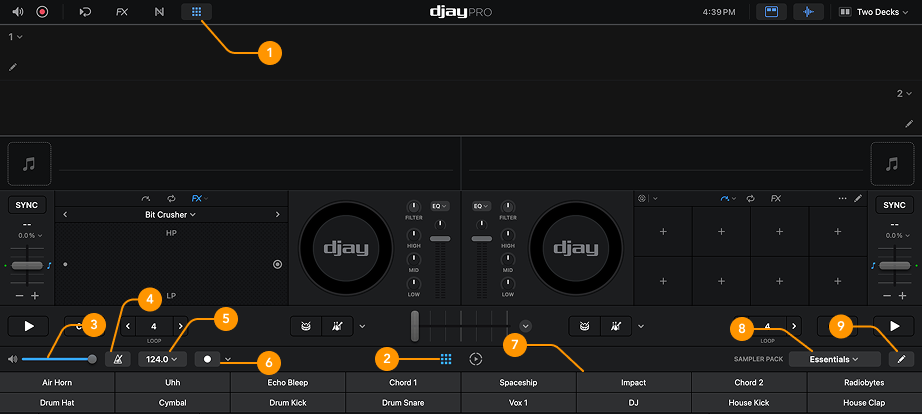
To open Sampler, click Sampler/Looper in the main toolbar and then select the Sampler icon in the toolbar beneath the crossfader.
-
Sampler/Looper toolbar: Opens the Sampler and Looper controls via the toolbar.
-
Sampler: Selects the Sampler view.
-
Volume slider: Adjusts the playback volume of your samples.
-
Metronome: Use the Metronome to keep in time with your chosen BPM.
-
BPM: Set the BPM for both the Metronome and Sampler Sequencer.
-
Sampler Sequencer: Record a 4- or 8-beat loop using the currently loaded sampler pack.
-
Sample grid: Displays the 16 samples available in the selected sampler pack.
-
Sampler packs: Choose from different sampler packs using the dropdown menu.
-
Sample editor: Swap or remove samples, or record short samples directly from Deck 1 or Deck 2.
Sampler is only available with a PRO subscription.