Adjusting BPM and tempo
Accurate BPM and tempo settings are essential for tight beatmatching and smooth transitions. djay Pro analyzes tracks automatically, but some tracks may be slightly off or detected at half or double their true BPM. You can quickly correct this to ensure the beatgrid lines up perfectly with your music.
Editing BPM analysis
- Click the BPM value above the tempo slider.
- Select Edit BPM.
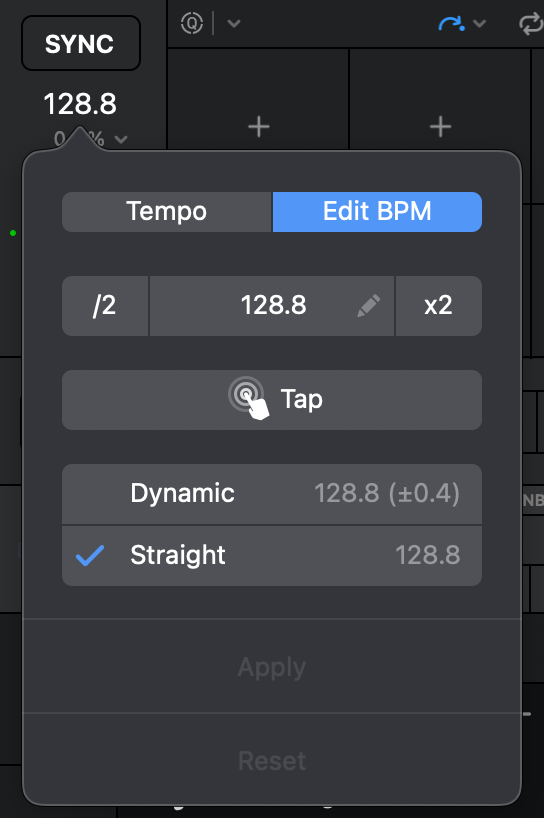
Adjusting BPM analysis
- Halve or double: Tap /2 or x2 to correct tracks analyzed at half or double speed.
- Manually set BPM: If you know the BPM is incorrect, tap the BPM value and manually enter the correct tempo (e.g., 127.50) if needed. djay will reanalyze the beatgrid at that tempo.
- Tap to set BPM: Tap along with the beat to set the tempo manually. djay will update the beatgrid based on your input.
- Beatgrid type: djay automatically analyzes whether a track should use Dynamic or Straight beatgrids. In the rare case it’s incorrect, you can choose your preferred format.
You can also change the analysis settings by going to Settings > Library > BPM analysis.
Once you have the correct BPM, tap Apply to save or Reset to restore the previous setting.
Fine-tuning tempo
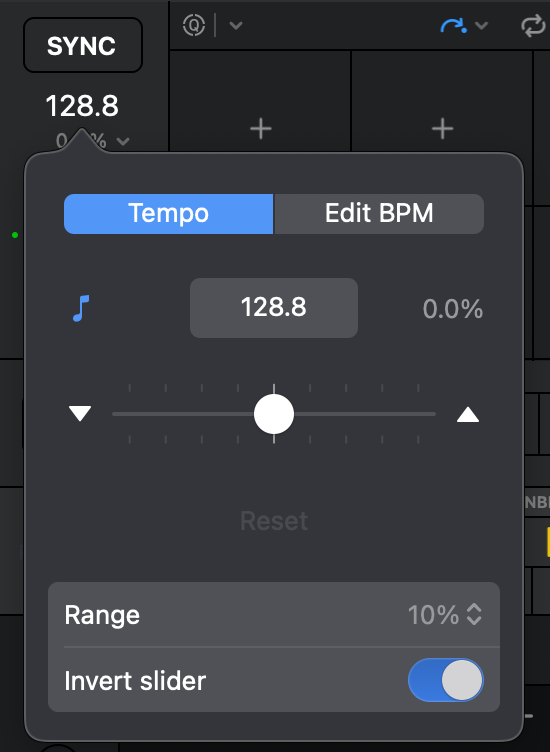
The Tempo tab lets you fine-tune how the tempo slider behaves, giving you more control over your mixes.
- Change the percentage range to set how far the slider adjusts track speed.
- Invert the slider direction if you prefer the opposite feel.
These settings help you match tracks more precisely across genres and give you the flexibility to mix in the way that feels most natural.