


Mapping a MIDI device
If your controller isn’t natively supported, you can still use it with djay’s MIDI Learn feature. This lets you map hardware controls directly to djay functions on your iOS device. You can also edit the mapping of supported controllers to customize your workflow.
note
An active PRO subscription is required to use MIDI mapping.
Getting started with MIDI mapping
- Launch djay.
- Connect your Lightning or USB-C to USB-A adapter to your device.
- Connect your device’s power cable to the adapter to charge your iOS device and power the controller if needed.
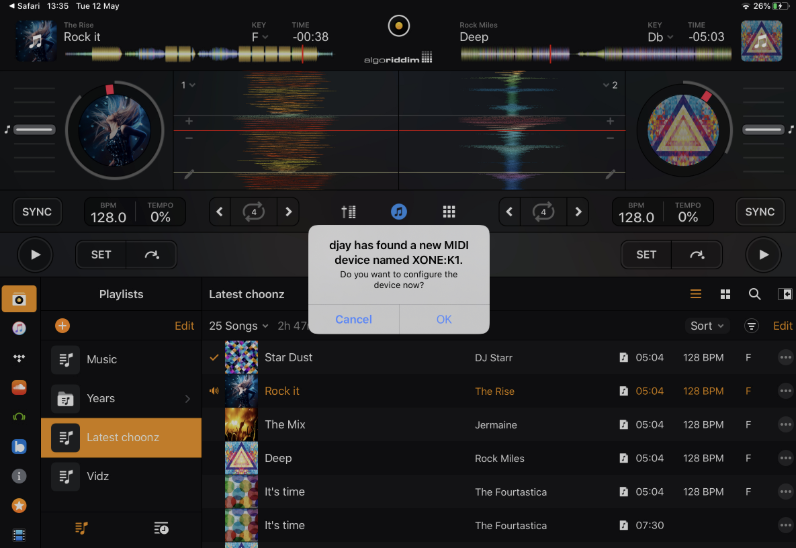
- Power on the controller. A pop-up message will appear asking if you want to configure the device.
- Tap OK to open the MIDI Configuration window.
- Press, slide, or turn the MIDI control you want to map. The editor detects the note or CC and adds it to the list. If supported, hold SHIFT while adding commands to create extra layers of controls.
- Tap the new control in the list to edit it, then choose an Action (the command it will perform).
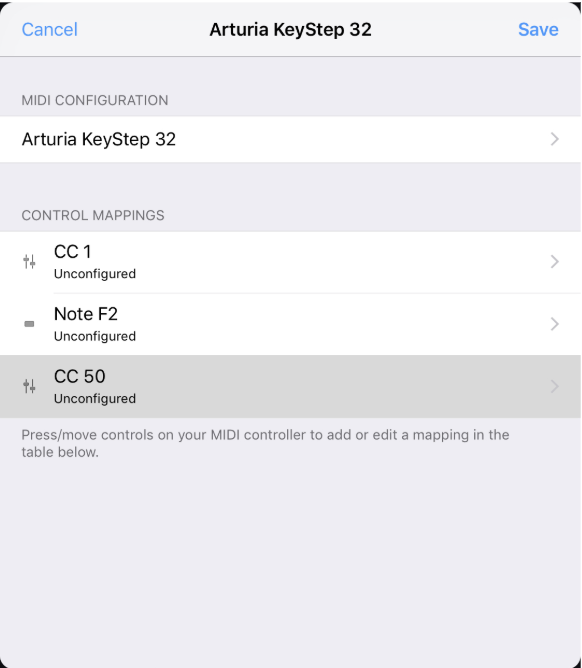
- Assign a Target (the part of djay to control) and an Action (the function it performs).
- Tap Save in the top right corner, then test your mapping directly in djay.
note
The available actions vary depending on the type of MIDI control.
How to edit MIDI mappings
You don’t need to start from scratch to customize your controller. With djay’s MIDI editor, you can refine existing mappings, add new actions, or adjust controls to better fit your workflow.
- Go to Dashboard > Settings > MIDI devices.
- Select the controller you want to edit. This opens its MIDI Configuration window. The editor shows a list of all mapped controls for the device.
- Use the mapping screen to change existing commands or add new ones. Follow the same steps as in Getting started with MIDI mapping.
tip
When editing a mapping, save your changes under a new name so you can always go back to the original version.