


Mapping jog wheels
Jog wheels are essential for hands-on control in a DJ setup, allowing you to scratch, nudge, and manipulate tracks in real time. Mapping your jog wheels correctly ensures they behave the way you expect—whether you're performing precise beatmatching or expressive scratch routines.
This section guides you through setting up jog wheels via MIDI mapping for the best possible response and feel.
To set up your jog wheel settings, go to Settings > MIDI devices, and tap the name of your controller.
MIDI commands
To enable basic jog wheel functionality, three MIDI commands need to be mapped:
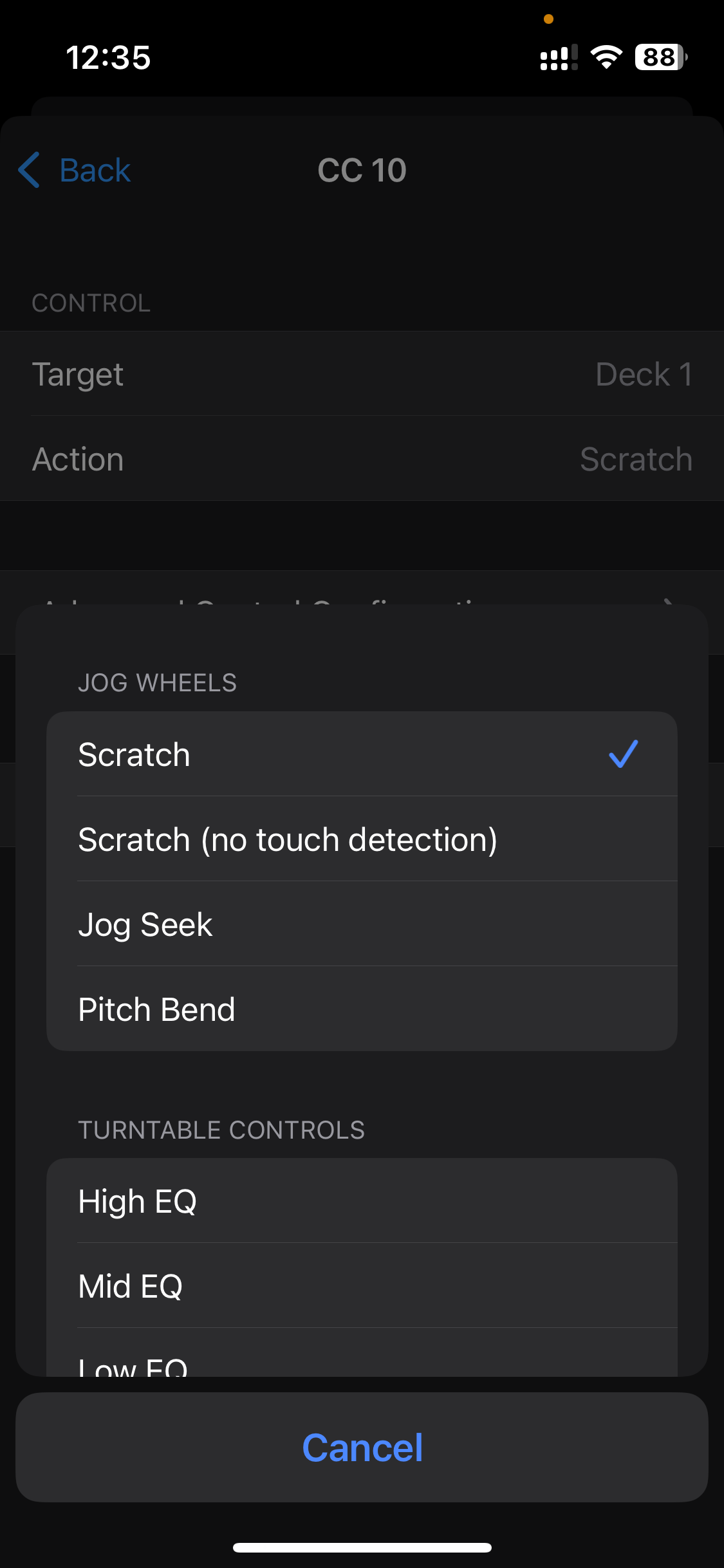
- Scratch (no touch detection)
- Scratch (CC)
- Pitch Bend (CC)
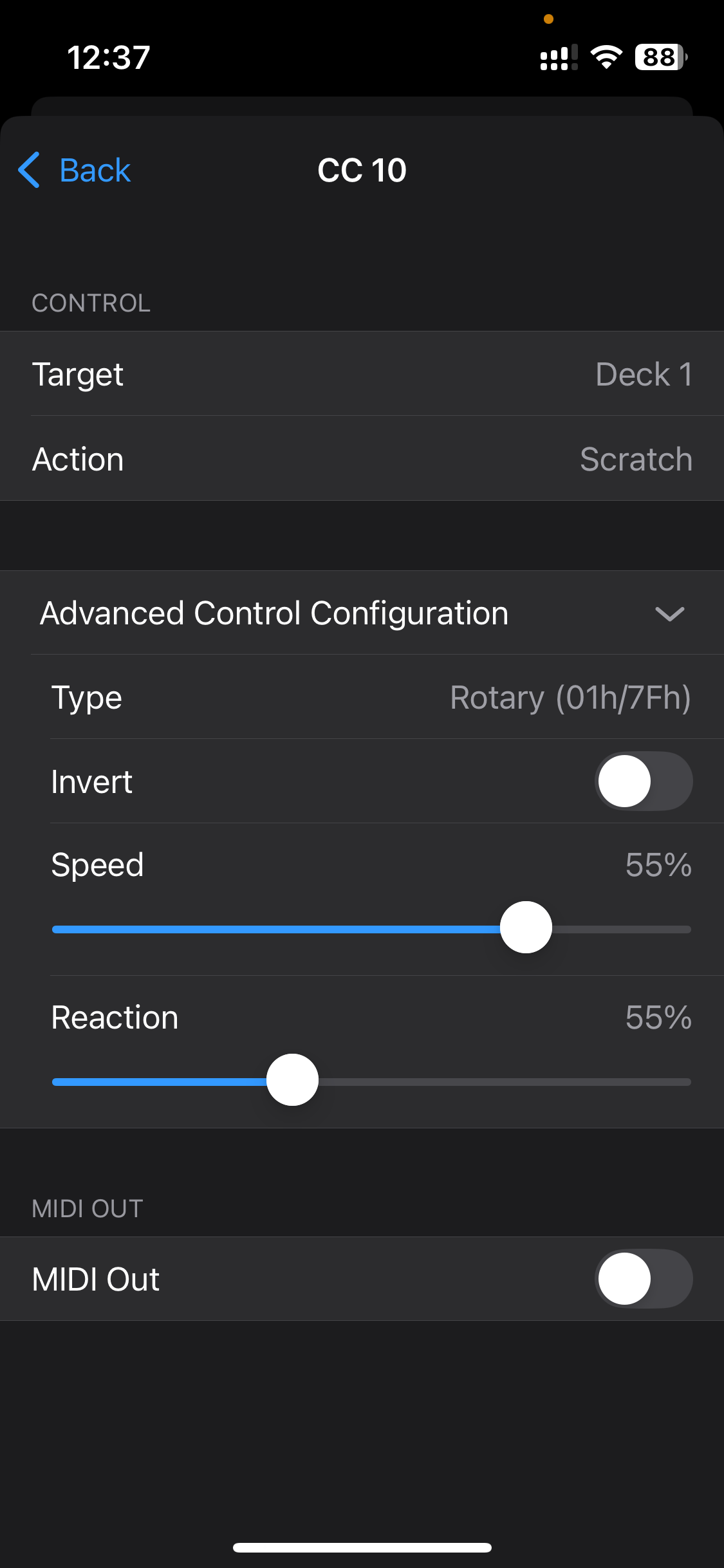
You’ll also want to adjust Speed and Reaction in the MIDI editor for the best feel. You can edit your jog wheel MIDI mappings within the device MIDI Configuration editor.
Scratch (no touch detection)
- For non-touch-sensitive platters.
- Touch the jog wheel to add the note in the editor.
- Assign Deck > Scratch (no touch detection).
If your hardware has touch-sensitive jog wheels, use the Scratch CC instead. Check your hardware specifications to find out if your controller has touch sensitive jog wheels.
Scratch (CC)
- Touch the top of the jog wheel and move it back and forth in a scratching motion.
- Add the command in the editor and assign Deck > Scratch.
- Use this if your controller has touch-sensitive jog wheels.
Pitch Bend (CC)
- Touch the side of the jog wheel and move it slightly.
- Add the command in the editor and assign Deck > Pitch Bend.
Fine-tuning Jog Wheel feel
Use the Advanced Control Options to fine-tune Speed and Reaction until the jog wheel feels natural.
If your controller supports it, you can add an extra layer of SHIFT commands by holding SHIFT while adding mappings in the MIDI Configuration editor.
Jog wheels are treated as rotary controls. You can map them to alternative functions like browsing your library or controlling effects for creative workflows.