


Loading a track
Before you can start mixing, you need to load music onto a deck. djay makes this quick and flexible, so you can start playing a track with just a few taps. Loading a track is the first step to getting the music flowing.
How to load a track onto a deck
- To load a track onto Deck 1, tap the music note icon on the left side of the screen, next to Tap to load.
- Choose a track from a library.
- The chosen track will begin playing automatically when it is loaded. To stop tracks playing automatically, go to Settings > General and turn off Start Playback.
- You can then repeat the steps to load a track onto Deck 2.
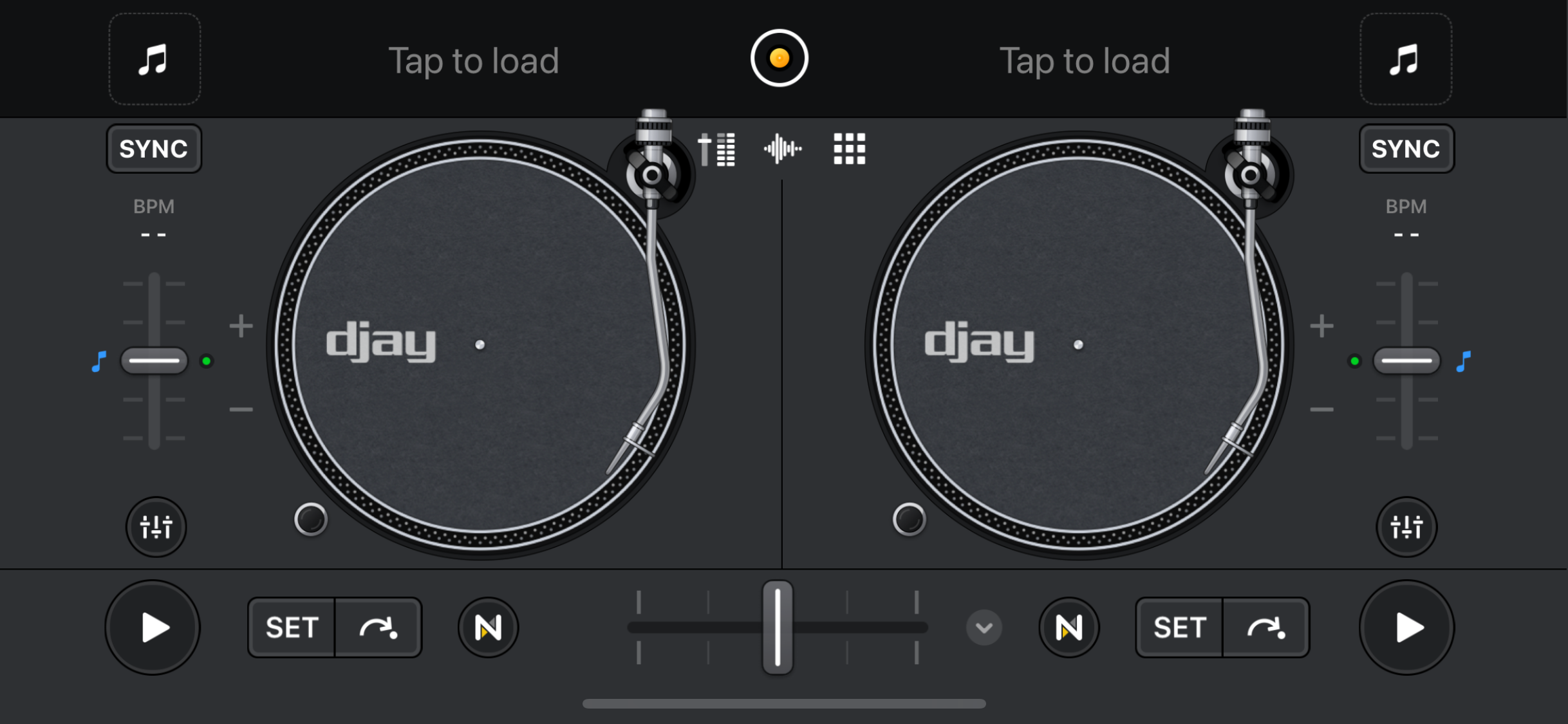
Remember to set the crossfader to the left (toward Deck 1) so you can hear the first track.
Accessing additional track options
The Track options give you quick access to useful tools without interrupting your mix. These shortcuts let you switch tracks, experiment with techniques, or queue up what’s coming next.
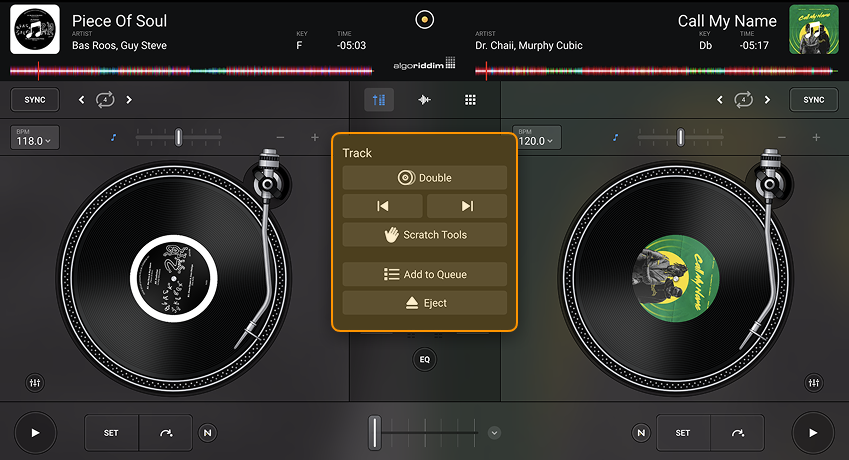
Press and hold the track artwork next to the waveform of a loaded track to open the additional options.
-
Double: Loads the same track on both decks. Perfect for experimenting with transitions, beat juggling, or learning a song’s structure.
-
Load previous / load next: Switch to the previous or next track in the current playlist.
-
Scratch tools: Instantly loads a scratch-ready track from djay’s built-in scratch tools.
tipYou can quickly access Scratch Tools by tapping and holding load track if the deck is empty.
-
Add to Queue: Adds the track to your queue.
-
Eject: Unloads the track from the deck.