


Beatgrid editor
djay’s beatgrid technology delivers highly accurate results across a wide variety of genres, but there may be times when you’ll want to fine-tune or adjust a beatgrid manually.
The Beatgrid editor is split into four parts to provide all the tools to manually adjust the beatgrid, if needed.
- BPM section
- Downbeat section
- Anchor section
- Grid section

Each section helps fix issues when a BPM may be slightly off, the downbeat is incorrect, a track begins off the beatgrid, includes tempo changes, or drifts slightly out of sync.
You can open the Beatgrid editor via the Tools Bar or by opening the quick access editor (pencil icon on the waveform).
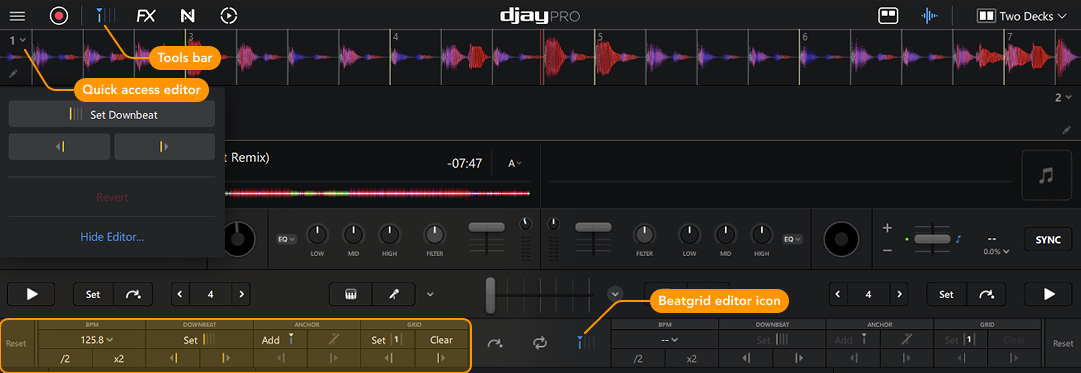
BPM section
djay Pro automatically analyzes the BPM of each track. In some genres—like Dubstep, Hip Hop, or Grime—songs are often written to work at both half-time and double-time. Because of this musical flexibility, djay may occasionally display the BPM as half or double of what you expect.
This doesn’t mean the analysis is wrong—just that the song can be interpreted in more than one way.
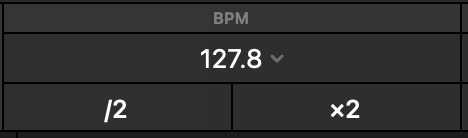
Quickly fix double or half-time issues
Use the /2 or x2 buttons in the BPM section to halve or double the tempo, depending on what’s correct for your track.
More BPM options
Click the dropdown menu next to the BPM value for additional adjustment options.
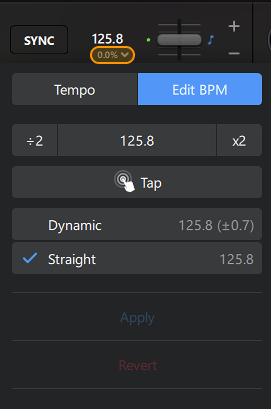
- Halve or double the BPM: same as the halve- and double-time buttons, but also available in the menu.
- Set the BPM value: In the rare case where the BPM is incorrect, you can manually enter the correct tempo (e.g., 127.50), if needed. djay will reanalyze the beatgrid at that tempo. In some cases the analyzed BPM may deviate from the one you inserted.
- Tap the BPM manually: You can also set the BPM by tapping along with the beat using your finger, mouse, keyboard, or MIDI controller—depending on your setup. djay will reanalyze the beatgrid based on your input.
- Switch between Dynamic and Straight beatgrid types: djay automatically analyzes whether a track should use Dynamic or Straight beatgrids. In the case it’s incorrect, you can change the beatgrid type selected by djay.
You can always click Reset to revert to djay’s original beatgrid.
Downbeat section
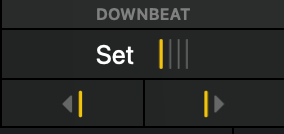
In most cases, the beatgrid will be perfectly aligned. Occasionally, you may notice that the downbeat or grid lines don’t match the track exactly in certain parts of a song. Sometimes the downbeat might be allocated to the wrong beat.
For example, the downbeat might fall on beat 3 instead of the first beat of the bar. In this case, set the downbeat manually via the Quick access editor or the Beatgrid editor.
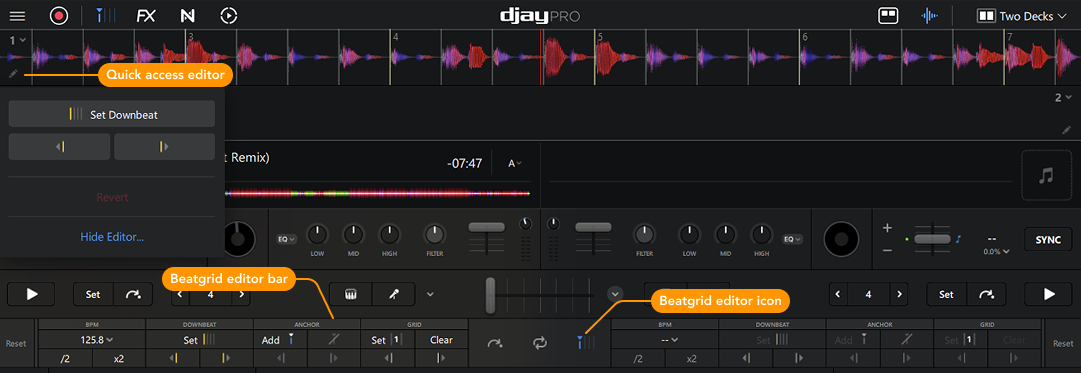
How to adjust the downbeat
- Load a track to the deck.
- Click the quick access editor (pencil icon on the waveform) or open the Beatgrid Editor from the tools bar.
- Use the arrows to shift the beatgrid along to the correct downbeat position.
- Click Set downbeat in the quick access editor (or Set if using the Beatgrid editor) to confirm where the downbeat should be.
- djay will update the beatgrid so that the new downbeat will be set across the entire track.
To revert to djay’s original beatgrid, click Reset.
Anchor section
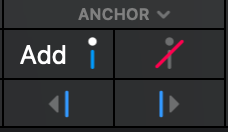
Anchor Points keep the beatgrid aligned when a track’s tempo changes over time. This is especially useful for live recordings, tempo switches, or songs that were not recorded to a fixed BPM.
When a track’s tempo shifts, the beatgrid may drift out of sync with the actual beats. Anchor Points let you manually correct this by fixing the grid to specific positions in the track. Each Anchor Point acts as a reference point for djay to recalculate the beatgrid between anchors, keeping it aligned with the music’s rhythm.

Adjusting the beatgrid using Anchor Points
- Play through the track and look for sections where the grid no longer matches the beat.
- Click Add to drop the first Anchor Point where the change begins.
- Add additional Anchor Points to the downbeats so djay can reanalyze the beatgrid. You don’t need to add anchor points throughout the whole track, just until you can see that the beatgrid is once again aligned.
- If your anchor points need minor adjustments, use the left and right arrows to adjust.
Anchor Points are like guideposts for the beatgrid when timings change. Once the Anchor Points are set, djay automatically adapts the timing between them, saving you time on manual adjustments throughout the whole track.
Anchor Points ensure accurate syncing, looping, and beatmatching even with tempo variations, allowing you to mix smoothly across tracks with changing tempos.
Grid section
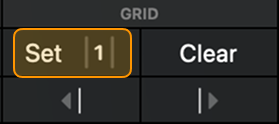
When a track has a long intro (e.g., ambient sounds before the beat drops) it’s important to set the 1st bar so the beatgrid starts when the beat kicks in. Setting the first bar at the correct point keeps the bar numbers aligned with the track’s phrasing.
Since most tracks follow 4- or 8-bar sections, placing bar 1 incorrectly can make it harder to follow where breakdowns, drops, or new layers will enter.
Move the play marker to where you want the beatgrid to begin and click Set to define the first bar. The numbered bars will count up from 1 from the point you set.
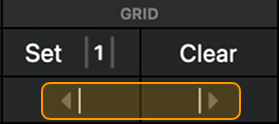
Use the Grid section arrows to nudge the entire beatgrid slightly left or right if the beat markers are a bit off and need a subtle adjustment.
For example, some sounds might have a soft fade or tail before the main hit. If the transient isn’t sharp, the beat marker might land slightly early or late. A small nudge helps line it up with where the beat feels strongest.
Click Reset to revert to djay’s original beatgrid.